Kennisbank
1.000 veelgestelde vragen, 500 tutorials en uitlegvideo's. Hier vind je alleen maar oplossingen!
Understanding kDrive v4 Synchronization Modes
This guide details how to manage the synchronization modes and file storage with the desktop application kDrive v4.x on macOS and Windows (this feature is called Lite Sync in version 3.x of the application).
Prerequisites
- Install the kDrive app for macOS (❓: help) or Windows (❓: help).
- This feature is not available on Linux.
Two synchronization modes
Managing files online and offline optimizes the storage space on your computer:
1. Stored online (enabled by default when installing version 4 of the app)
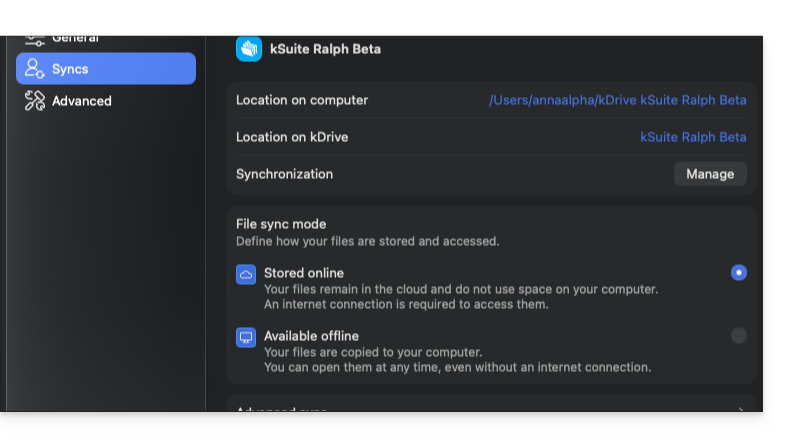
- Your files are primarily stored in the cloud, on the Infomaniak kDrive web application (online service ksuite.infomaniak.com/kdrive) and the kDrive mobile application (iOS / Android).
- They do not take up local disk space (only a few KB of data are stored, with or without an internet connection); they are called “dehydrated” files.
- The “dehydrated” file is downloaded automatically and on demand when it is opened (requires an internet connection).
- Any new file added to the kDrive folder on your computer is sent to the cloud as soon as an internet connection is available, and then:
- on macOS, it is never automatically dehydrated;
- on Windows, it also remains available on the computer after synchronization, but the system may automatically dehydrate it if it needs to free up disk space (this only concerns files whose icon has a white background: files with an icon with a green background are pinned and cannot therefore be dehydrated by the system).
Limited use case: although your files appear in the folder structure on your computer, they are not physically present locally. Without an internet connection, it is impossible to open them. It is necessary to wait for them to be fully downloaded, for example, to copy them to an external storage device (USB drive, external hard drive).
2. Available offline
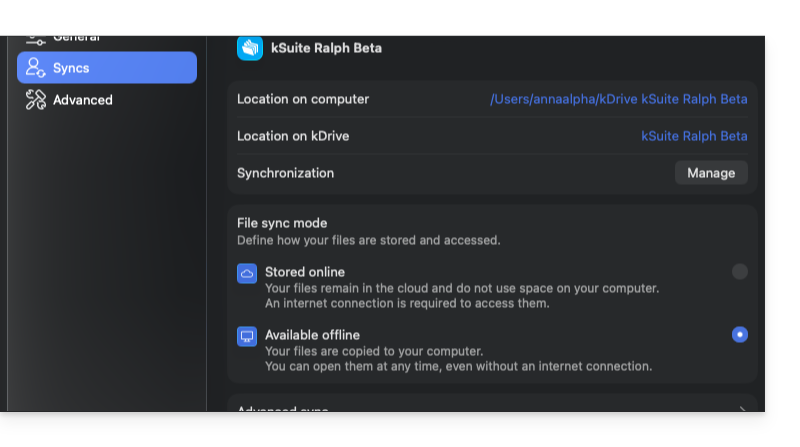
- Your files are fully saved on your hard drive (exact copy: 1 GB = 1 GB) and remain accessible at any time, even without an internet connection.
Local synchronization limits: with a large-capacity shared kDrive (several hundred GB, or even 1 TB or more) used alone or, more importantly, by multiple people, the regular addition of numerous documents will result in their automatic download to your computer. If the total volume exceeds the capacity of your hard drive, the storage will become saturated, which will block the kDrive application and generate errors.
Choose the default mode and, if necessary, adjust it on a case-by-case basis
From the kDrive desktop application, you can define how your files are stored and synchronized by default:
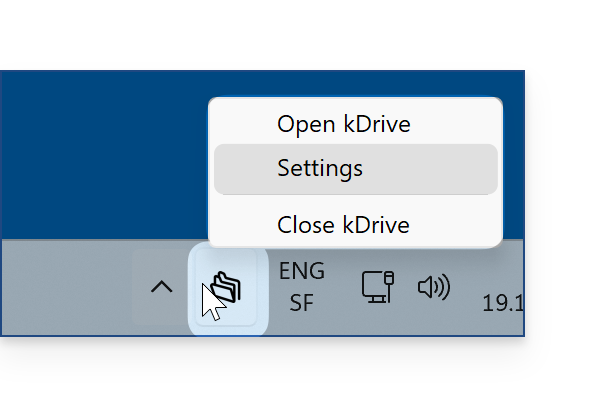
- Launch kDrive on your device: the application icon is visible in the menu bar at the top right on macOS, and in the notification area at the bottom right on Windows (❓: help).
- Right-click on the icon and choose Settings:
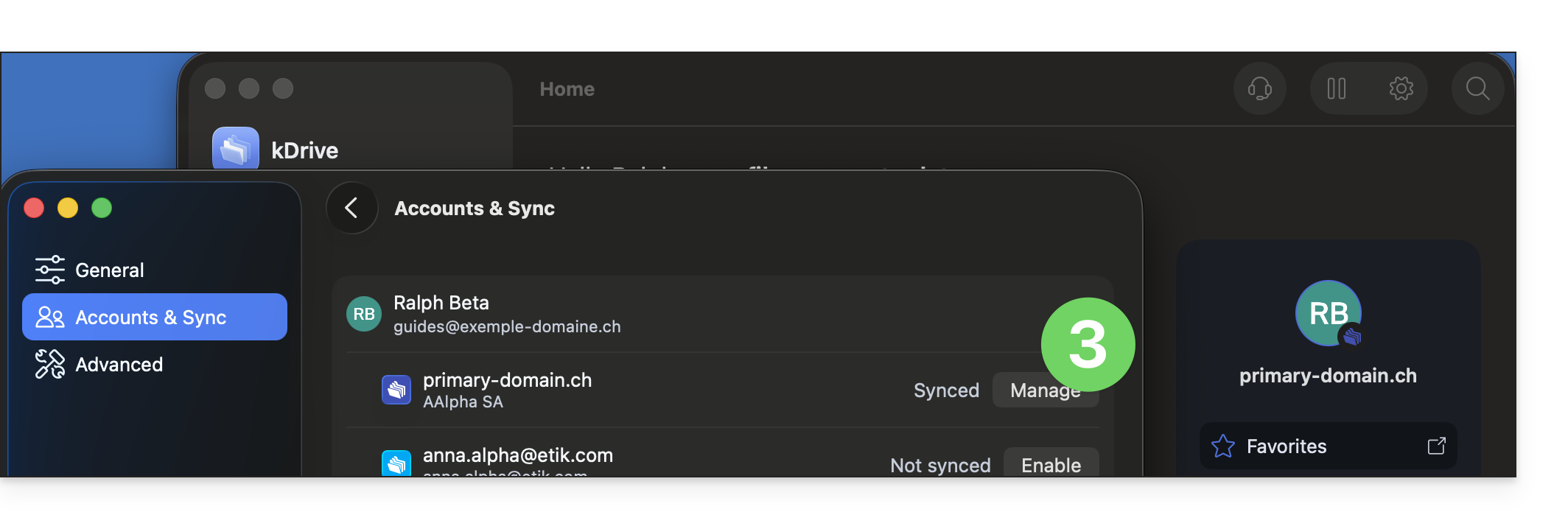
- Go to Accounts & Sync, then click on Manage (or the ❯ icon) to the right of the synchronization in question:
- Next, select the desired storage mode:
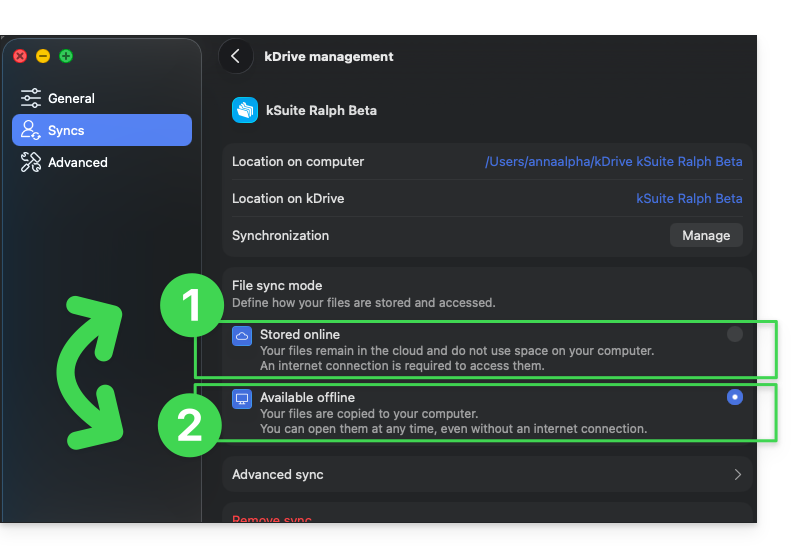
- 1. Stored online: files remain in the cloud and do not use space on your computer.
- 2. Available offline: files are copied to your computer and remain accessible at all times.
If necessary, you will need to repeat these steps for your different synchronizations: each synchronization or managed folder can have its own storage settings according to your needs (see also the last chapter below).
And regardless of the default setting, you can change the behavior of a file or folder on a case-by-case basis directly from File Explorer (Windows) or Finder (macOS):
1. Free up space (online mode)
To free up disk space by converting local files into online files (keeping only a small trace of a few KB):
- Right-click on the file or folder that you no longer need locally.
- Select the Free up space option.
- The file remains visible in your file structure but no longer consumes local storage space; it will be downloaded automatically when needed (with an active internet connection).
Note: The "Free up space" action is not automatically applied by default to new files or folders added locally; it is a manual action, even if the parent folder is marked as "Online".
2. Make available offline / Always keep on this device
To permanently store a file or folder on your disk:
- Right-click on the item in your kDrive.
- Select the Always keep available locally or Always keep on this device option.
- The file icon is updated to indicate that the full version is physically saved on your disk.
You can identify the selected setting by the symbols displayed next to the file icons:
Status symbols
Here are the main visual indicators displayed in File Explorer or Finder:
| Status icons | Description |
|---|---|
| The file is stored in the cloud (a small local copy is kept); on-demand downloading is required to open it. | |
| The file is fully present and physically synchronized on the hard drive. | |
| A synchronization or download operation is in progress. | |
| A synchronization issue has been detected with this item. |
What about advanced synchronization (additional folders)?
Advanced synchronisation (❓: help) allows you to select one or more folders located outside the main kDrive directory (on your computer's hard drive) to synchronise them with the kDrive web application.Each folder in advanced synchronisation can have its own storage configuration (online or offline), independent of the rest of your kDrive..
Link naar deze veelgestelde vragen: https://faq.infomaniak.com/535
Is deze veelgestelde vragenlijst nuttig geweest?