Kennisbank
1.000 veelgestelde vragen, 500 tutorials en uitlegvideo's. Hier vind je alleen maar oplossingen!
Using Infomaniak apps as a 2FA solution
This guide explains how to validate two-factor authentication, or two-step verification, through an Infomaniak app already installed on your devices.
Preamble
- Refer to this other guide regarding the activation of the 2FA feature.
Receive a notification when a login authorization request is made via Infomaniak apps
From the moment you activate 2FA by configuring one of the proposed methods, it is automatically the Infomaniak apps (Mail, Euria, kDrive...) that allow you to validate the connection when connecting from another device:
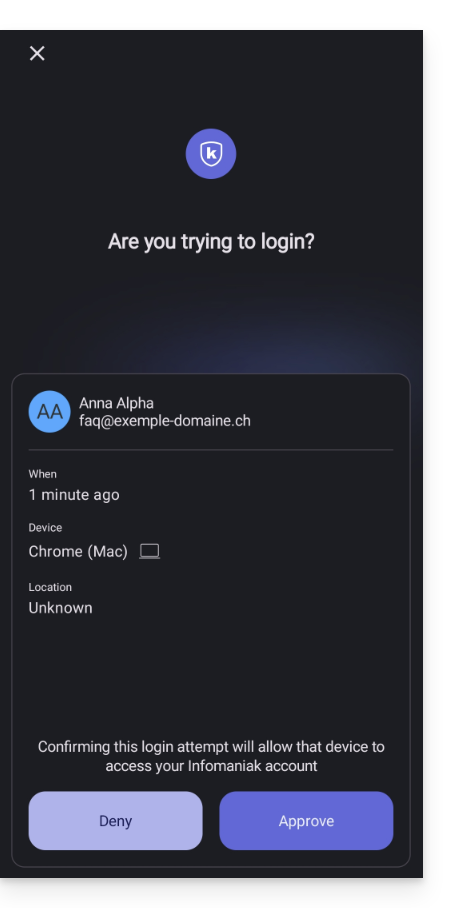
- A modal opens to ask you to validate the connection if it indeed comes from you:
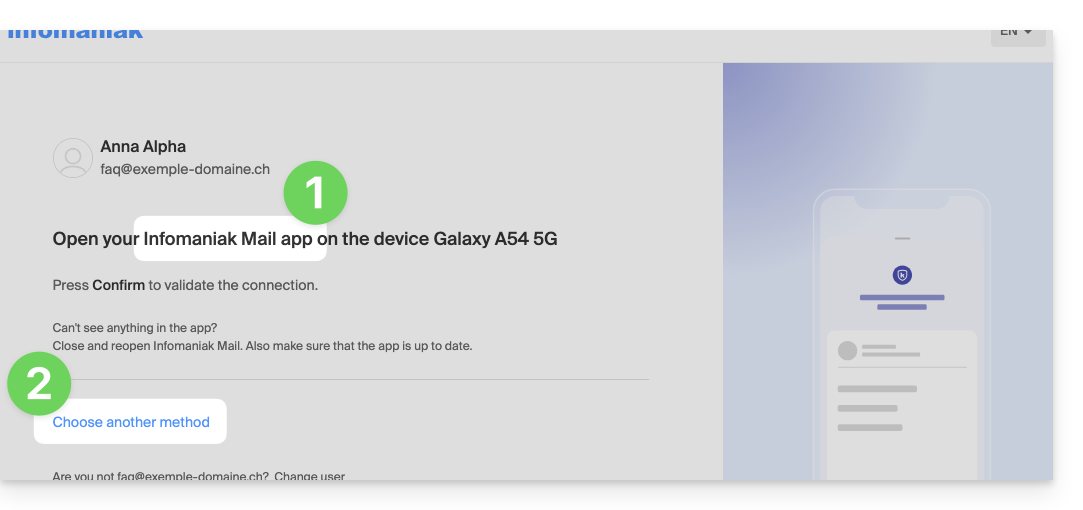
- You can of course request on a case-by-case basis to receive the validation request on one of the other registered methods:
- In this case, you access the different 2FA methods already registered on your account:
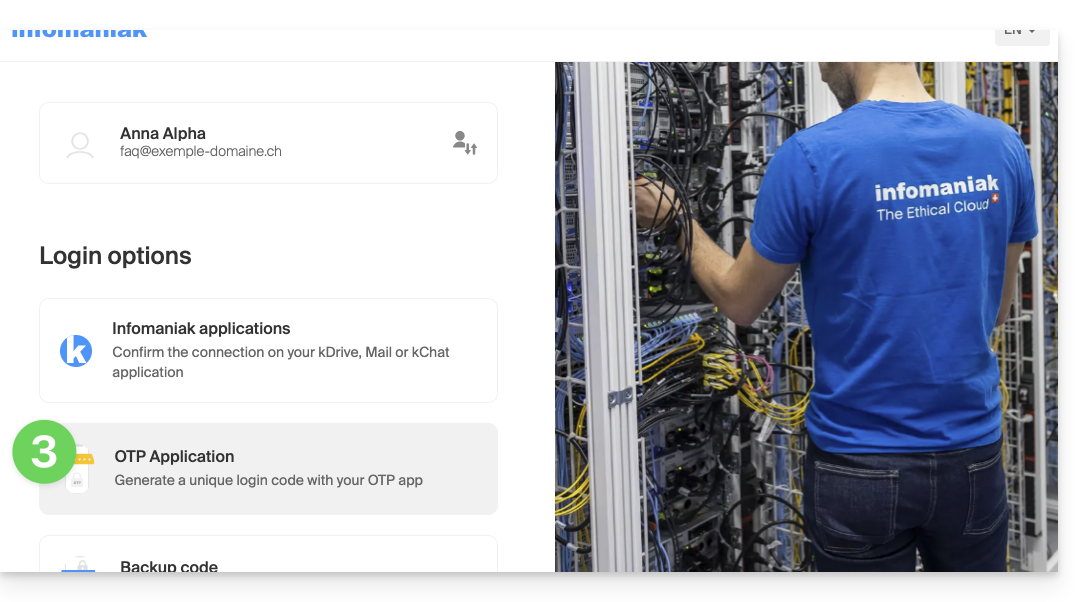
If you have activated multiple validation methods (SMS, OTP application...), you can define the one that will be proposed by default for each connection. Note, however, that the priority method will remain the one for validation in the Infomaniak app installed (Mail, Euria, kDrive...) on your devices:
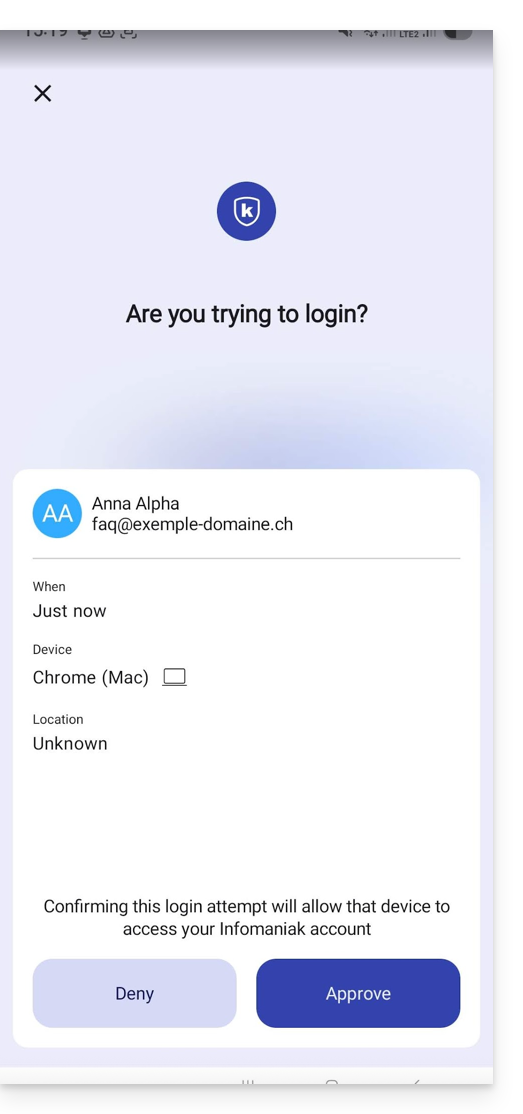
- The notification appears full screen when you open the specified application, and a button allows you to validate the connection (if it is indeed you):
- In the Android settings of the Infomaniak apps (Mail for example), you can choose to activate only the login authentication request notification:
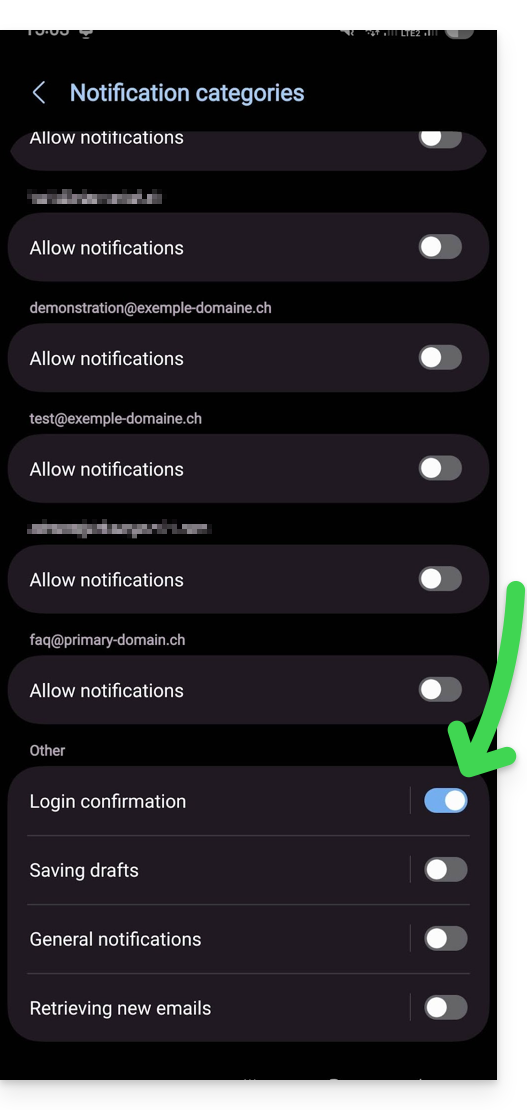
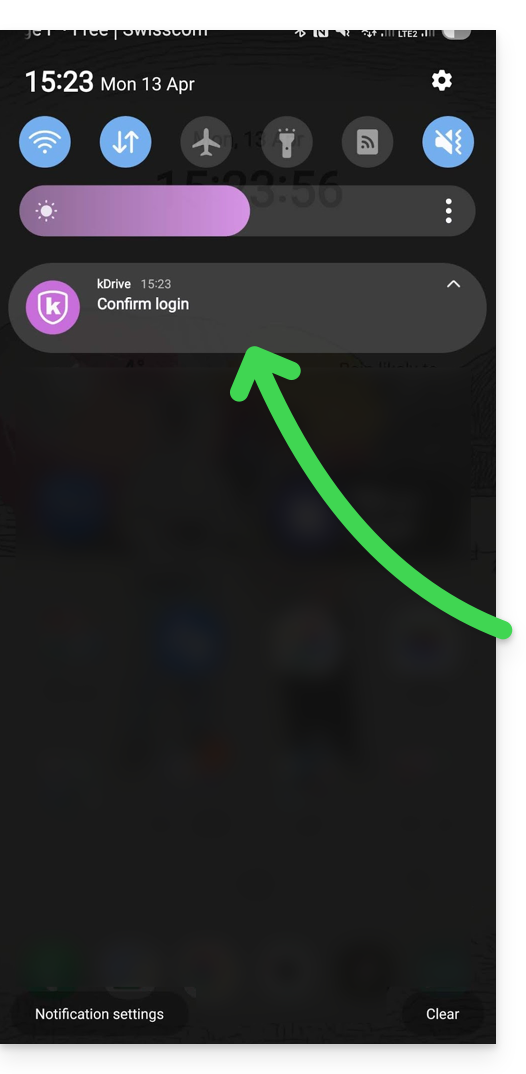
- Thus, an Android notification alerts you to the ongoing authentication request, and you can open the app directly from the notification:
Link naar deze veelgestelde vragen: https://faq.infomaniak.com/2899
Is deze veelgestelde vragenlijst nuttig geweest?