Kennisbank
1.000 veelgestelde vragen, 500 tutorials en uitlegvideo's. Hier vind je alleen maar oplossingen!
Kopieer de e-mailinhoud van Swisscom (met een aangepast domein) naar Infomaniak
Bijwerken 26-10-2026
Deze handleiding legt uit hoe u e-mailadressen kunt migreren naar Infomaniak die momenteel worden gehost door Swisscom, met behulp van een importtool via IMAP.
Inleiding
- Het e-mailadres hoeft niet exact hetzelfde te zijn.
- Zodra het importproces is gestart, kan het niet meer worden onderbroken.
- De volledige externe mailbox wordt geïmporteerd:
- De bewerking heeft geen invloed op de gegevens die al aanwezig zijn op het doeladres, noch op de gegevens van het bronadres.
- Eventuele duplicaten worden verwerkt: identieke inhoud wordt slechts één keer gekopieerd.
- Er zijn alternatieven voor dit proces (❓: hulp).
Importeer uw volledige e-mailgeschiedenis
1. Vereisten voor Swisscom
- Noteer indien nodig de specifieke e-mailadressen die u bij Swisscom heeft, zodat u er geen vergeet. Ga daarvoor naar:
- Klik hier om toegang te krijgen tot het Swisscom HCP-configuratiescherm.
- Klik op Account beheren.
- Klik op E-mailaccount:
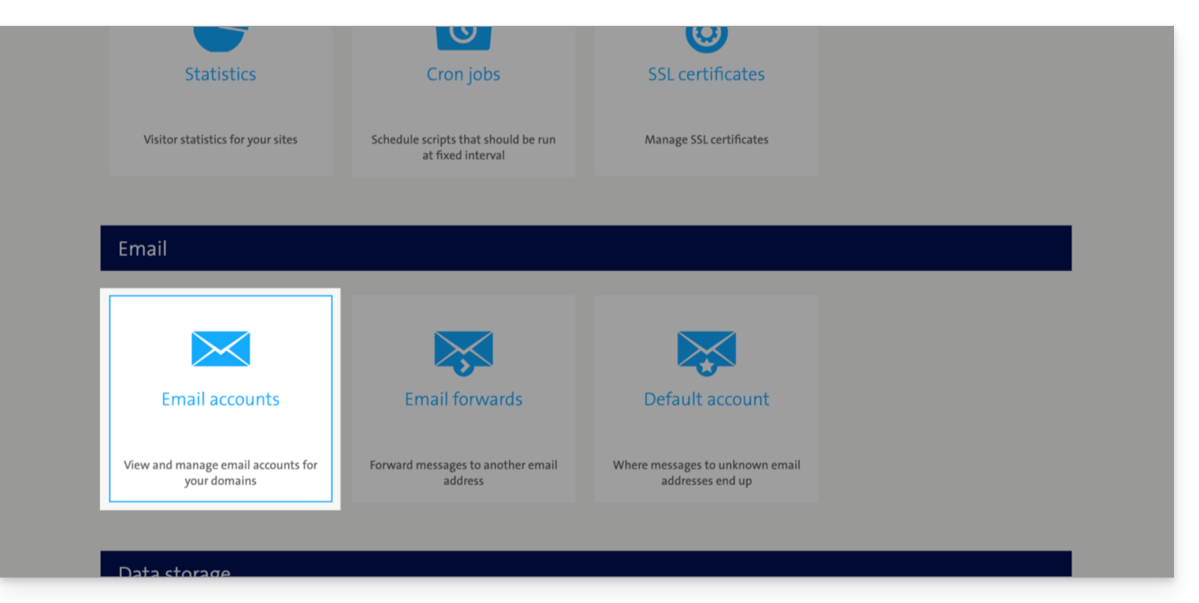
- De lijst met uw huidige adressen wordt onderaan weergegeven (klik op Bewerken rechts van een e-mailadres om het wachtwoord bij te werken als u het bent vergeten):
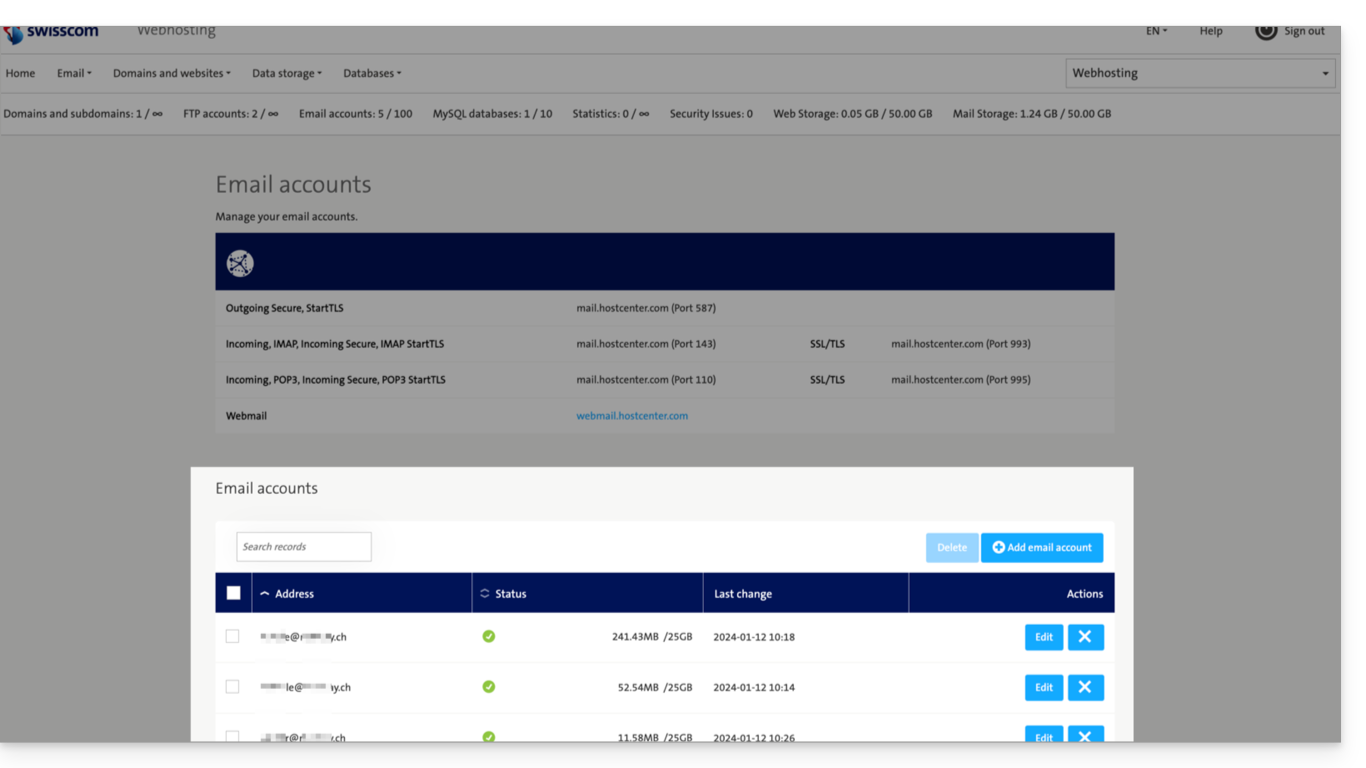
2. Vereisten voor Infomaniak
- U moet een e-maildienst hebben in uw Infomaniak-beheerpaneel (❓: hulp).
- U moet voldoende e-mailadressen tot uw beschikking hebben, of u kunt het aantal adressen vooraf aanpassen indien nodig (❓: hulp).
- Maak één of meerdere e-mailadressen aan voor deze e-maildienst (❓: hulp).
- Het e-mailadres waarnaar de e-mail wordt gestuurd, moet gekoppeld zijn aan de gebruiker (dus aan het Infomaniak-account) die u gebruikt (❓: hulp).
3. E-mailinhoud van Swisscom importeren naar Infomaniak
- Klik hier om toegang te krijgen tot het importatieprogramma (online service https://import-email.infomaniak.com).
- Indien nodig, logt u in op uw Infomaniak-account voor de betreffende organisatie. De import wordt namelijk uitgevoerd naar een van de e-mailadressen die aan de webinterface Mail van Infomaniak zijn gekoppeld (online service ksuite.infomaniak.com/mail) van het Infomaniak-account dat u gebruikt.
- Klik op importeren via IMAP.
- Klik op eenmalige import.
- Vul het linkerveld in met uw e-mailadres van de bron (waarvan de inhoud gekopieerd moet worden):
- Vul het veld aan de rechterkant in met het wachtwoord van hetzelfde e-mailadres (zie vereisten).
- Pas indien nodig de geavanceerde instellingen aan om een IMAP-serveradres op te geven:
- Voer de naam van de IMAP-server in:
mail.hostcenter.com. - Laat de standaardpoort (993) en SSL ingeschakeld.
- Voer de naam van de IMAP-server in:
- Klik op Bevestigen.
- Indien nodig, voer een tweede e-mailadres in dat u tegelijkertijd wilt importeren.
- Kies het e-mailadres waar u de e-mails naartoe wilt importeren; in het vervolgkeuzemenu ziet u de e-mailadressen die momenteel zijn gekoppeld aan uw Infomaniak-webinterface Mail (online service ksuite.infomaniak.com/mail) van het Infomaniak-account waarmee u bent ingelogd.
- Nadat u het gewenste bestemmingsadres in de lijst hebt geselecteerd, klikt u op de blauwe knop E-mails importeren.
- Het kopiëren is gestart. U kunt wachten en het resultaat op de pagina bekijken zodra de import is voltooid, of het venster sluiten (de import gaat op de achtergrond door en er is een voortgangsbalk beschikbaar – zie hieronder).
- Zodra de import is voltooid, wordt er automatisch een bevestigings-e-mail naar alle betrokken e-mailadressen gestuurd, met vermelding van het aantal gekopieerde berichten.
- Met een geschiedenisoverzicht (❓: hulp) kunt u de importgeschiedenis voor het betreffende adres bekijken. Dit is beschikbaar in de instellingen van het e-mailadres waar de berichten naartoe worden gestuurd, en alleen in de web-app Mail.
4. Pas de instellingen van de applicaties aan
Nadat u uw domeinnaam hebt geconfigureerd om te werken met uw Infomaniak-e-mailservice, controleert u de algemene beveiliging van de e-mailservice (❓: hulp) en past u de instellingen van uw software/e-mailclients aan, zodat deze correct verbinding kunnen maken met de Infomaniak-servers (❓: hulp).
Link naar deze veelgestelde vragen: https://faq.infomaniak.com/2852
Is deze veelgestelde vragenlijst nuttig geweest?