Kennisbank
1.000 veelgestelde vragen, 500 tutorials en uitlegvideo's. Hier vind je alleen maar oplossingen!
Update the kDrive app on your computer
This guide explains how to check and update the version of the desktop app kDrive (desktop application for macOS / Windows / Linux).
Accessing Version Information
To identify the version number of the kDrive application on macOS / Windows / Linux:
App v3.x
- Left-click the kDrive desktop app icon in your computer's notification area (top right on macOS, bottom right on Windows, and double-click in the taskbar on Linux).
- Click the ⋮ icon in the top right corner of the application, then click Preferences:
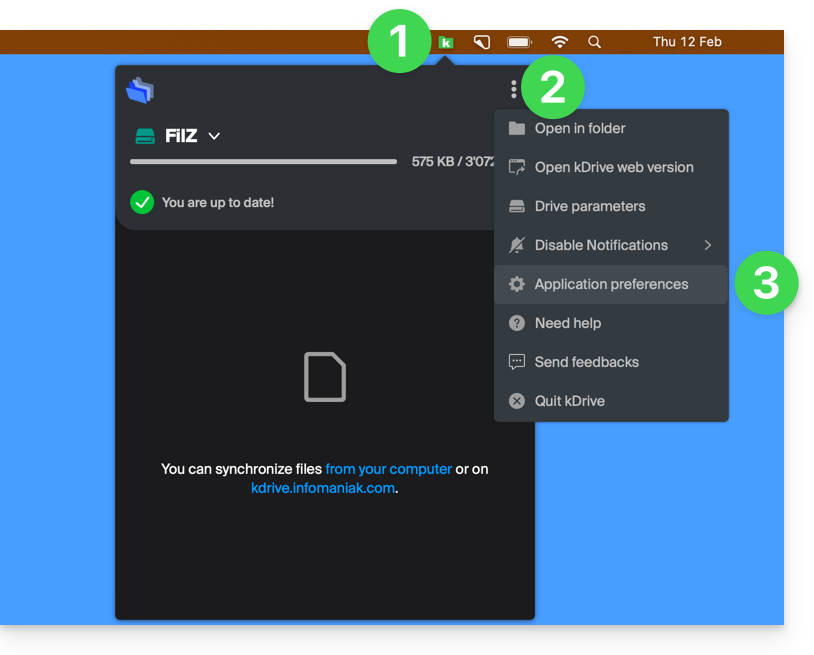
or directly on Preferences if the kDrive window is already open: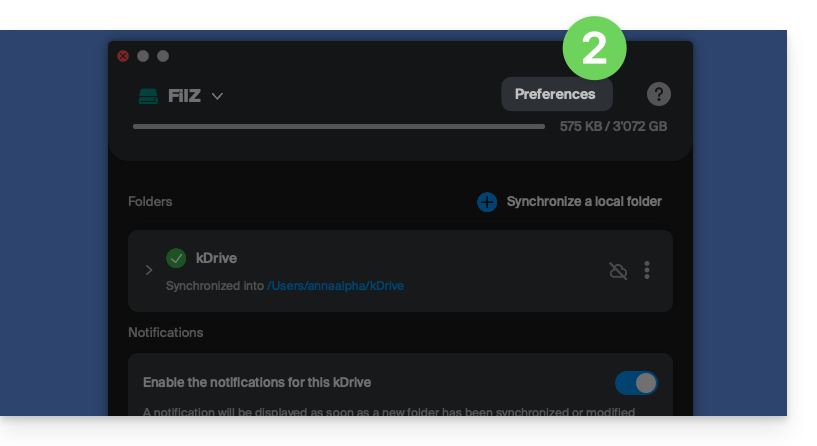
- Scroll to the bottom, and under the Version category, you will find the version currently installed on your computer:
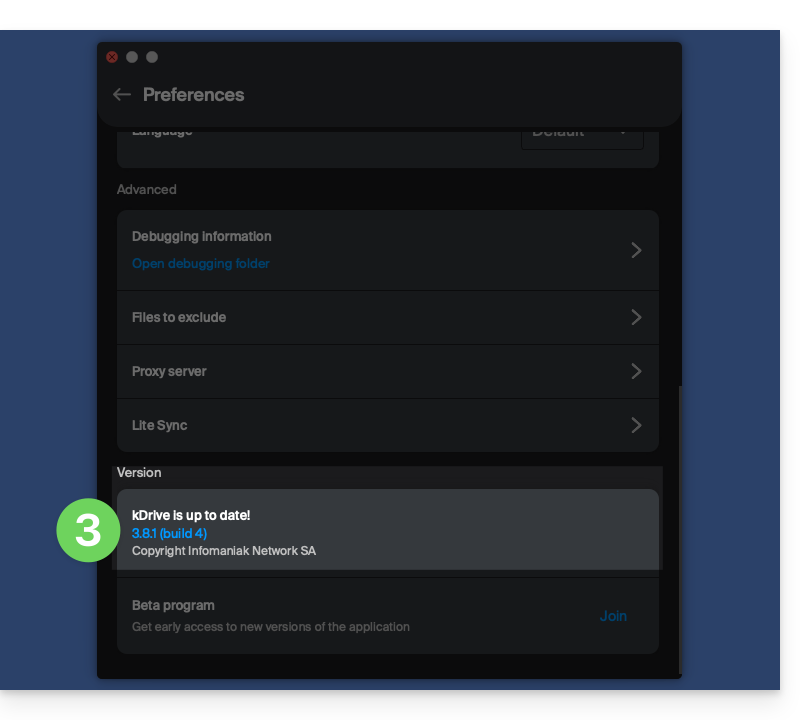
App v4.x
- Launch kDrive on your device: the app icon should be visible in the top right corner on macOS/Linux, and in the bottom right corner on Windows (❓: help).
- Right-click on the icon and choose Settings:
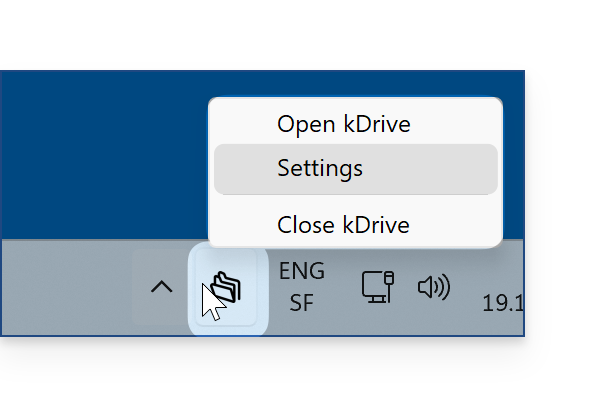
- Click on the chevron to the right of About kDrive; the version number is displayed below:
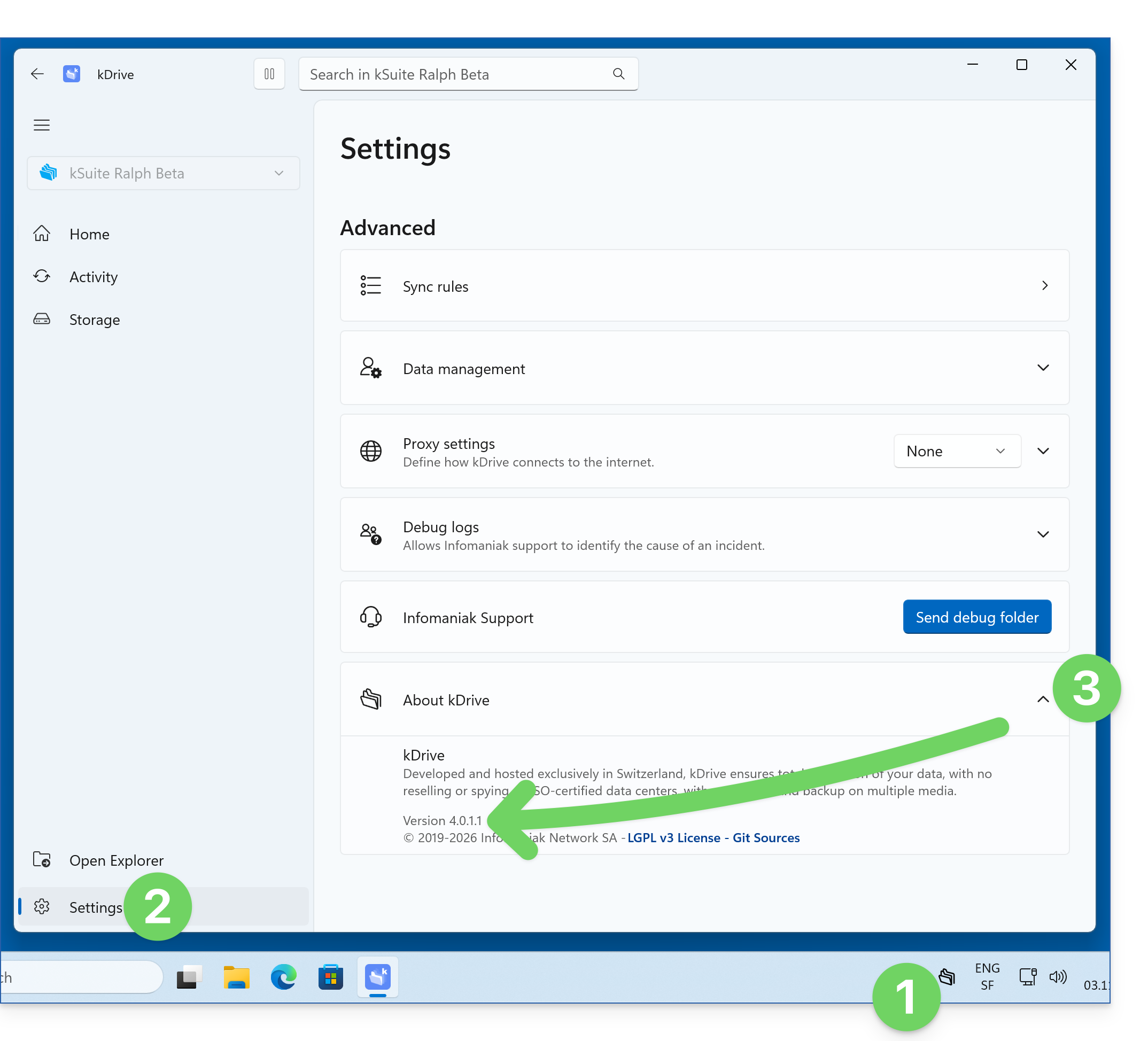
Update the installed version
With each new version of the kDrive application offered by Infomaniak, a message appears the first time you open the software after a restart (or a few minutes later if the application is not restarted), offering the option to install the update automatically: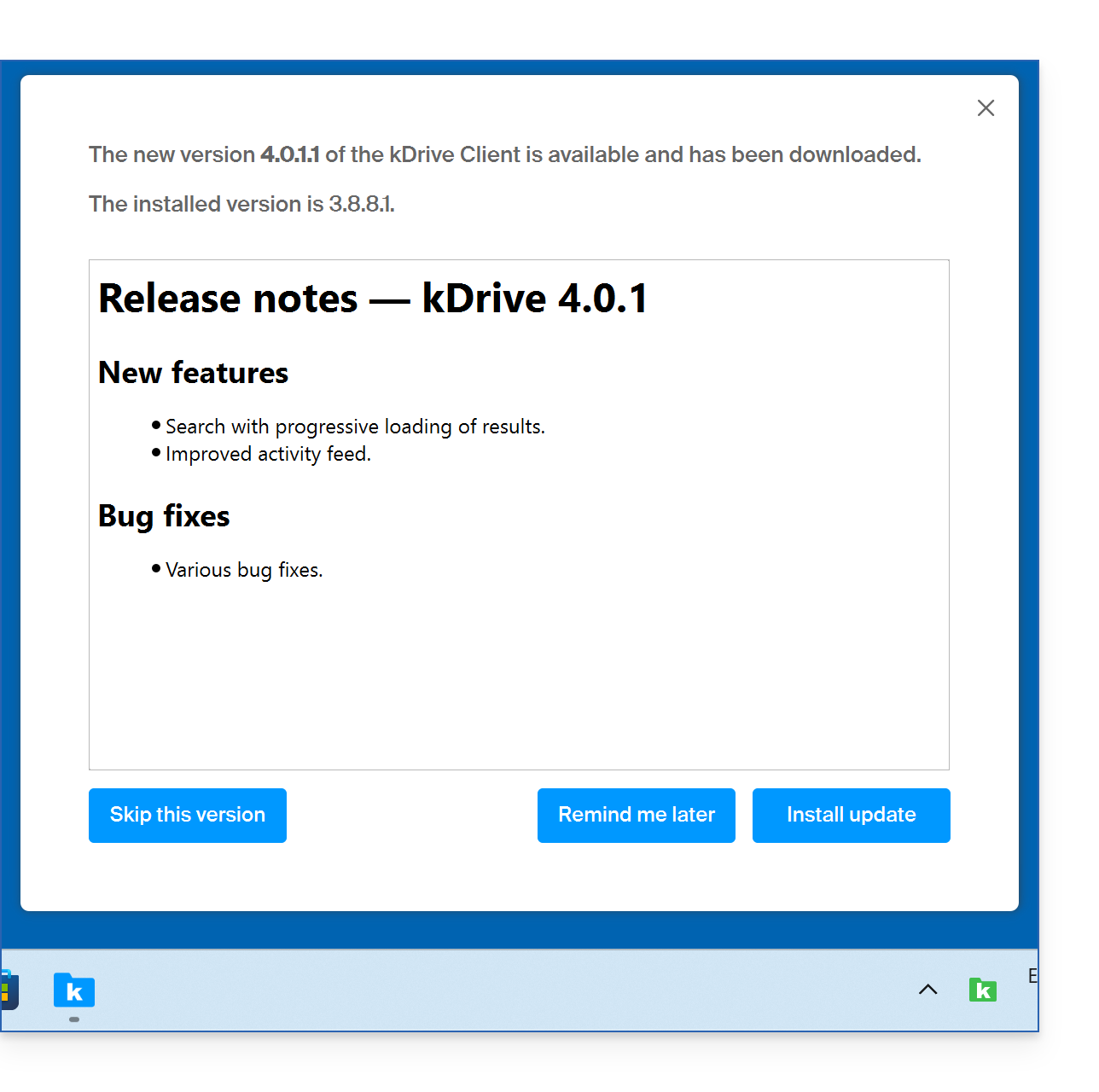
You can also follow the steps in the previous chapter to start the update based on the version number: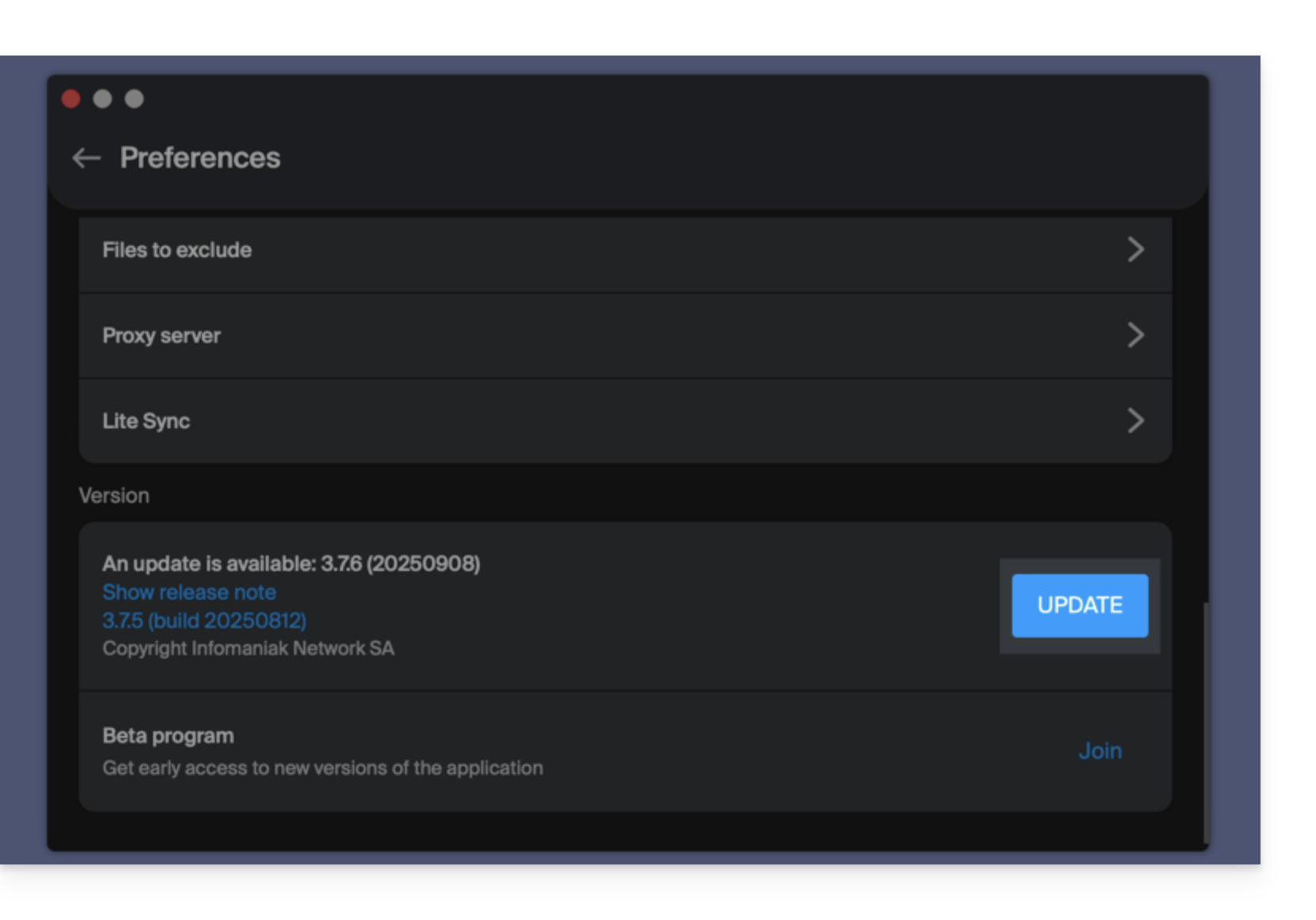
Click to install the update and wait for the process to complete. Synchronization will resume as soon as the new version is installed and active.
If the update cannot be installed
If the button is missing or the application version is too old:
- Download the latest version from the official page (the latest version number is displayed in the file name):
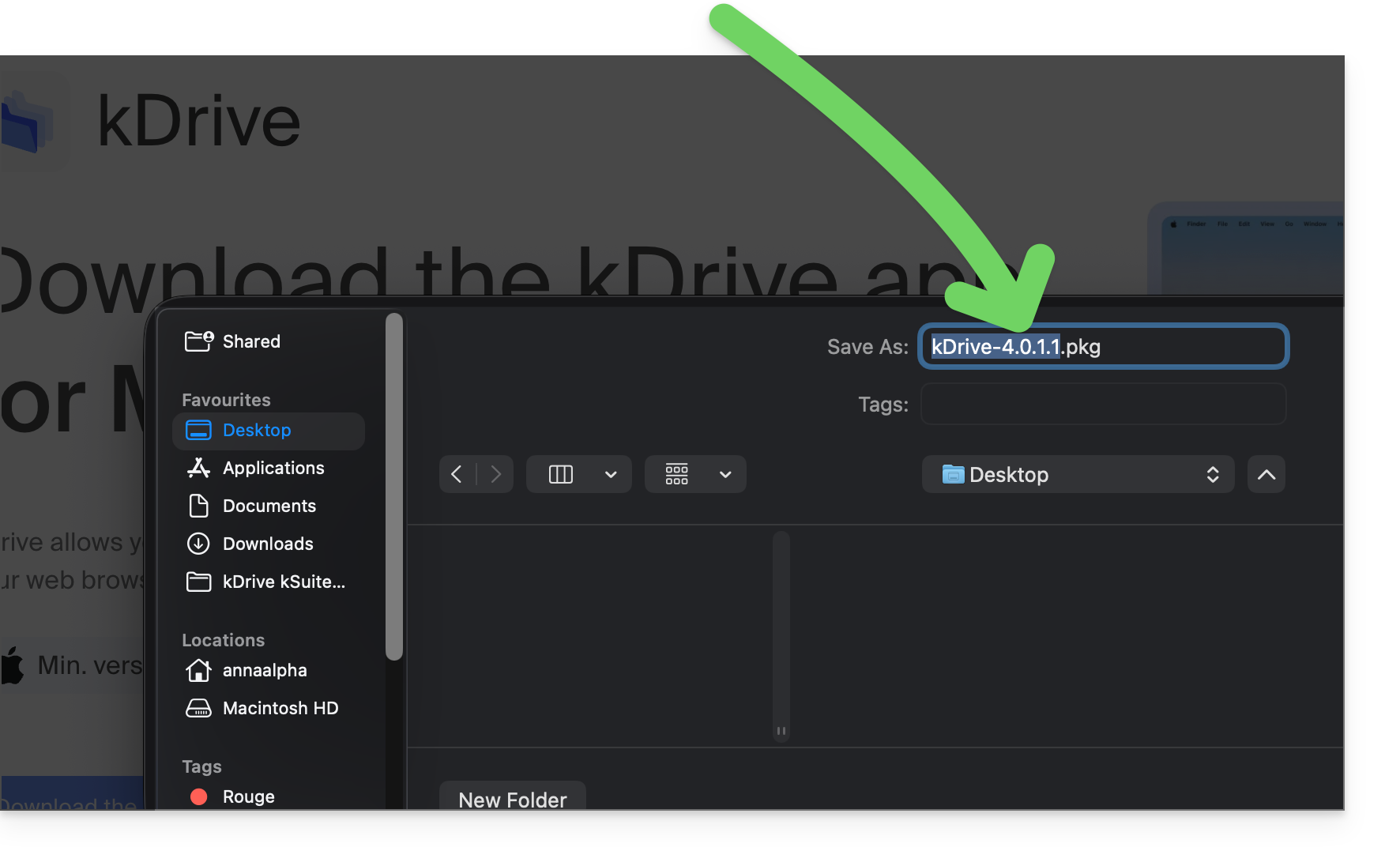
- Do not install it yet.
- Uninstall your current kDrive application from your system's application manager.
- Do not touch the folder containing your synchronized files, do not move it (❓: help), do not rename it:
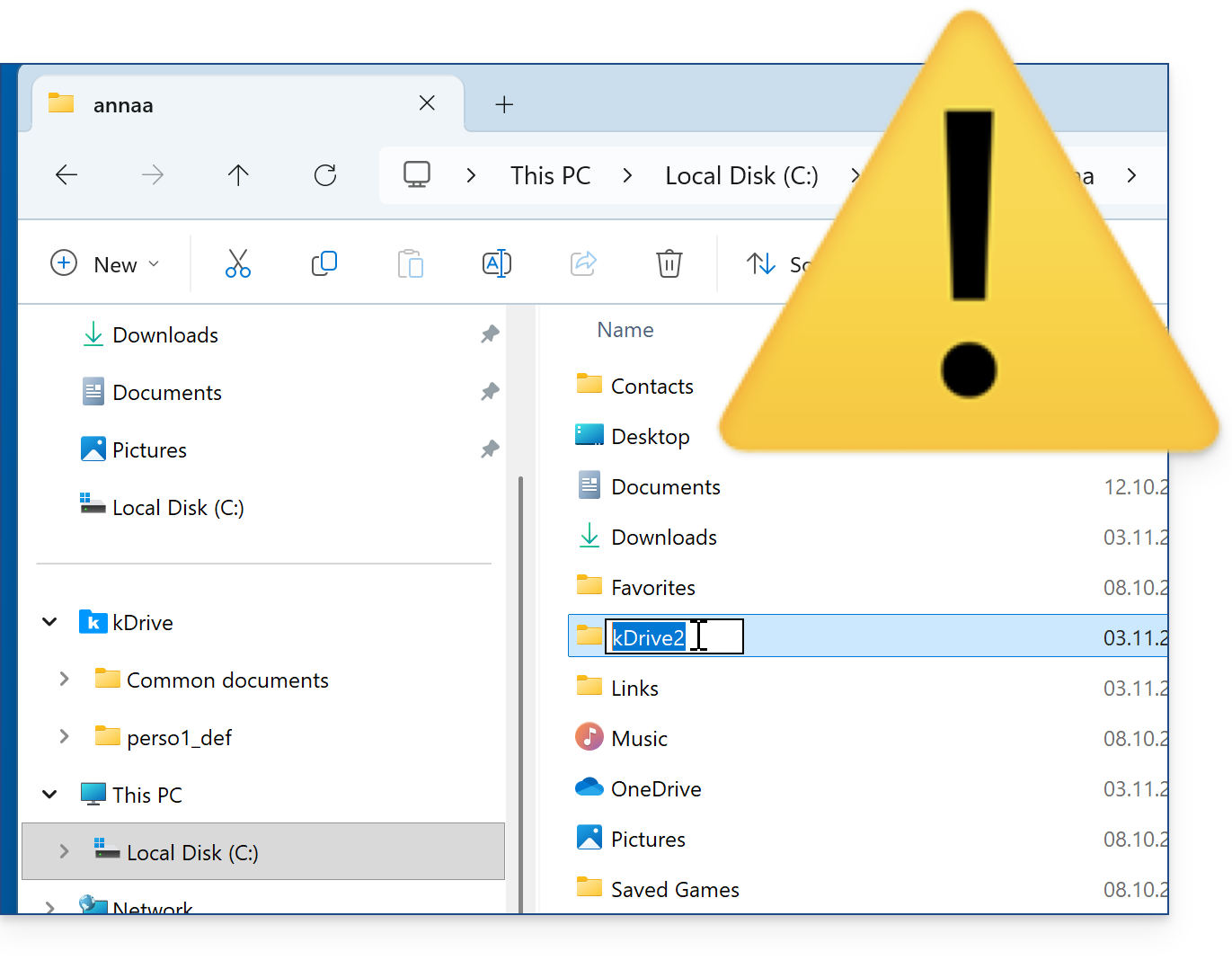
- Do not touch the folder containing your synchronized files, do not move it (❓: help), do not rename it:
- Install the new version you downloaded; you will need to log in to the Infomaniak account associated with the kDrive you want to access.
- During installation,You cannot select your previous storage folderbecause it is not possible to select a non-empty folder.
- A new storage folder for your synchronized files will be created.
- It will automatically be named after your kDrive.
- It will gradually be filled with all the online data from the kDrive in question.
- Once the synchronization of your files is complete and the kDrive application notifies you, you can move the files from the old folder to the new one on your computer's hard drive to complete any missing elements.
- Keep the old folder for a while as a safety measure and make sure that everything is now present in the new folder.
Link naar deze veelgestelde vragen: https://faq.infomaniak.com/2580
Is deze veelgestelde vragenlijst nuttig geweest?