Kennisbank
1.000 veelgestelde vragen, 500 tutorials en uitlegvideo's. Hier vind je alleen maar oplossingen!
Import data to kDrive from Dropbox
Bijwerken 12-11-2026
This guide explains how to import data (files, folders, etc.) from Dropbox to kDrive (once only).
Introduction
- Other import guides available:
- Some data will not be imported:
- Data that has been shared with you (only data that you actually own will be imported).
- Dropbox sharing links.
- Dropbox files shared individually (however, folder shares and shared documents will be imported).
- Dropbox Paper documents.
- Google documents of the Gdocs, Sheets, Slide, etc. type.
- A second import will re-import all the data (to a different directory in kDrive).
- This is not a differential synchronization, and there is no duplicate management.
Import Dropbox content to kDrive
Prerequisites
- You must have a kDrive or kSuite plan.
- Have sufficient permissions within kDrive (❓: help) or kSuite (❓: help).
- Do not change your password until the import is complete!
To import your data:
- Click here to access kDrive in your Infomaniak kSuite (❓: help).
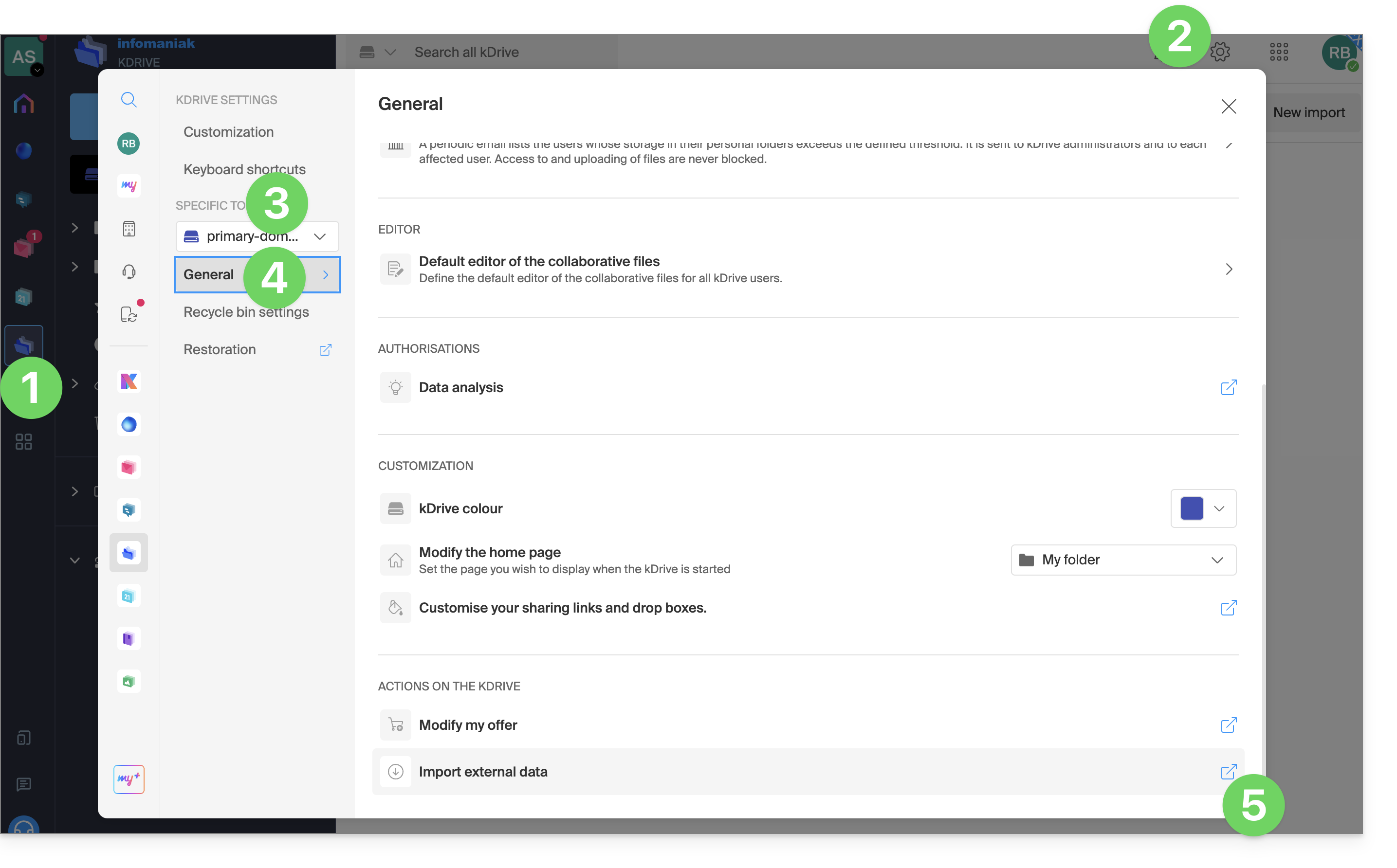
- Click on Settings in the top right corner.
- Check or select the relevant kDrive from the dropdown menu in the left-hand sidebar.
- Click on General in the left-hand menu.
- Click on Import external data:
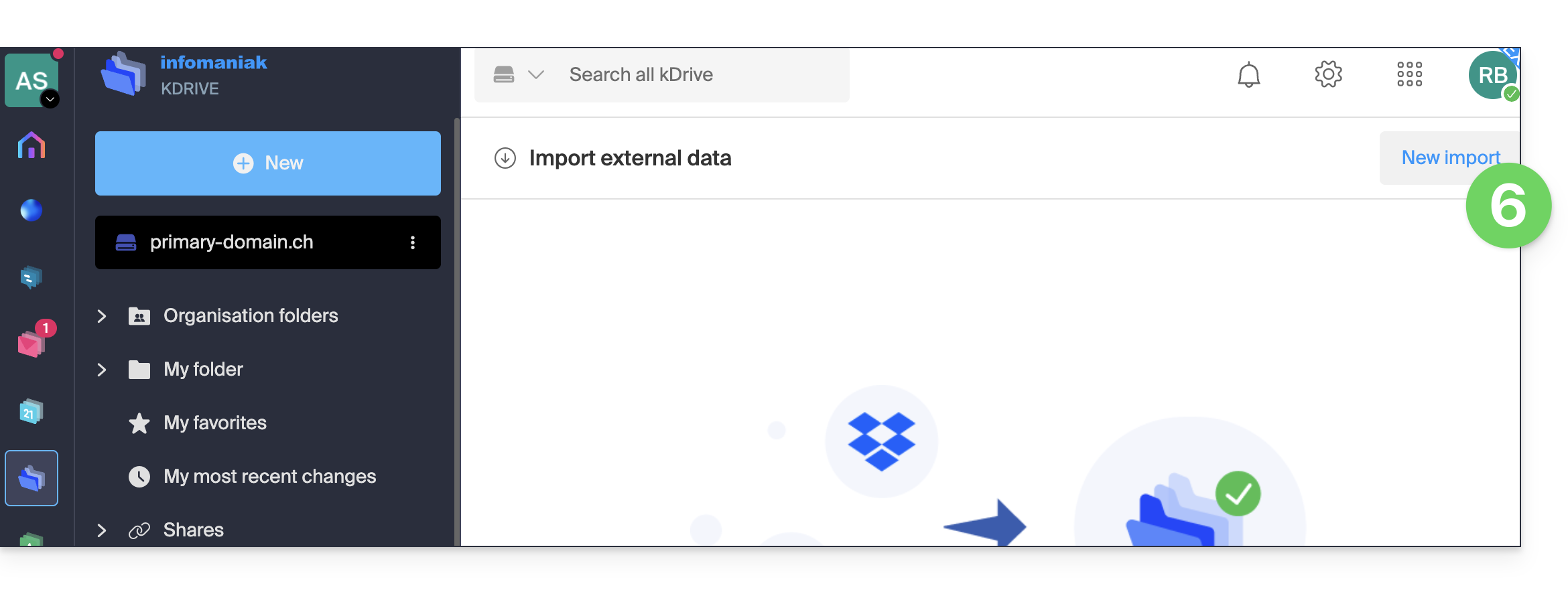
- Click on Start or New Import at the top:
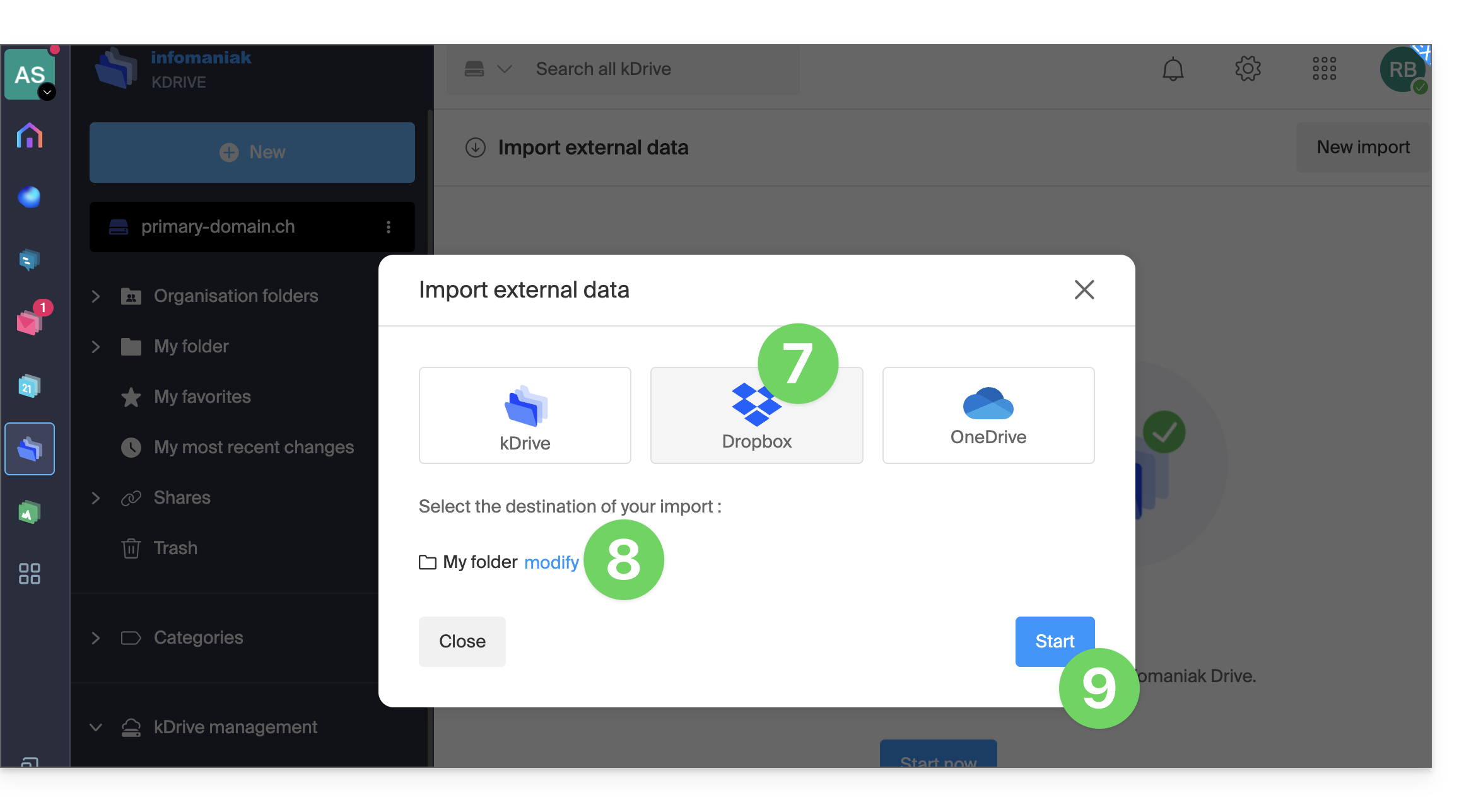
- Choose the service in question.
- Choose the location where the imported files will be stored.
- Click the Start button:
- Complete the requested information (a new window may open in the background) and click the blue Continue button.
- Complete the wizard.
- Please wait while the data is being imported.
Manage the ongoing import
To track ongoing imports, return to the page mentioned in point 6 above at any time.
To stop an ongoing import, click on the action menu to the right of the import listed on the page and choose to cancel (in the event of a voluntary interruption, a report is sent to the administrator by email).
Be sure to check your imported data immediately after the operation..
Link naar deze veelgestelde vragen: https://faq.infomaniak.com/2406
Is deze veelgestelde vragenlijst nuttig geweest?