Kennisbank
1.000 veelgestelde vragen, 500 tutorials en uitlegvideo's. Hier vind je alleen maar oplossingen!
Use PHP environment variables
This guide explains how to use PHP environment variables with Web Hosting plans that run on php-fpm.
Introduction
- PHP environment variables are system variables used to store configuration information, connection parameters, or data related to HTTP requests.
- They allow you to separate sensitive or environment-specific configuration from the source code of your website.
- These variables can contain information such as execution modes, API keys, or other data essential for the proper functioning of your PHP scripts.
- There is no limit to the number of environment variables, but their values cannot contain quotation marks (single ' or double ").
- Unlike traditional
.envfiles where values are often enclosed in quotation marks (e.g.VAR="value"), the values entered here must not contain any quotation marks ("or'). - If a value includes them (such as some paths or keys of the type
MAIL_DKIM_PRIVATE_KEY_PATH), the save will be rejected with the error “The site has not been updated”. - Always enter the raw value directly.
- Unlike traditional
Using environment variables
To use PHP environment variables:
- Define the PHP environment variables in a
.htaccessfile:SetEnv EXAMPLEVARIABLE hello
- In your PHP file, call the variable using the dedicated function:
<?php echo getenv('EXAMPLEVARIABLE');
In this example, the result displayed on the page will be hello.
Learn more about environment variables
You can configure environment variables directly from the Manager for your entire site:
- Click here to access the hosting & site management section in your Infomaniak Manager (❓: help).
- Click on the name of the website in question.
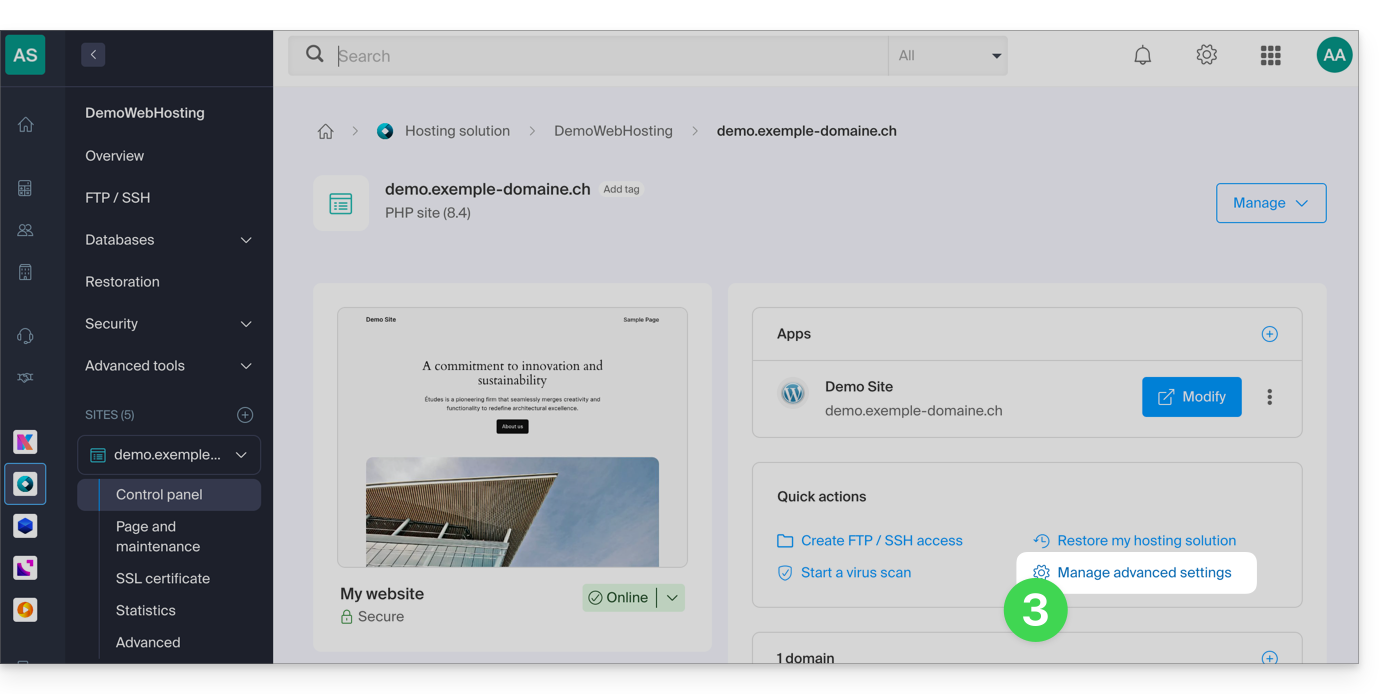
- Click on Manage advanced settings:
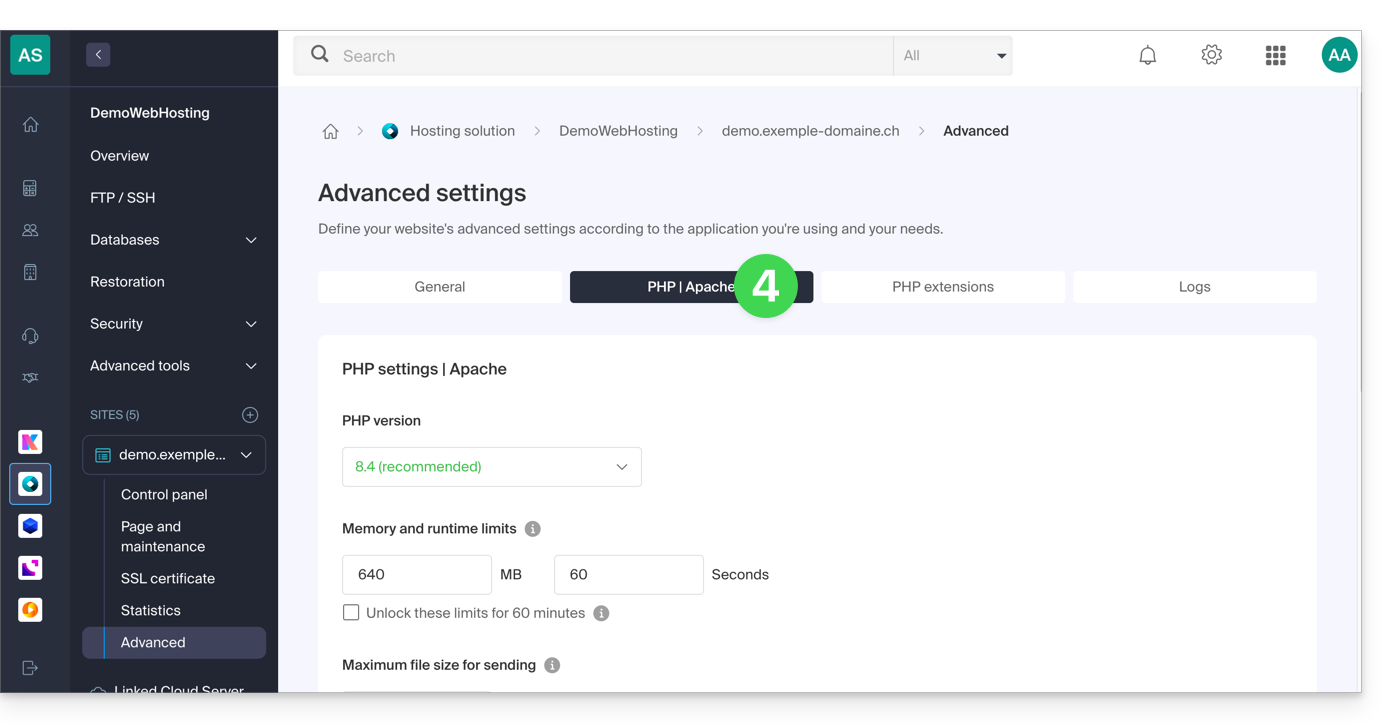
- Click on the PHP / Apache tab:
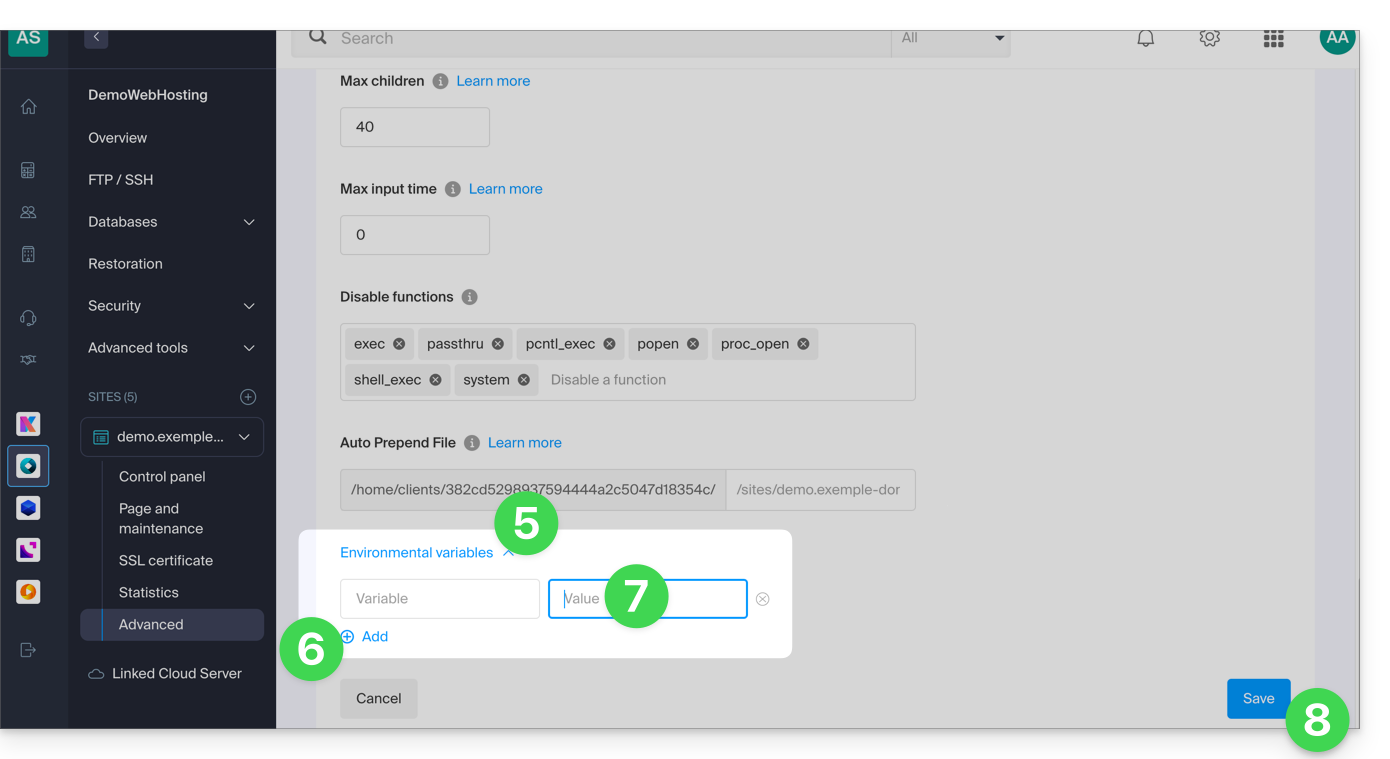
- Further down the page, click on the down arrow to expand the Environment Variables section.
- Click the Add icon.
- Enter the variable and its value.
- Click the button to save:
Link naar deze veelgestelde vragen: https://faq.infomaniak.com/2087
Is deze veelgestelde vragenlijst nuttig geweest?