Kennisbank
1.000 veelgestelde vragen, 500 tutorials en uitlegvideo's. Hier vind je alleen maar oplossingen!
Link a domain name to a Google Site
This guide explains how to link a domain name managed by Infomaniak to a Google Sites offer.
Introduction
- A website created on Google cannot be exported to be hosted on third-party servers, such as Infomaniak's servers.
- It is therefore recommended to create the website directly with Infomaniak using Site Creator or WordPress.
Associate Google Sites with the Infomaniak domain name
To configure your domain in Google Sites:
- Create or prepare your site on Google Sites.
- In the Google Sites settings, go to the "Use a custom domain" option.
- Add your custom domain.
Google will then ask you to verify your domain via DNS records (delete any old A and CNAME records associated with it if necessary, then add the new ones):
A Records
To achieve the result requested by Google, for example, 4 different IP addresses…
- Host:
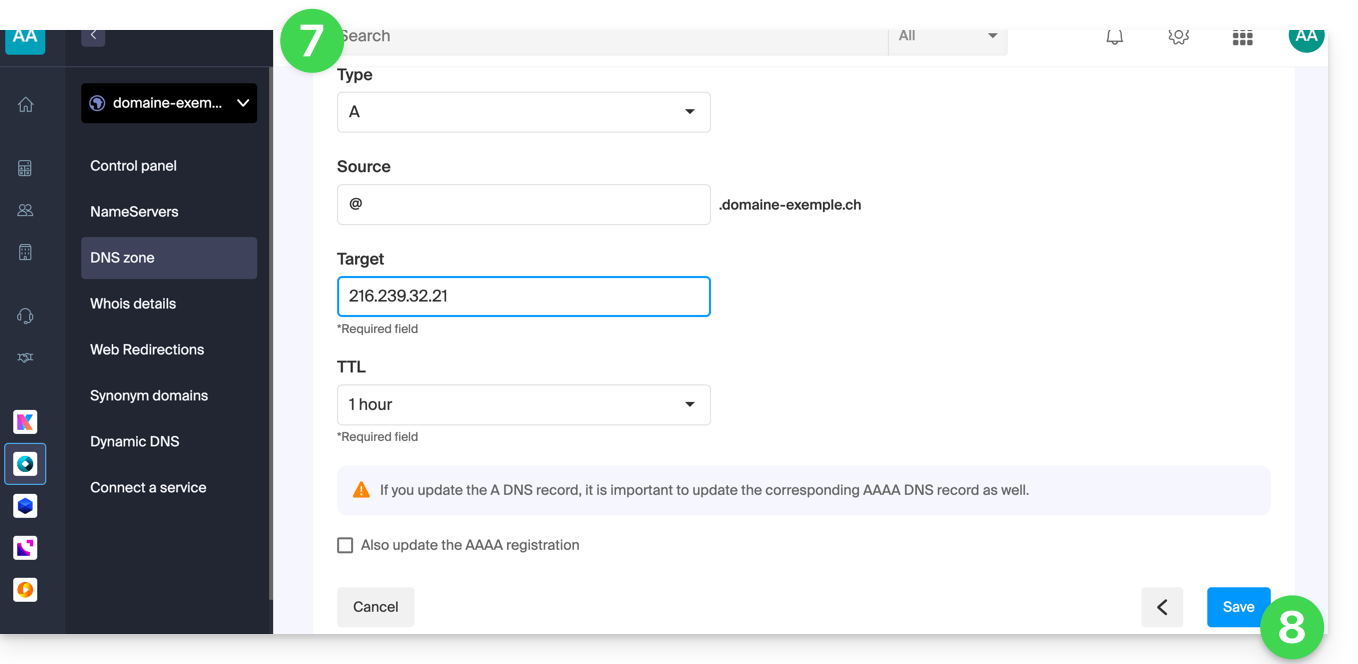
@points to:216.239.32.21 - Host:
@points to:216.239.34.21 - Host:
@points to:216.239.36.21 - Host:
@points to:216.239.38.21
… create the "A" type records with these IP addresses as the target:
- Click here to access the management of your domain in the Infomaniak Manager (need help?).
- Click directly on the name assigned to the domain in question.
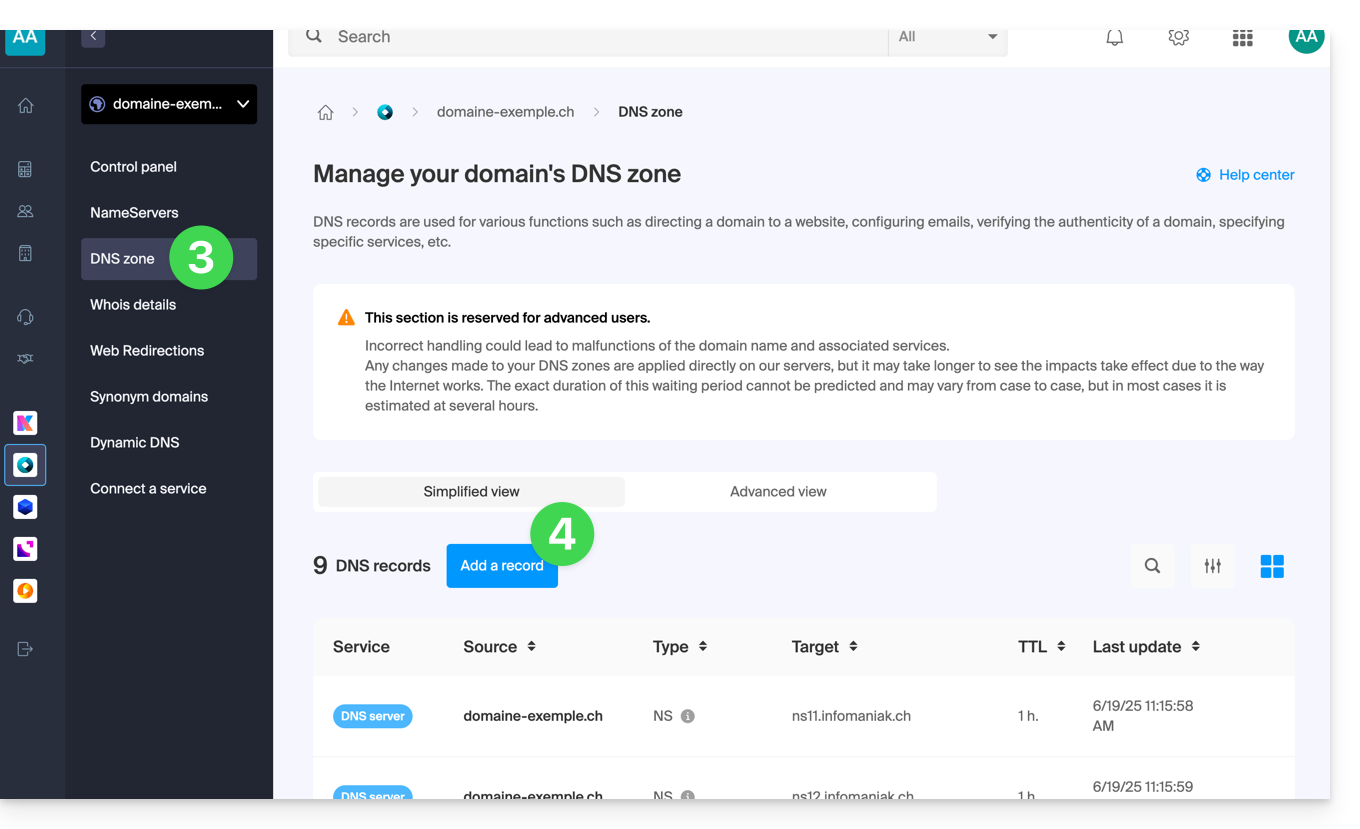
- Click on DNS Zone in the left-hand menu.
- Click on the blue Add entry button:
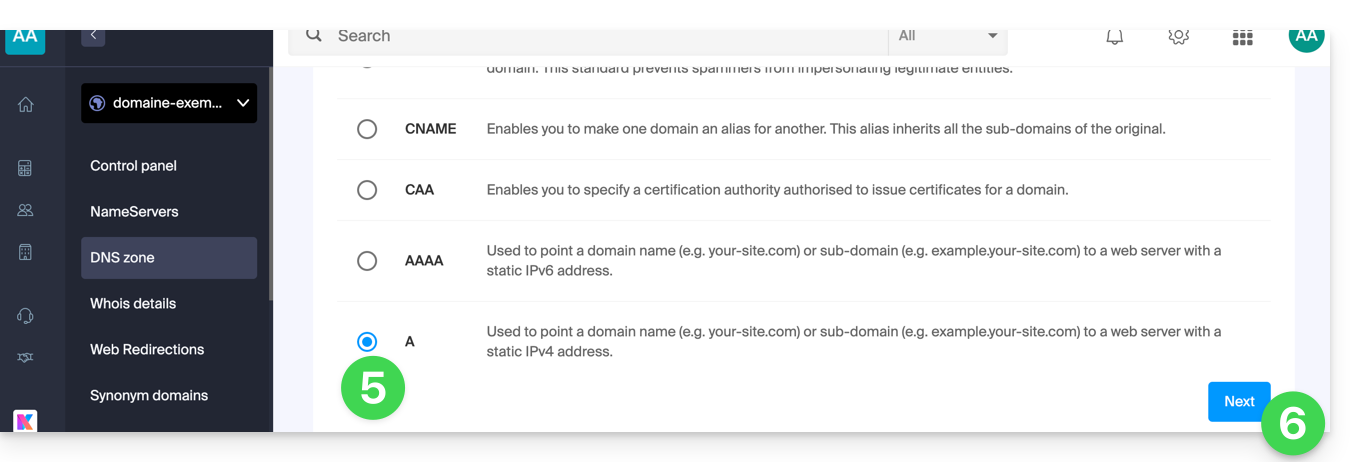
- Choose the A record type.
- Click on Next:
- Fill in the various fields according to your information.
- Save the changes:
- Repeat from step 4 if you have multiple records to add.
CNAME record
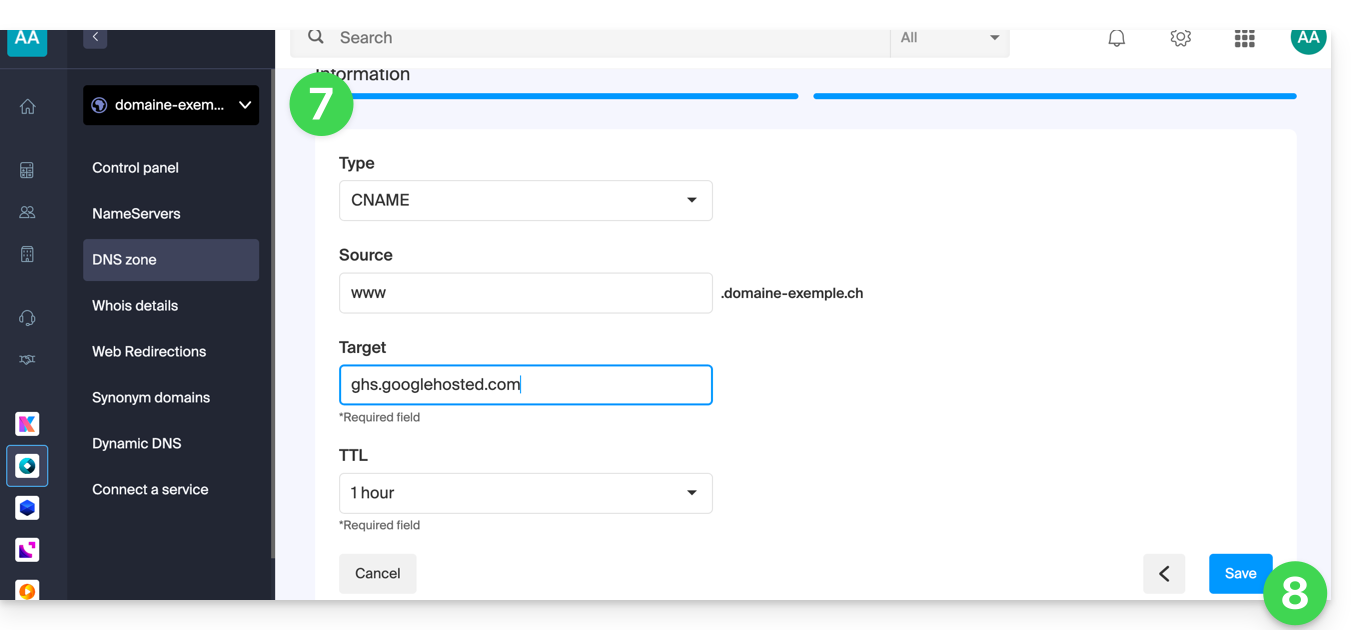
In order to achieve the result requested by Google, create a CNAME record with these values:
- Host:
www - Points to:
ghs.googlehosted.com
To do this:
- Click here to access the management of your domain in the Infomaniak Manager (need help?).
- Click directly on the name assigned to the domain in question.
- Click on DNS Zone in the left-hand menu.
- Click on the blue Add entry button:
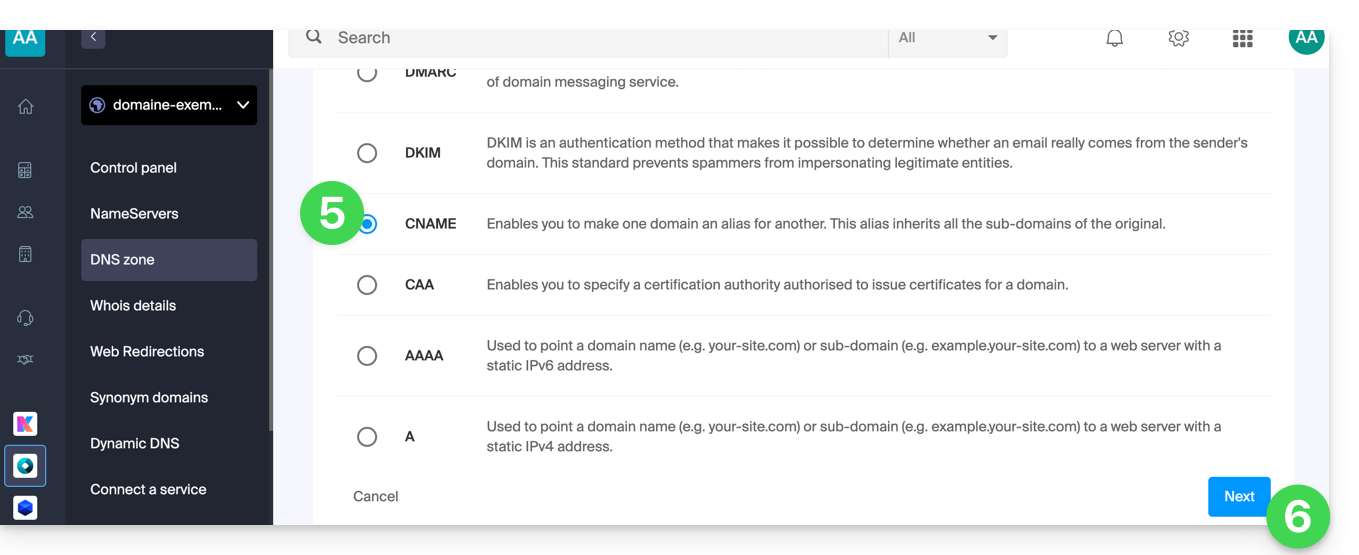
- Choose the CNAME record type.
- Click on Next:
- Fill in the various fields with your information.
- Save the changes you made:
Verify your domain (Google Site Verification)
After configuring the DNS records, return to Google Sites to complete the verification. This may take up to 24 hours due to DNS propagation.
Final validation
Once the changes have propagated, your site should work with the custom domain. If you encounter any problems, check the DNS records or contact Google.
Link naar deze veelgestelde vragen: https://faq.infomaniak.com/1917
Is deze veelgestelde vragenlijst nuttig geweest?