Kennisbank
1.000 veelgestelde vragen, 500 tutorials en uitlegvideo's. Hier vind je alleen maar oplossingen!
Copy data between 2 kDrive accounts (same user)
Bijwerken 12-11-2026
This guide explains how to copy data within the kDrive desktop app (desktop application on macOS / Windows / Linux) from one kDrive to which your Infomaniak user has access to another kDrive to which the same Infomaniak user has access.
Introduction
- To be able to use multiple Organizations, you must have been added to them (❓: help) and have been granted access to the respective kDrives.
- For example, if the user
abc@domain.xyzhas a kDrive called "ABC" within their Organization "ABC" and is invited to the Organization "VWX", which grants them access to the kDrive "VWX", they will see 2 kDrives on ksuite.infomaniak.com/kdrive and will be able to send data from one to the other in one click.
- For example, if the user
- Without being a user of multiple Organizations, it is also possible to copy data, but only by importing the entire kDrive, without being able to choose specific data: to import all the data contained on another of your kDrives at once, please refer to this other guide and choose kDrive at step 7.
Copy data between kDrive accounts you already have access to
To copy a folder or file to another kDrive account that you already have access to from the same user account:
- Click here to access kDrive in your Infomaniak kSuite (❓: help).
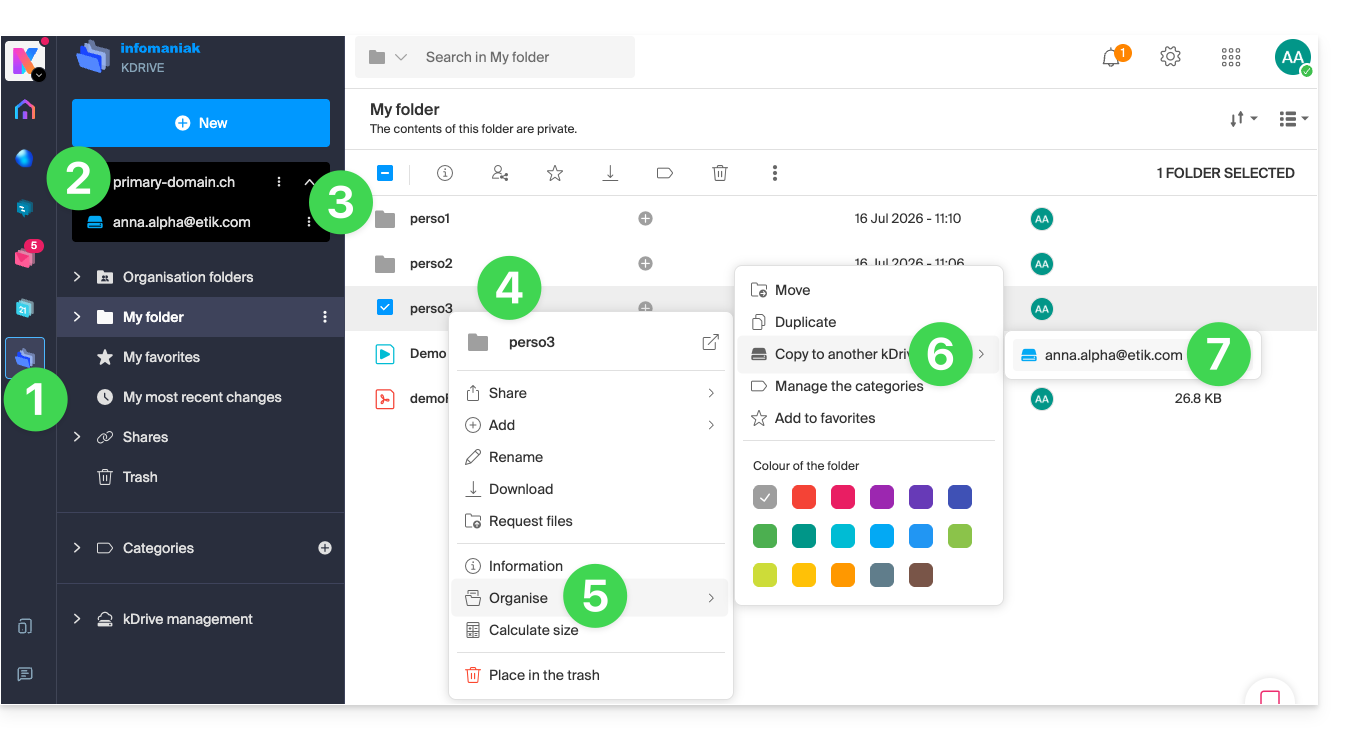
- Check or select the relevant kDrive from the dropdown menu in the left-hand sidebar.
- If necessary, select the other kDrive from which you want to copy files.
- Right-click or click on the action menu ⋮ to the right of the folder or file you want to copy to the other kDrive.
- Click on Organize.
- Click on Copy to another kDrive.
- Choose the kDrive in question from the list displayed in this same drop-down menu:
- Choose the destination location (knowing that the shared folder ("Organization Folders") cannot receive files or folders at its root, but you can create a subfolder using the appropriate icon if the user has the necessary permissions).
- Click the blue button to start the copy process:
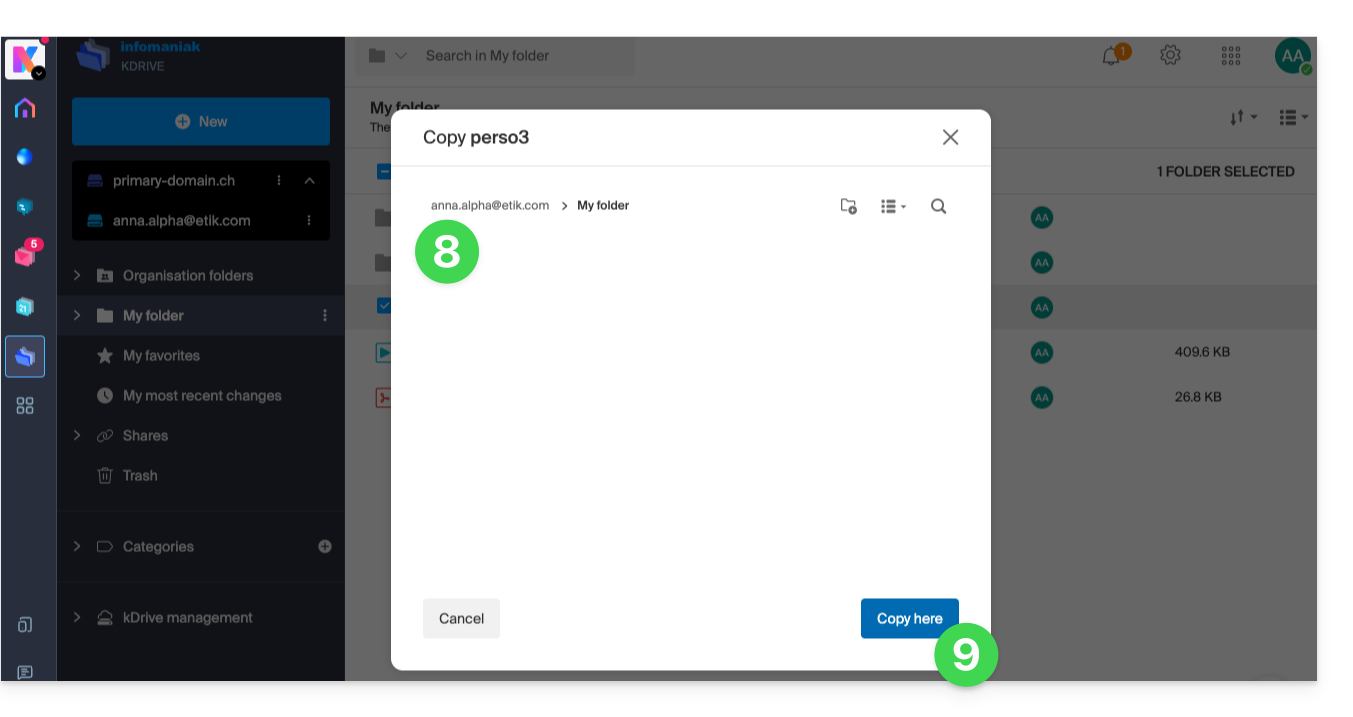
The copy process is not instantaneous; please wait a few minutes!
Link naar deze veelgestelde vragen: https://faq.infomaniak.com/1908
Is deze veelgestelde vragenlijst nuttig geweest?