Kennisbank
1.000 veelgestelde vragen, 500 tutorials en uitlegvideo's. Hier vind je alleen maar oplossingen!
Restore kDrive to a previous state
This guide explains how to revert to a previous state in the organization of your kDrive files, especially if changes have been made and you have lost track.
✘ UNAVAILABLE with
kSuite Free
my kSuite (ik.me, etik.com, ikmail.com)
Introduction
- The restore or Rewind function allows you to revert to a previous state, like a time machine, and restore the order of the files of your choice or your entire kDrive up to 3 months in the past (linked to the file version retention period — ❓: help).
- Files permanently deleted from your kDrive trash and deleted file versions cannot be restored.
- If the only changes detected are the addition of new files, the Rewind summary will not offer any actions:
- It is therefore not possible to undo only the addition of new files using this feature.
- For an action to be offered, a change must also affect an existing file, for example, renaming it.
- The restoration process may take several minutes, during which kDrive will be inaccessible to all users, depending on the volume of data to be restored.
- No action is performed on permissions and sharing settings.
Accessing the kDrive Restore Tool
Prerequisites
- You must be at least an Administrator of the Organization (❓: help).
To open the restore interface:
- Click here to access kDrive on your Infomaniak kSuite (❓: help).
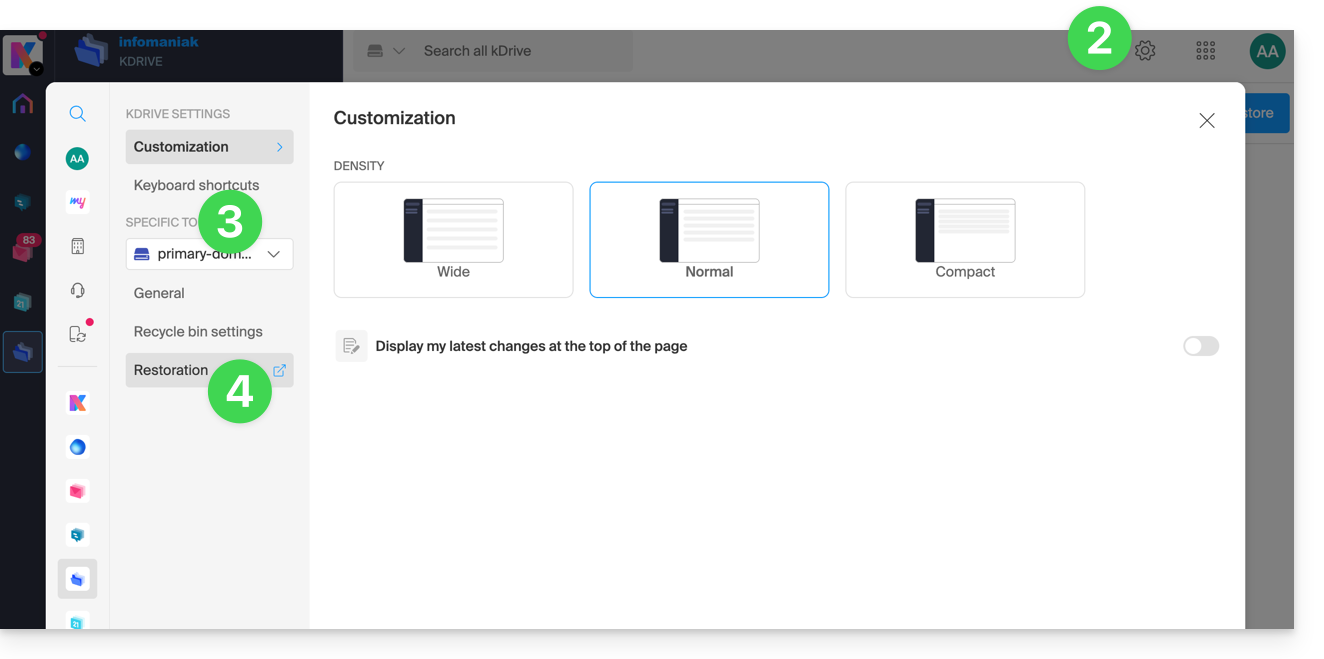
- Click on Settings in the top right corner.
- Check or select the relevant kDrive from the dropdown menu in the left-hand sidebar.
- Click on Restore:
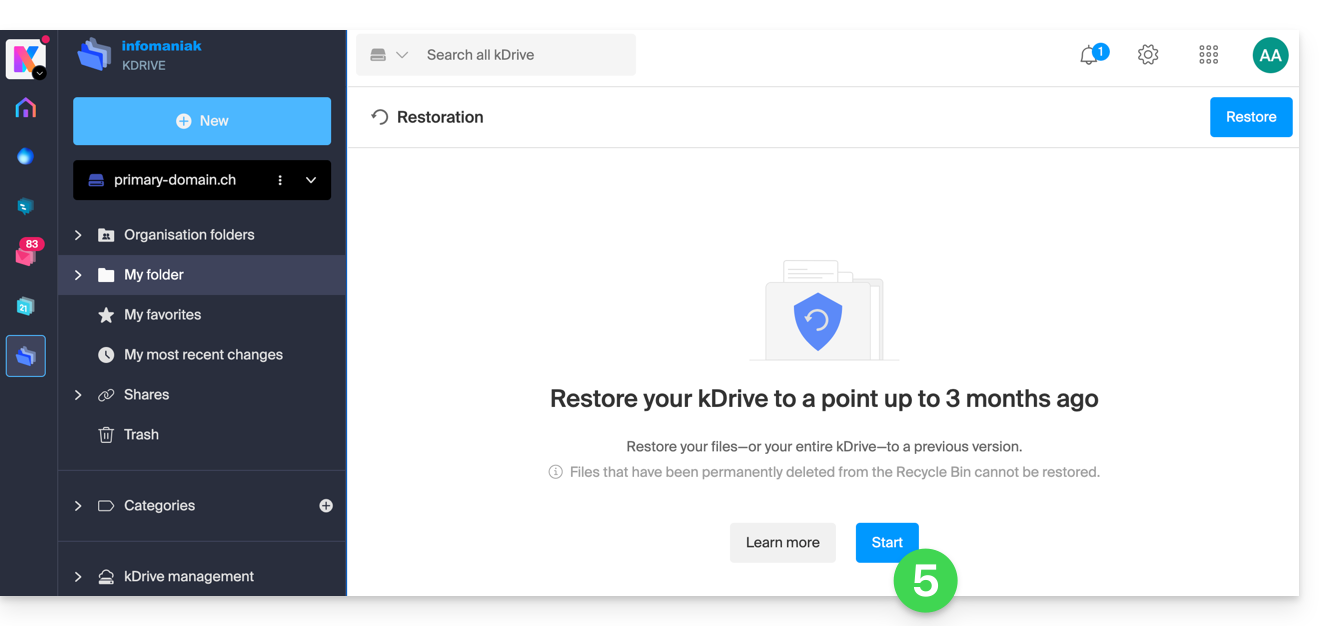
- Read the information on the screen, then click the button to start:
- Read the information in the pop-up window, then click the button to confirm.
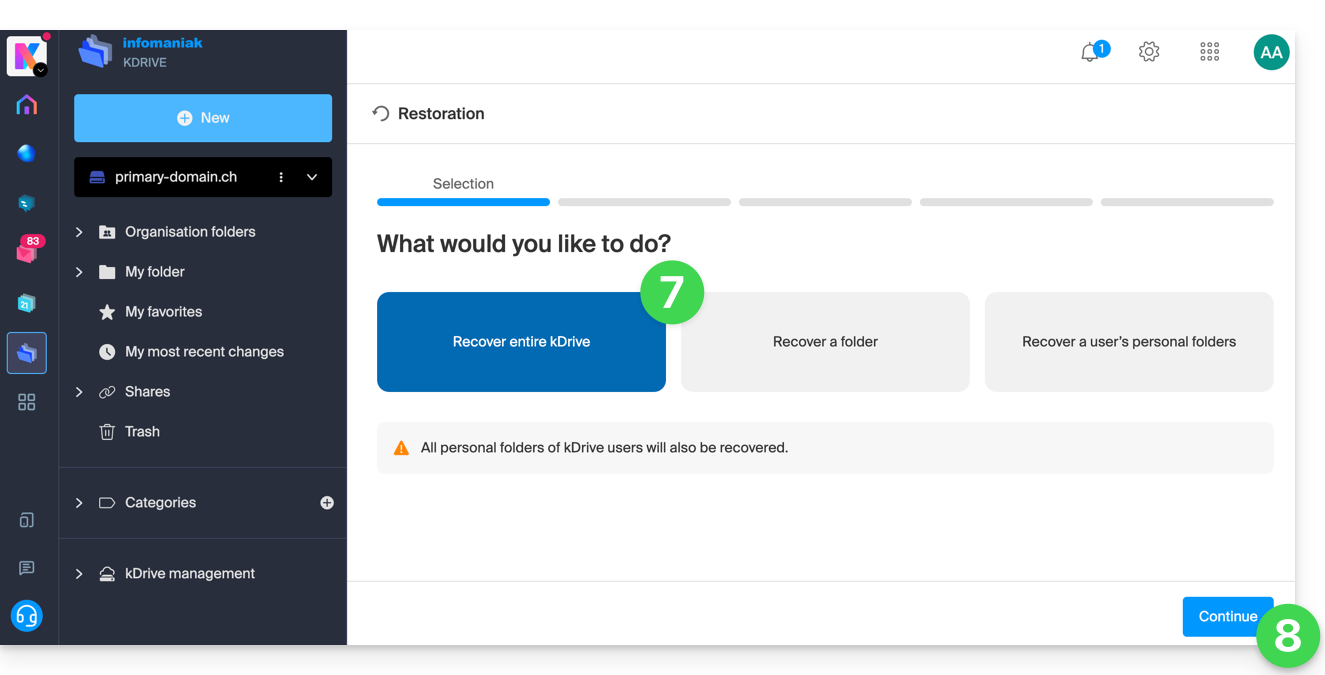
- Choose what will be affected by the rollback (the entire kDrive or only a part, and if so, for which user).
- Click on Continue:
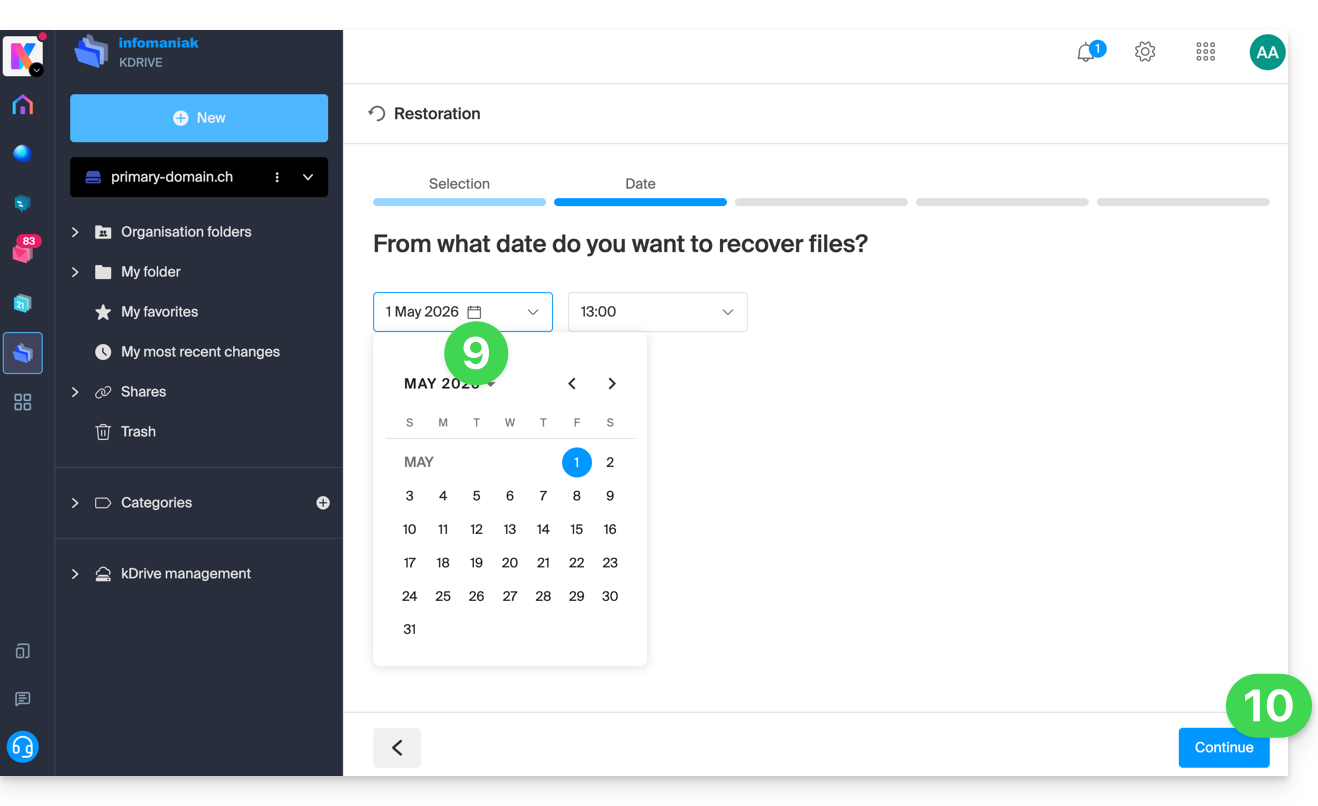
- Choose the date to revert to (maximum 3 months / 90 days).
- Click on Continue:
- Start the analysis at the next step:
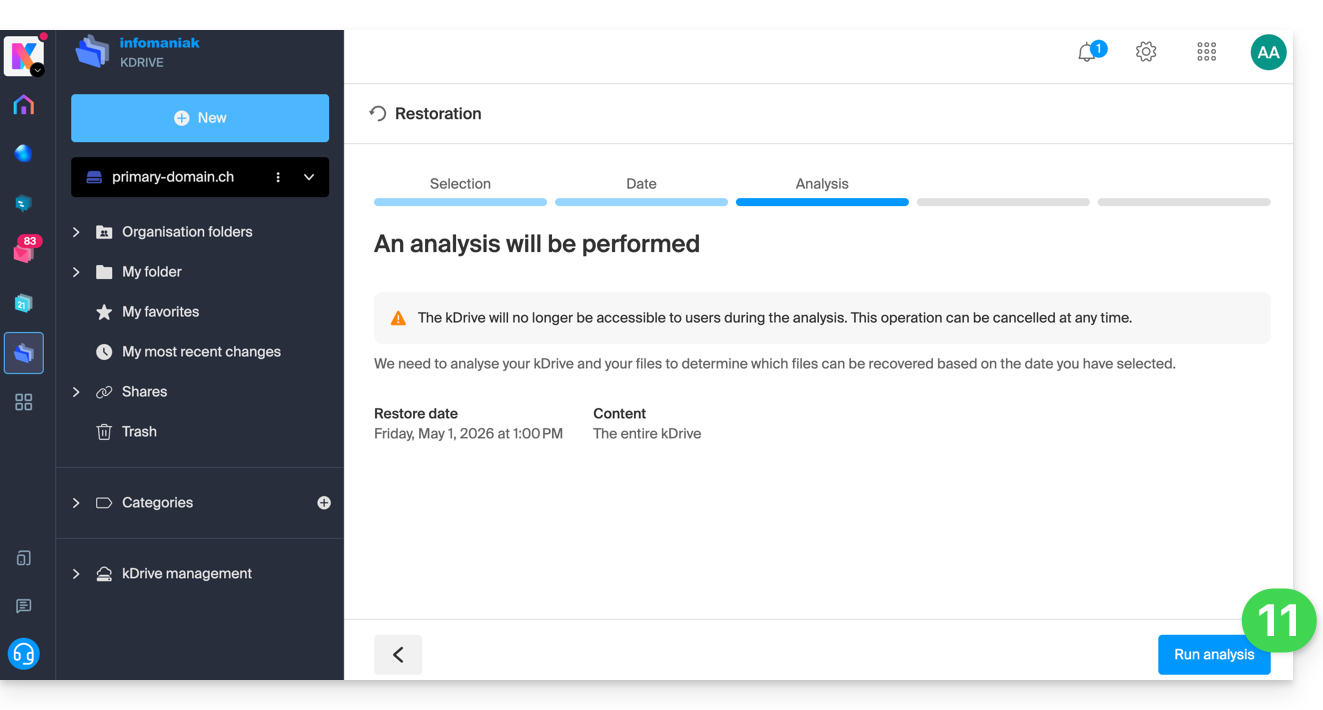
- If going back does not produce any results, the analysis will indicate this, and you can specify another date:
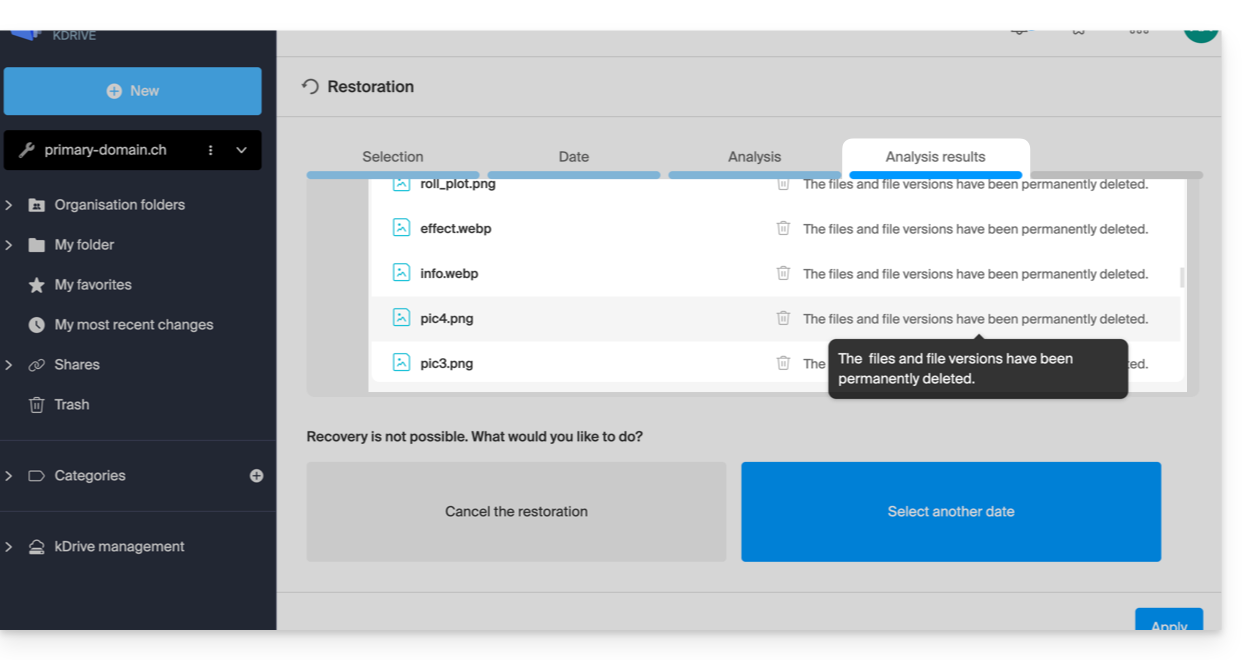
- If going back does not produce any results, the analysis will indicate this, and you can specify another date:
- Then determine the next steps based on the proposed result:
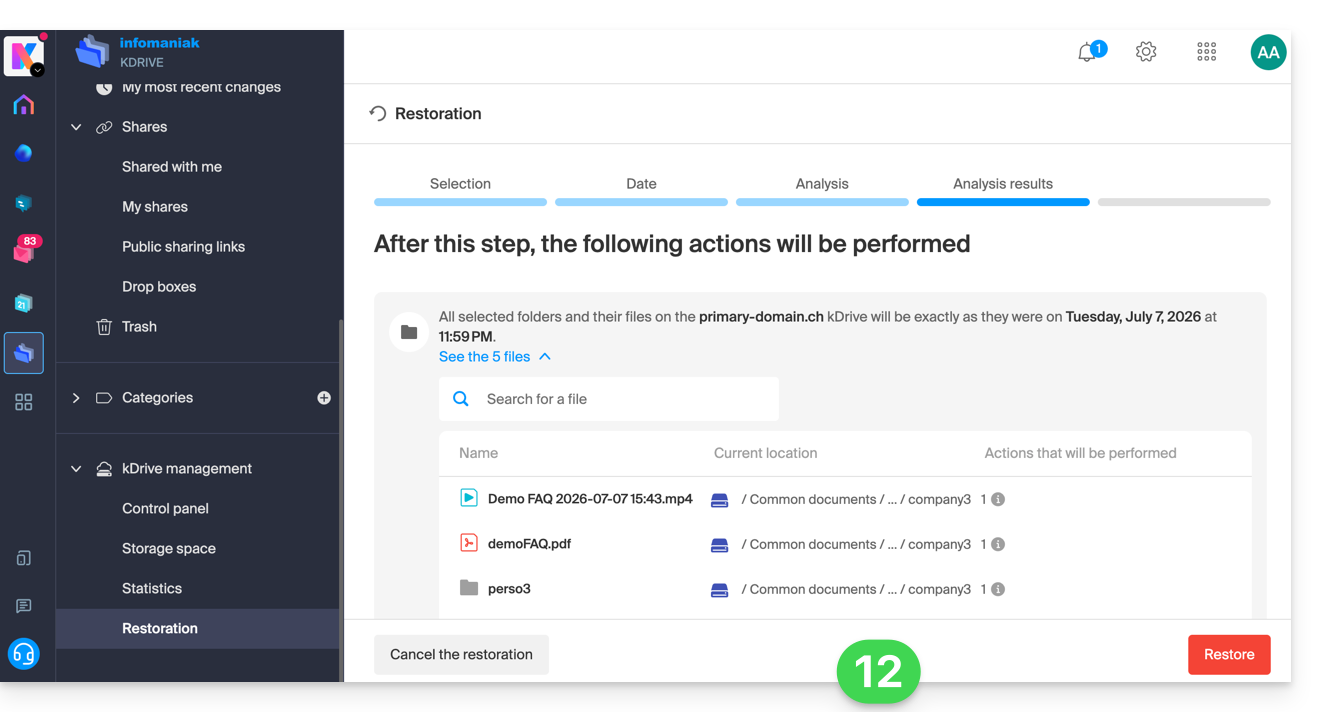
- A final security request will appear before the restoration begins:
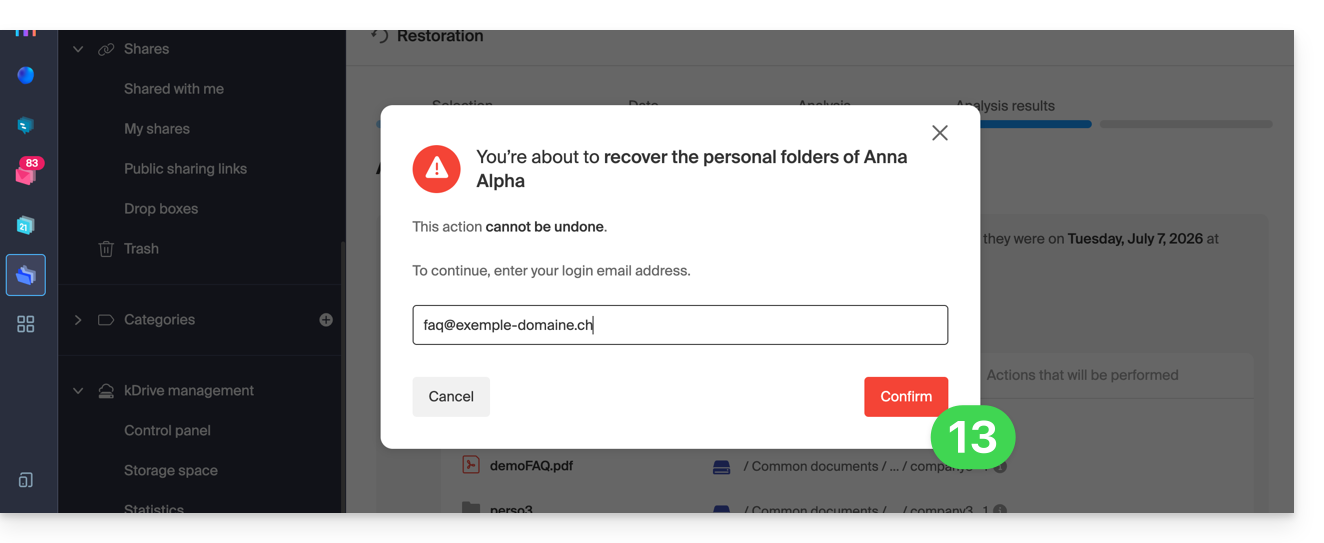
After the operation, an email is sent: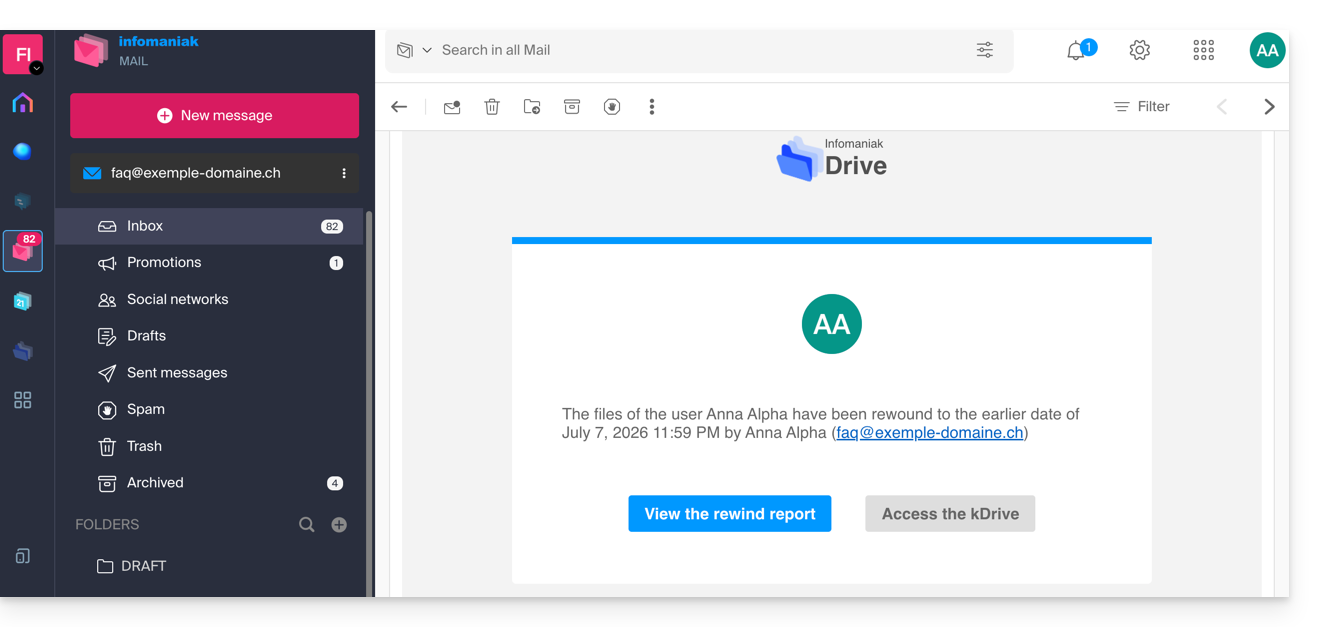
and a notification is displayed on the online kDrive: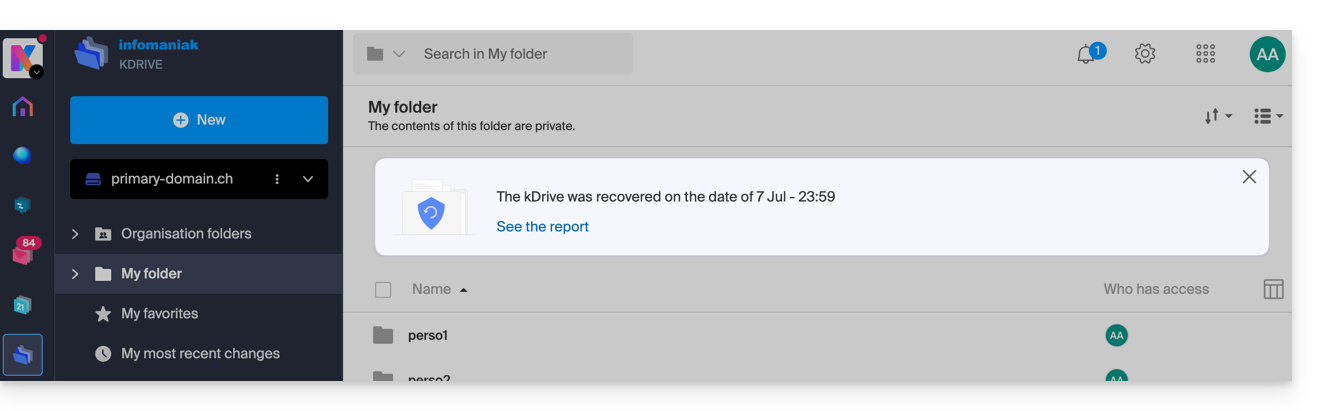
Analysis Report
An administrator viewing a report of a restore initiated by another administrator will not see all the information related to the initiating administrator's personal data: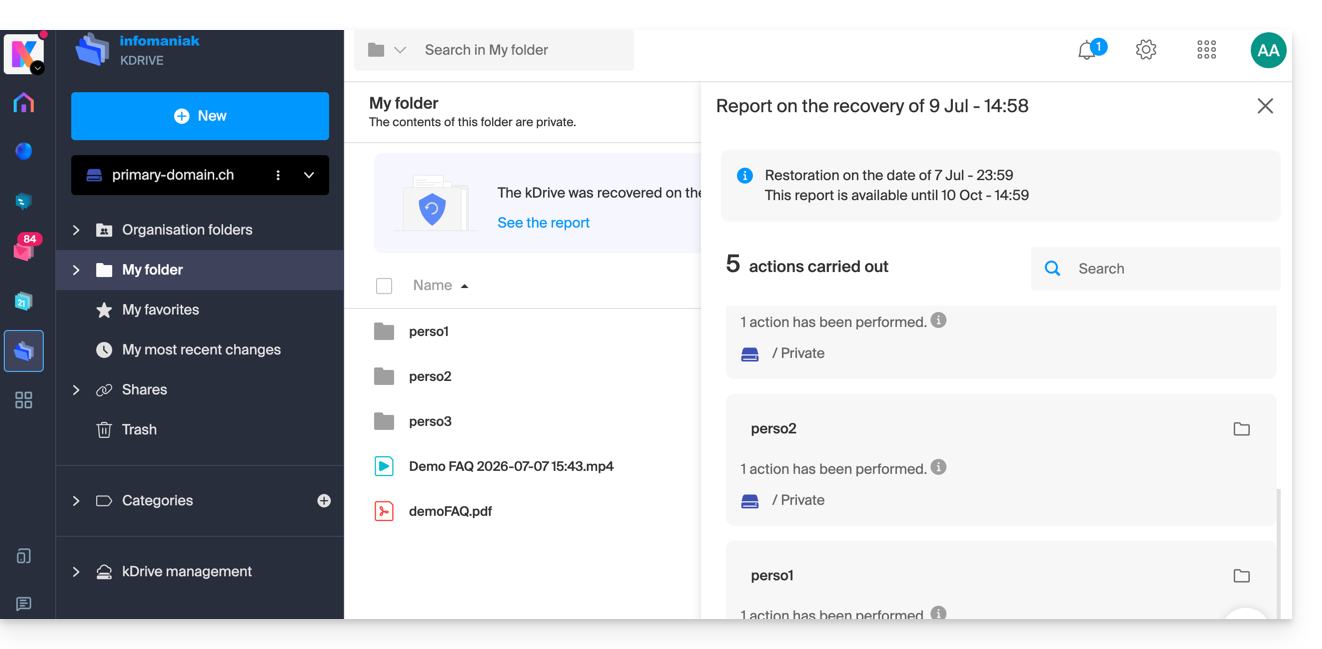
In the analysis report view, the data is listed and grouped according to its current location before the rollback.
In case of conflict
A folder named "Restoration (date and time)" will be created in the root of the administrator's kDrive (or in the user's account) containing a subfolder with the conflicting files called "Conflict" and another folder for the files that currently exist in the target location, called “Later elements”.
Link naar deze veelgestelde vragen: https://faq.infomaniak.com/1838
Is deze veelgestelde vragenlijst nuttig geweest?