Kennisbank
1.000 veelgestelde vragen, 500 tutorials en uitlegvideo's. Hier vind je alleen maar oplossingen!
Forward received emails with Mail Infomaniak
Bijwerken 02-11-2026
This guide explains how to forward one or more emails you have already received to a recipient, by placing them either…
- … directly in the body of a new message,
- … as an attachment (this allows you to forward the entire message with its headers, and not just its content).
Introduction
- To obtain a sharing link to view a specific email, please refer to this other guide.
- For automatically redirect all future incoming messages, please refer to this other guide.
- To filter and automatically redirect only certain messages, please refer to this other guide.
- To learn how to forward emails but from a third-party email software/client:
Forward a message from the Infomaniak Web Mail app
To do this:
- Click here to access your emails on your Infomaniak kSuite (❓: help).
- Open the message you want to forward.
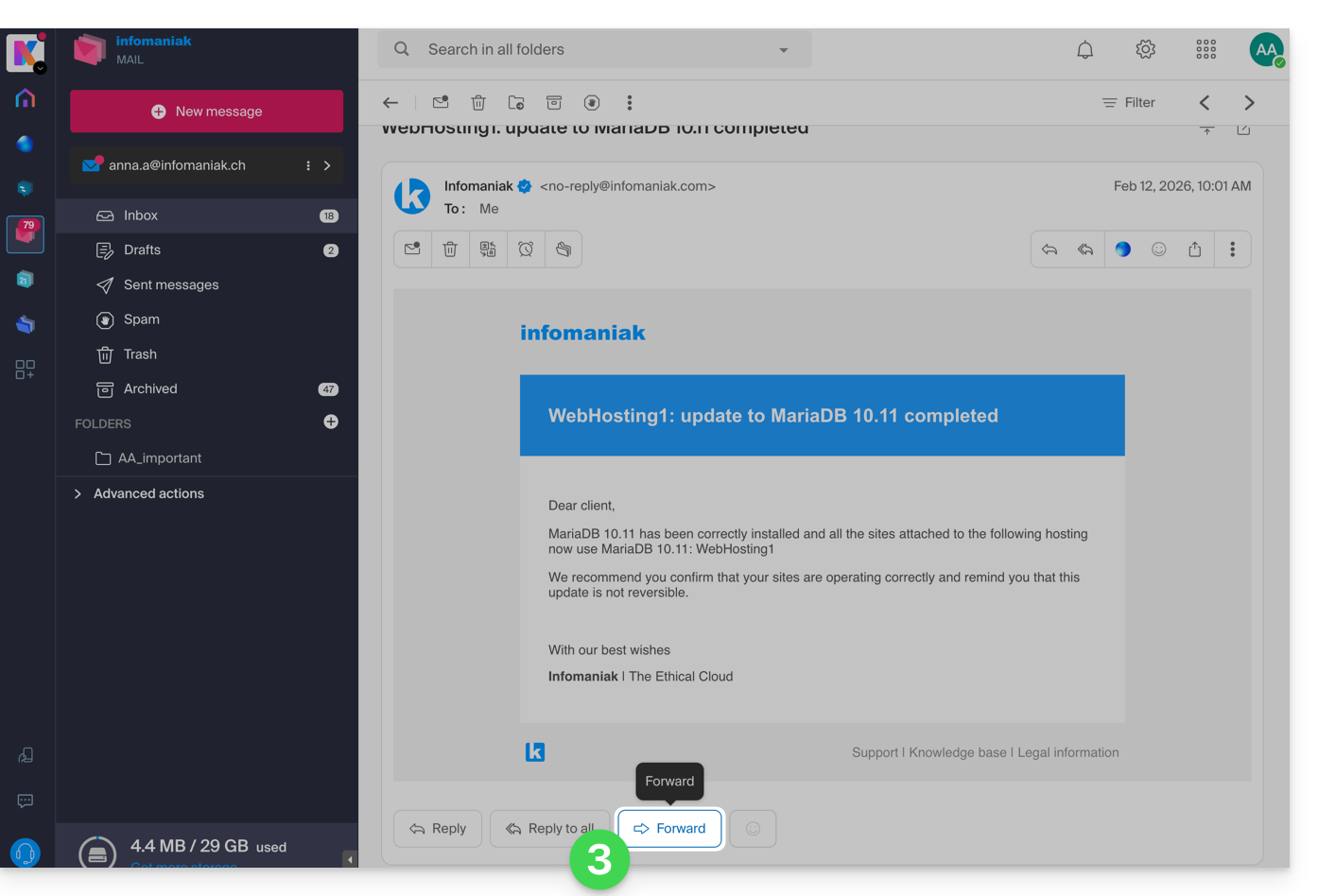
- The button to TRANSFER is located below the message:
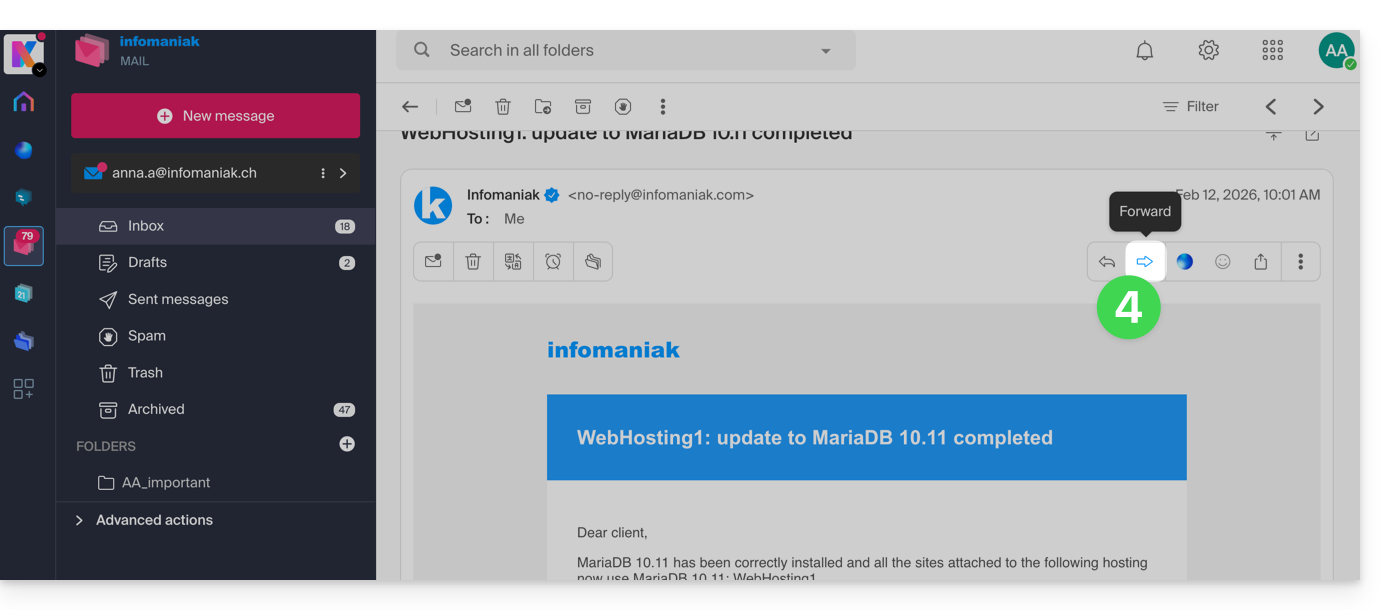
- You can also enable shortcuts so that a transfer button appears above the message, in the toolbar:
Configure the default forwarding method
You can configure Mail Infomaniak so that an email forward is always sent as an attachment and not quoted in the body of the message.
Indeed, by default, the original email will be quoted in plain text directly in the body of the email: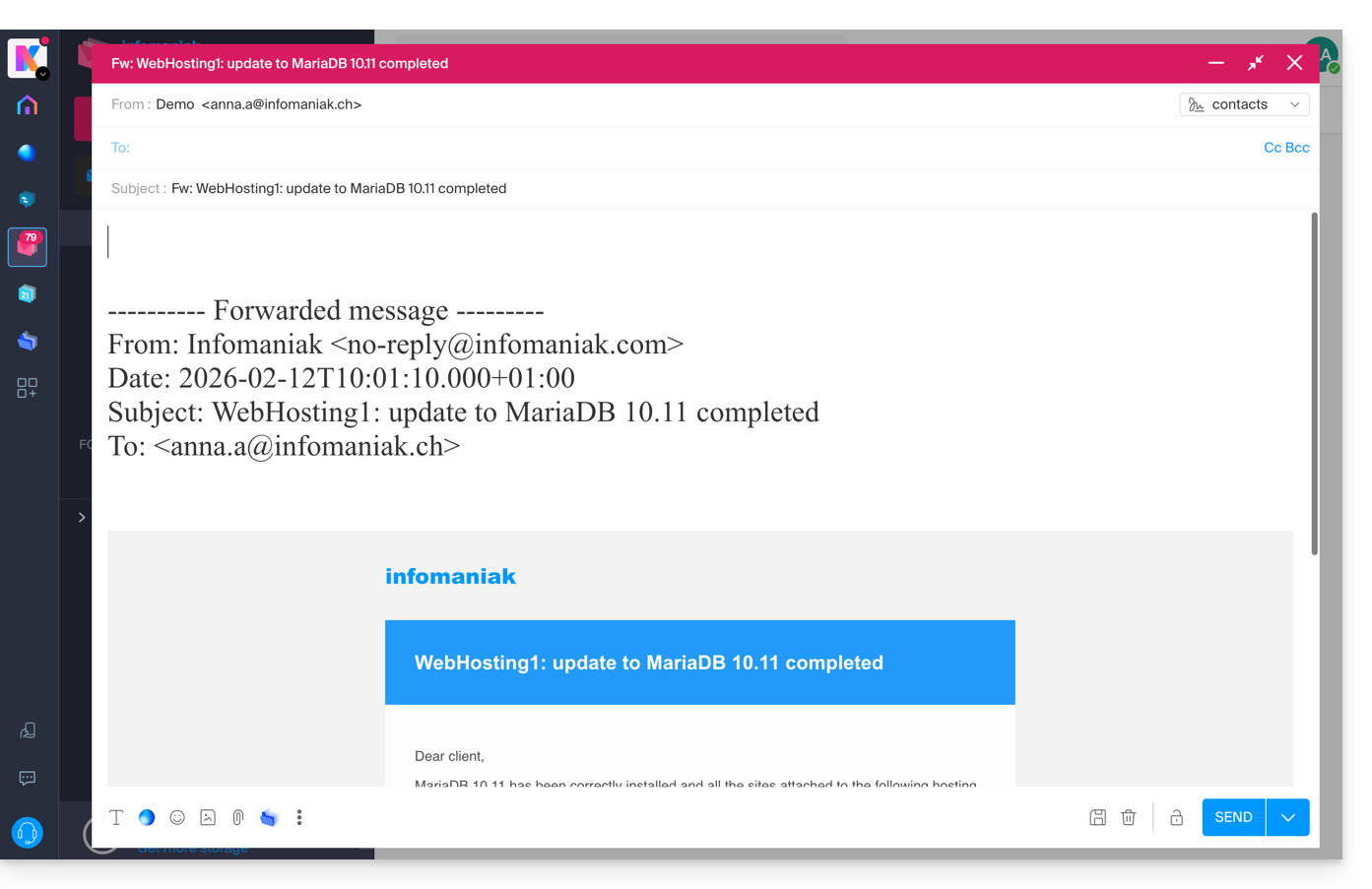
To change this and define the default transfer method:
- Click here to access your emails on your Infomaniak kSuite (❓: help).
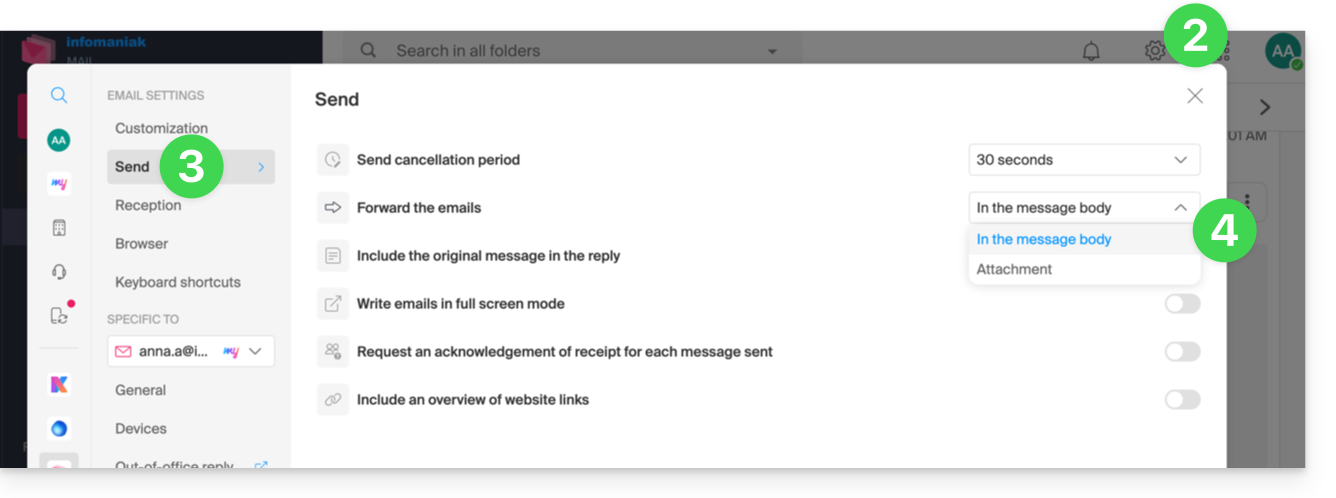
- Click on Settings in the top right corner.
- Click on Send in the secondary sidebar menu.
- Click on the desired option ("As an attachment") to "Forward emails":
From now on, the original email will be attached as an attachment to the email: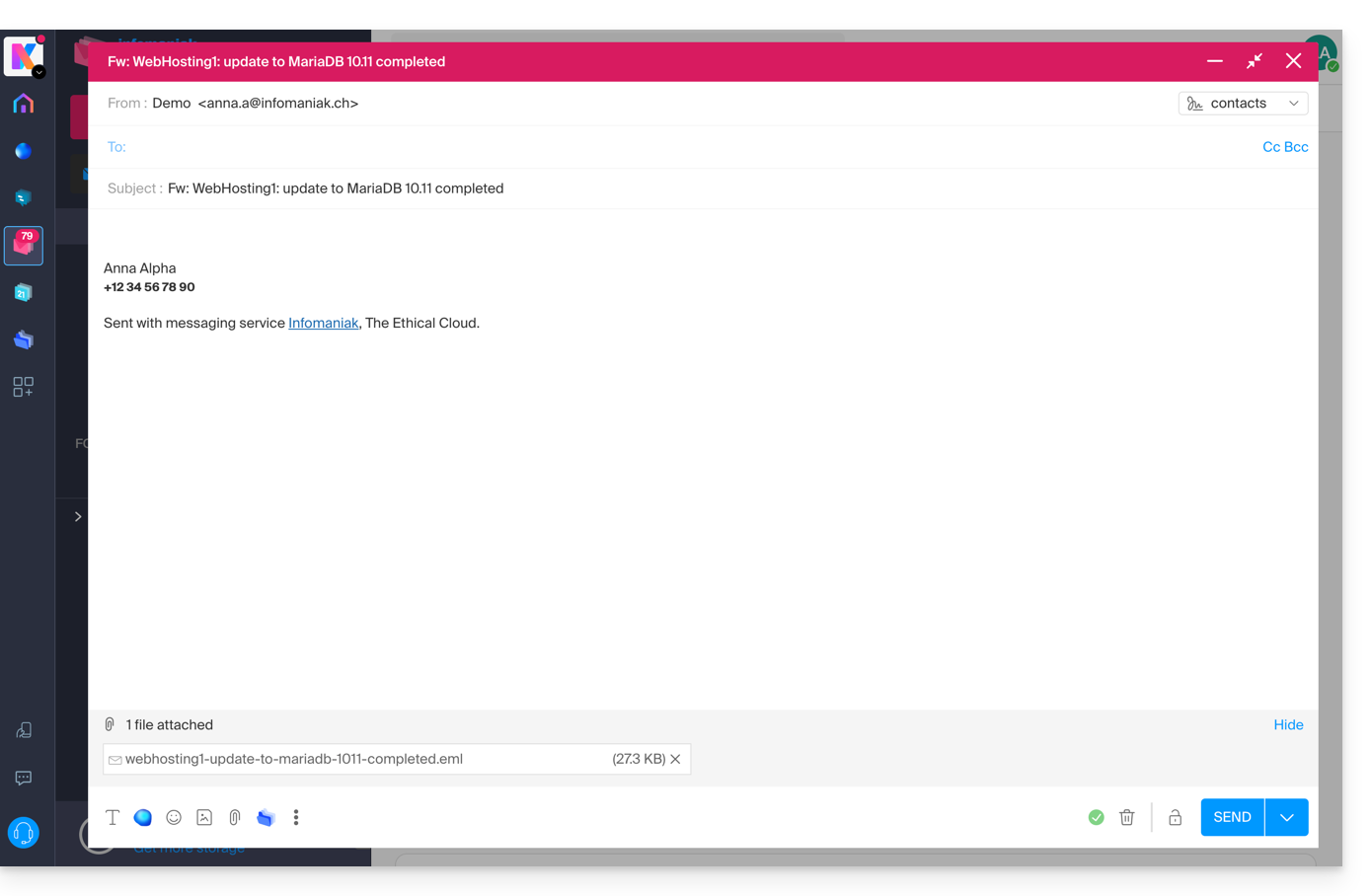
Link naar deze veelgestelde vragen: https://faq.infomaniak.com/1750
Is deze veelgestelde vragenlijst nuttig geweest?