Base di conoscenze
1 000 FAQ, 500 tutorial e video esplicativi. Qui ci sono delle soluzioni!
Importare le foto di Google in kDrive
Questa guida spiega come esportare le foto da Google Foto (https://photos.google.com/) e importarle in kDrive di Infomaniak.
1. Esportare le foto da Google
Per scaricare le foto archiviate in Google Foto sul tuo computer, utilizza Google Takeout. Questo servizio consente di esportare tutti gli elementi o di selezionare solo determinati album, se preferisci procedere per fasi:
- Accedi a Google Takeout.
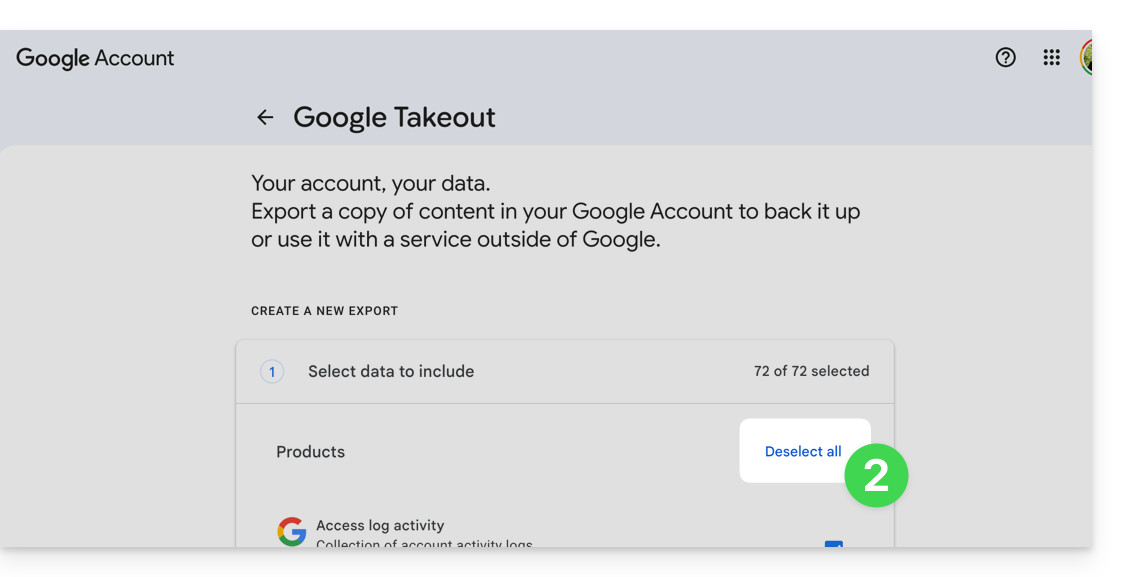
- Deseleziona tutti i prodotti per mantenere solo Google Foto:
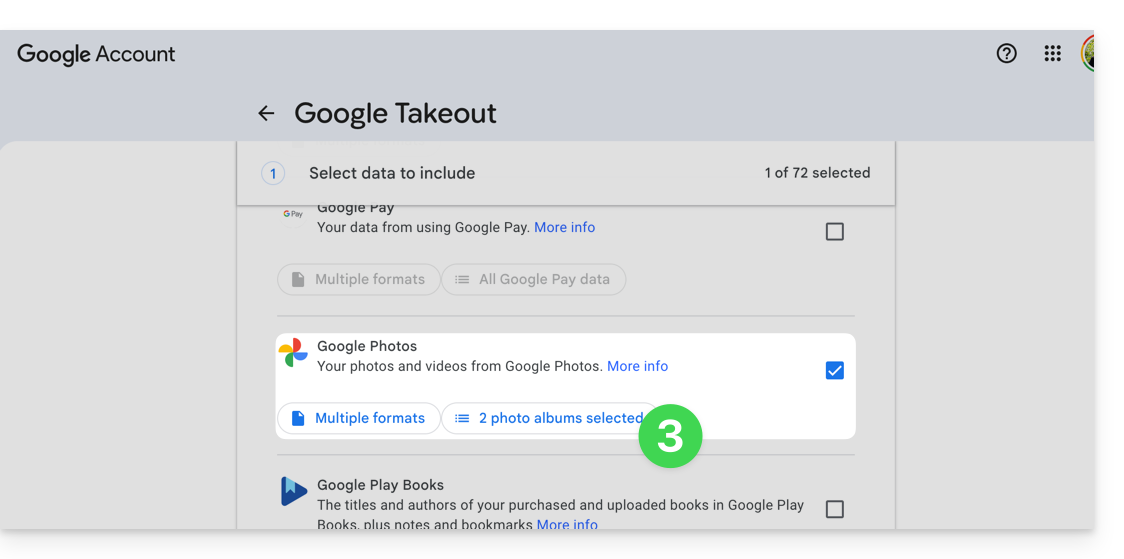
- Se necessario, deseleziona gli album che non vuoi esportare:
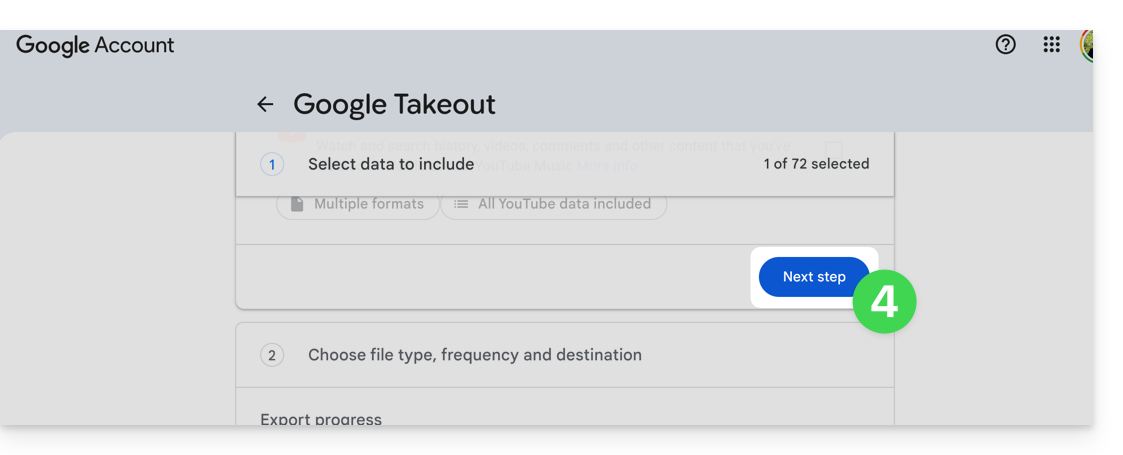
- Passa alla fase successiva in fondo alla pagina:
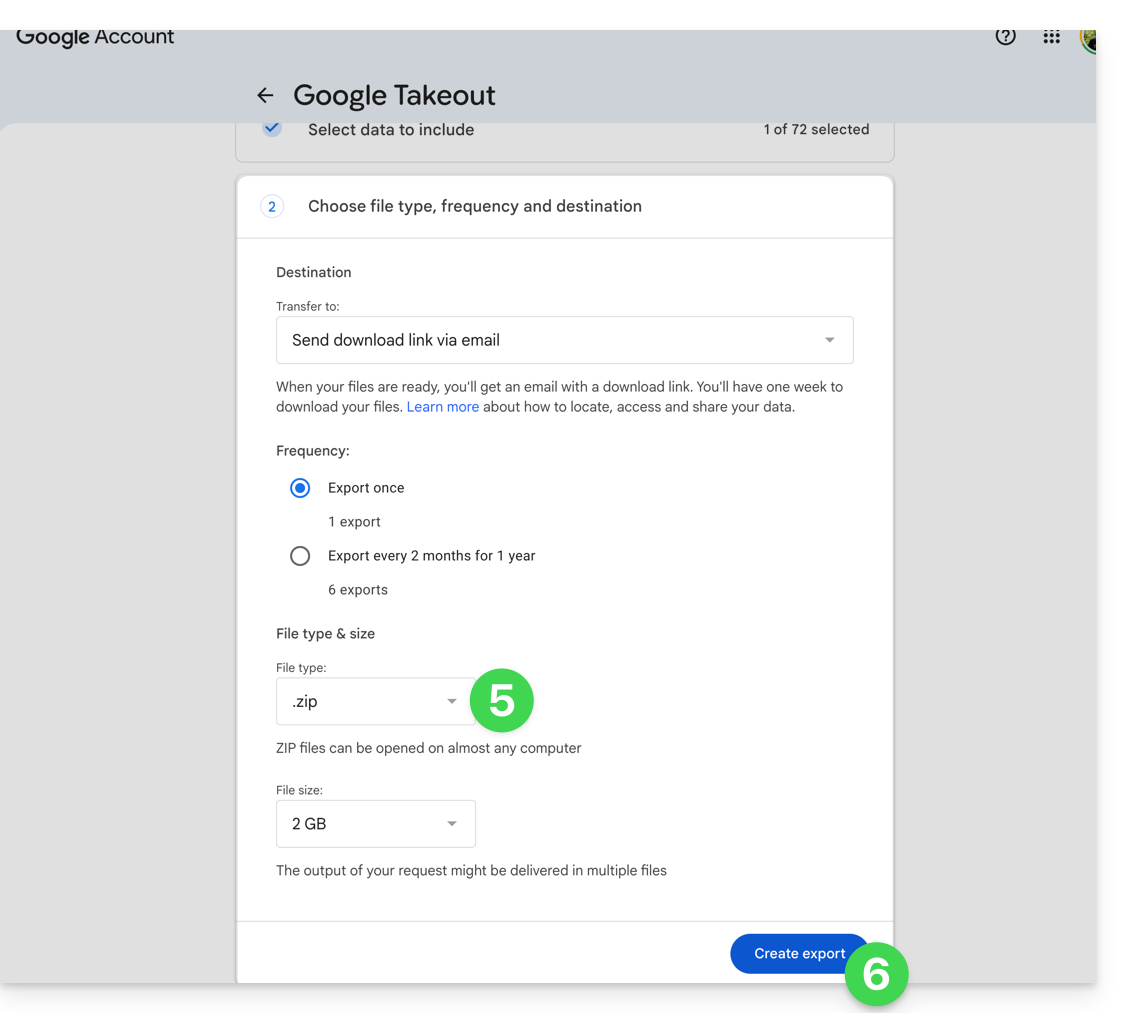
- Configura l'esportazione in formato ZIP.
- Fai clic sul pulsante Crea esportazione per avviare l'esportazione:
- Attendi di ricevere l'e-mail contenente i link per il download. A seconda del volume dei dati, la preparazione dell'esportazione potrebbe richiedere diverse ore o addirittura giorni.
- Scarica gli archivi ZIP e decomprimili sul tuo computer:
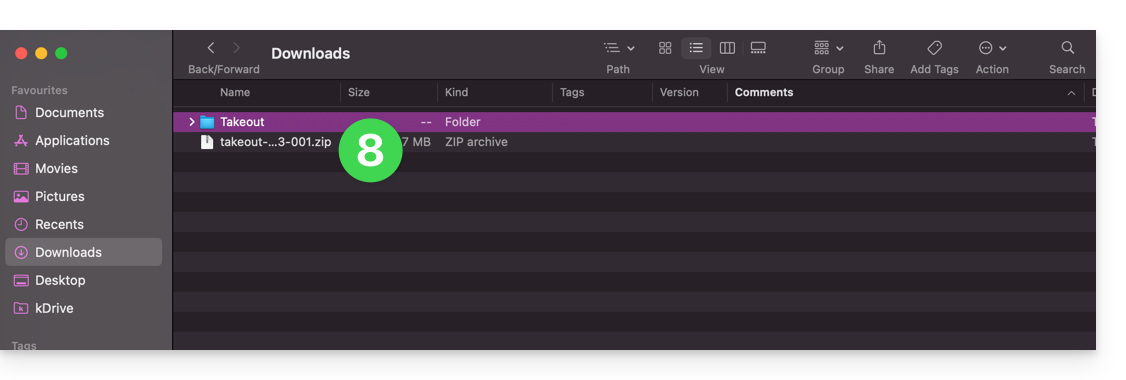
- Se necessario, raggruppa le cartelle esportate prima di importarle in kDrive.
2. Correggere le date dei file esportati
Durante un'esportazione, le date di sistema dei file potrebbero essere sostituite con la data di esportazione anziché con la data originale dello scatto. Se l'ordine cronologico delle foto non è corretto dopo l'esportazione, puoi correggere queste date prima dell'importazione in kDrive.
Prima di eseguire uno script, lavora su una copia dei tuoi file esportati. Non eliminare i file .json forniti da Google Takeout prima dell'elaborazione: potrebbero contenere la data originale quando questa non è disponibile nei metadati EXIF del file.
Gli script seguenti cercano una data in questo ordine: metadati del file, file JSON di Google Takeout associato e, infine, la data presente nel nome del file. I file senza una data utilizzabile vengono elencati in un file DateError.txt creato sul desktop. I file corretti vengono elencati in DateFound.txt.
Per limitare il rischio di blocchi durante l'elaborazione di esportazioni molto grandi, elabora i file in lotti di alcune migliaia di elementi.
Correggere le date su macOS
- Scarica e installa ExifTool da https://exiftool.org/index.html, scegliendo il pacchetto macOS.
- Apri l'applicazione Terminale dalla cartella Applicazioni > Utility.
- Copia e incolla l'intero blocco sottostante nel Terminale, quindi premi il tasto Invio per confermare, se necessario.
- Seleziona la cartella contenente i file esportati da Google Takeout.
- Lascia che l'elaborazione venga completata, quindi controlla i file
DateFound.txteDateError.txtcreati sul desktop.
Lo script da copiare e incollare:
/bin/bash <<'BASH'
#!/bin/bash
set -u

ROOT="$(osascript -e 'POSIX path of (choose folder with prompt "Select the folder containing the files to update")')" || exit 0

DESKTOP="$HOME/Desktop"
LOG_FOUND="$DESKTOP/DateFound.txt"
LOG_ERROR="$DESKTOP/DateError.txt"
: > "$LOG_FOUND"
: > "$LOG_ERROR"

find_exiftool() {
    if command -v exiftool >/dev/null 2>&1; then
        command -v exiftool
        return 0
    fi
    if [ -x "/usr/local/bin/exiftool" ]; then
        printf '%s\n' "/usr/local/bin/exiftool"
        return 0
    fi
    if [ -x "/opt/homebrew/bin/exiftool" ]; then
        printf '%s\n' "/opt/homebrew/bin/exiftool"
        return 0
    fi
    return 1
}

EXIFTOOL="$(find_exiftool)" || {
    printf '%s\n' "ExifTool not found. Install it, then run the script again." >> "$LOG_ERROR"
    printf '%s\n' "ExifTool not found. Check DateError.txt on the desktop."
    exit 1
}

if [ ! -d "$ROOT" ]; then
    printf 'Invalid folder: %s\n' "$ROOT" >> "$LOG_ERROR"
    printf '%s\n' "Invalid folder. Check DateError.txt on the desktop."
    exit 1
fi

get_exif_date() {
    "$EXIFTOOL" -s3 -d "%Y:%m:%d %H:%M:%S" -DateTimeOriginal -CreateDate -MediaCreateDate -TrackCreateDate -CreationDate -ModifyDate -- "$1" 2>/dev/null | awk '/^[0-9]{4}:[0-9]{2}:[0-9]{2} [0-9]{2}:[0-9]{2}:[0-9]{2}/ { print substr($0, 1, 19); exit }'
}

get_json_date() {
    local file="$1"
    local json=""
    if [ -f "$file.json" ]; then
        json="$file.json"
    elif [ -f "${file%.*}.json" ]; then
        json="${file%.*}.json"
    fi
    [ -z "$json" ] && return 1

    /usr/bin/perl -MTime::Piece -0777 -ne 'if (/"photoTakenTime"\s*:\s*\{.*?"timestamp"\s*:\s*"([0-9]+)"/s || /"creationTime"\s*:\s*\{.*?"timestamp"\s*:\s*"([0-9]+)"/s) { print localtime($1)->strftime("%Y:%m:%d %H:%M:%S"); }' "$json"
}

get_name_date() {
    local name
    name="$(basename "$1")"
    if [[ "$name" =~ ([12][0-9]{3})[-_]?([01][0-9])[-_]?([0-3][0-9])([_\ -]?([0-2][0-9])[-_\.]?([0-5][0-9])[-_\.]?([0-5][0-9]))? ]]; then
        local year="${BASH_REMATCH[1]}"
        local month="${BASH_REMATCH[2]}"
        local day="${BASH_REMATCH[3]}"
        local hour="12"
        local minute="00"
        local second="00"
        if [ -n "${BASH_REMATCH[5]:-}" ]; then
            hour="${BASH_REMATCH[5]}"
            minute="${BASH_REMATCH[6]}"
            second="${BASH_REMATCH[7]}"
        fi
        printf '%s:%s:%s %s:%s:%s\n' "$year" "$month" "$day" "$hour" "$minute" "$second"
        return 0
    fi
    return 1
}

is_valid_date() {
    date -j -f "%Y:%m:%d %H:%M:%S" "$1" "+%Y:%m:%d %H:%M:%S" >/dev/null 2>&1
}

to_touch_date() {
    printf '%s' "$1" | sed -E 's/^([0-9]{4}):([0-9]{2}):([0-9]{2}) ([0-9]{2}):([0-9]{2}):([0-9]{2})$/\1\2\3\4\5.\6/'
}

write_metadata() {
    local file="$1"
    local date_value="$2"
    "$EXIFTOOL" -overwrite_original "-DateTimeOriginal=$date_value" "-CreateDate=$date_value" "-ModifyDate=$date_value" -- "$file" >/dev/null 2>&1 || true
}

process_file() {
    local file="$1"
    local date_value=""
    local source=""

    date_value="$(get_exif_date "$file")"
    if [ -n "$date_value" ]; then
        source="EXIF"
    else
        date_value="$(get_json_date "$file")"
        if [ -n "$date_value" ]; then
            source="Google Takeout JSON"
        else
            date_value="$(get_name_date "$file")"
            if [ -n "$date_value" ]; then
                source="file name"
            fi
        fi
    fi

    if [ -n "$date_value" ] && is_valid_date "$date_value"; then
        local touch_value
        touch_value="$(to_touch_date "$date_value")"
        if [ "$source" != "EXIF" ]; then
            write_metadata "$file" "$date_value"
        fi
        if touch -t "$touch_value" "$file" 2>/dev/null; then
            printf '%s | %s | %s\n' "$source" "$date_value" "$file" >> "$LOG_FOUND"
        else
            printf 'Unable to update file date: %s\n' "$file" >> "$LOG_ERROR"
        fi
    else
        printf 'No valid date found: %s\n' "$file" >> "$LOG_ERROR"
    fi
}

while IFS= read -r -d '' file; do
    case "$file" in
        *.json|*_original) continue ;;
    esac
    process_file "$file"
done < <(find "$ROOT" -type f -print0)

printf '%s\n' "Done. Check DateFound.txt and DateError.txt on the desktop."
BASH
Correggere le date su Windows
- Scarica ExifTool da https://exiftool.org/index.html, scegliendo il file eseguibile per Windows.
- Posizionalo in una cartella accessibile, ad esempio
C:\ExifTool. - Rinomina il file
exiftool(-k).exeinexiftool.exe. - Verifica che il percorso completo sia
C:\ExifTool\exiftool.exe.- Se posizioni ExifTool in un'altra posizione, modifica la prima riga di configurazione dello script qui sotto.
- Copia e incolla lo script qui sotto nel Blocco note.
- Salva il file con estensione
.ps1, ad esempioUpdateExifDates.ps1. - Fai clic con il pulsante destro del mouse sul file
.ps1, quindi eseguilo con PowerShell. - Seleziona la cartella contenente i file esportati da Google Takeout.
- Lascia che il processo venga completato, quindi controlla i file
DateFound.txteDateError.txtcreati sul desktop.
Se PowerShell blocca l'esecuzione dello script, apri PowerShell ed esegui il comando Set-ExecutionPolicy RemoteSigned -Scope CurrentUser, quindi conferma la modifica quando richiesto da Windows.
Lo script da copiare e incollare completamente:
# === Configuration ===
$ExifToolPath = "C:\ExifTool\exiftool.exe"
$Desktop = [Environment]::GetFolderPath("Desktop")
$LogFound = Join-Path $Desktop "DateFound.txt"
$LogError = Join-Path $Desktop "DateError.txt"
Set-Content -Path $LogFound -Value ""
Set-Content -Path $LogError -Value ""

if (-not (Test-Path -LiteralPath $ExifToolPath)) {
    Add-Content -Path $LogError -Value "ExifTool not found: $ExifToolPath"
    Write-Host "ExifTool not found. Check the path in the script."
    exit
}

# === Folder selection dialog ===
Add-Type -AssemblyName System.Windows.Forms
$FolderBrowser = New-Object System.Windows.Forms.FolderBrowserDialog
$FolderBrowser.Description = "Select the folder to process"
if ($FolderBrowser.ShowDialog() -ne [System.Windows.Forms.DialogResult]::OK) { exit }
$Folder = $FolderBrowser.SelectedPath

function Get-DateFromExif {
    param ([string]$FilePath)

    $Tags = @("DateTimeOriginal", "CreateDate", "MediaCreateDate", "TrackCreateDate", "CreationDate", "ModifyDate")
    foreach ($Tag in $Tags) {
        $Value = (& $ExifToolPath "-$Tag" -s3 -d "%Y:%m:%d %H:%M:%S" -- "$FilePath" 2>$null | Select-Object -First 1)
        if ($Value -match '^(\d{4}):(\d{2}):(\d{2}) (\d{2}):(\d{2}):(\d{2})') {
            try {
                return [datetime]::ParseExact($Matches[0], "yyyy:MM:dd HH:mm:ss", [Globalization.CultureInfo]::InvariantCulture)
            } catch {}
        }
    }
    return $null
}

function Get-DateFromJson {
    param ([string]$FilePath)

    $JsonPaths = @("$FilePath.json", [System.IO.Path]::ChangeExtension($FilePath, ".json")) | Select-Object -Unique
    foreach ($JsonPath in $JsonPaths) {
        if (Test-Path -LiteralPath $JsonPath) {
            try {
                $Json = Get-Content -LiteralPath $JsonPath -Raw -ErrorAction Stop | ConvertFrom-Json -ErrorAction Stop
                $Timestamp = $null
                if ($Json.photoTakenTime -and $Json.photoTakenTime.timestamp) {
                    $Timestamp = [int64]$Json.photoTakenTime.timestamp
                } elseif ($Json.creationTime -and $Json.creationTime.timestamp) {
                    $Timestamp = [int64]$Json.creationTime.timestamp
                }

                if ($null -ne $Timestamp) {
                    return ([DateTimeOffset]::FromUnixTimeSeconds($Timestamp)).LocalDateTime
                }
            } catch {}
        }
    }
    return $null
}

function Get-DateFromFileName {
    param ([string]$FileName)

    if ($FileName -match '([12]\d{3})[-_]?(0[1-9]|1[0-2])[-_]?(0[1-9]|[12]\d|3[01])(?:[ _-]?([01]\d|2[0-3])[-_.]?([0-5]\d)[-_.]?([0-5]\d))?') {
        $Year = $Matches[1]
        $Month = $Matches[2]
        $Day = $Matches[3]
        $Hour = "12"
        $Minute = "00"
        $Second = "00"

        if ($Matches[4]) {
            $Hour = $Matches[4]
            $Minute = $Matches[5]
            $Second = $Matches[6]
        }

        $DateString = "$Year$Month$Day$Hour$Minute$Second"
        try {
            return [datetime]::ParseExact($DateString, "yyyyMMddHHmmss", [Globalization.CultureInfo]::InvariantCulture)
        } catch {}
    }
    return $null
}

function Write-Metadata {
    param (
        [string]$FilePath,
        [datetime]$DateValue
    )

    $ExifDate = $DateValue.ToString("yyyy:MM:dd HH:mm:ss", [Globalization.CultureInfo]::InvariantCulture)
    & $ExifToolPath -overwrite_original "-DateTimeOriginal=$ExifDate" "-CreateDate=$ExifDate" "-ModifyDate=$ExifDate" -- "$FilePath" 2>$null | Out-Null
}

function Set-FileDates {
    param (
        [string]$FilePath,
        [datetime]$DateValue
    )

    [System.IO.File]::SetCreationTime($FilePath, $DateValue)
    [System.IO.File]::SetLastWriteTime($FilePath, $DateValue)
    [System.IO.File]::SetLastAccessTime($FilePath, $DateValue)
}

Get-ChildItem -LiteralPath $Folder -Recurse -File | Where-Object {
    $_.Extension -ne ".json" -and $_.Name -notlike "*_original"
} | ForEach-Object {
    $File = $_
    $FilePath = $File.FullName
    $DateValue = Get-DateFromExif -FilePath $FilePath
    $Source = "EXIF"

    if (-not $DateValue) {
        $DateValue = Get-DateFromJson -FilePath $FilePath
        $Source = "Google Takeout JSON"
    }

    if (-not $DateValue) {
        $DateValue = Get-DateFromFileName -FileName $File.Name
        $Source = "file name"
    }

    if ($DateValue) {
        try {
            if ($Source -ne "EXIF") {
                Write-Metadata -FilePath $FilePath -DateValue $DateValue
            }
            Set-FileDates -FilePath $FilePath -DateValue $DateValue
            Add-Content -Path $LogFound -Value "$Source | $($DateValue.ToString('yyyy-MM-dd HH:mm:ss')) | $FilePath"
        } catch {
            Add-Content -Path $LogError -Value "Unable to update file date: $FilePath"
        }
    } else {
        Add-Content -Path $LogError -Value "No valid date found: $FilePath"
    }
}

[System.Windows.Forms.MessageBox]::Show("Done. Check DateFound.txt and DateError.txt on the desktop.")
3. Importare le foto su kDrive
Non modificare le password finché l'importazione o la sincronizzazione non sono state completate.
Una volta che i file sono pronti, puoi importarli dall'app Web kDrive se il numero di file e la tua connessione Internet consentono l'invio tramite browser:
- Accedi all'app Web kDrive di Infomaniak.
- Apri la posizione in cui devono essere importate le foto.
- Fare clic sul pulsante Nuovo in alto a sinistra.
- Fare clic su Importa una cartella.
- Selezionare la cartella contenente le foto sul computer.
- Attendere il completamento dell'importazione. Il registro attività viene visualizzato in basso a destra:
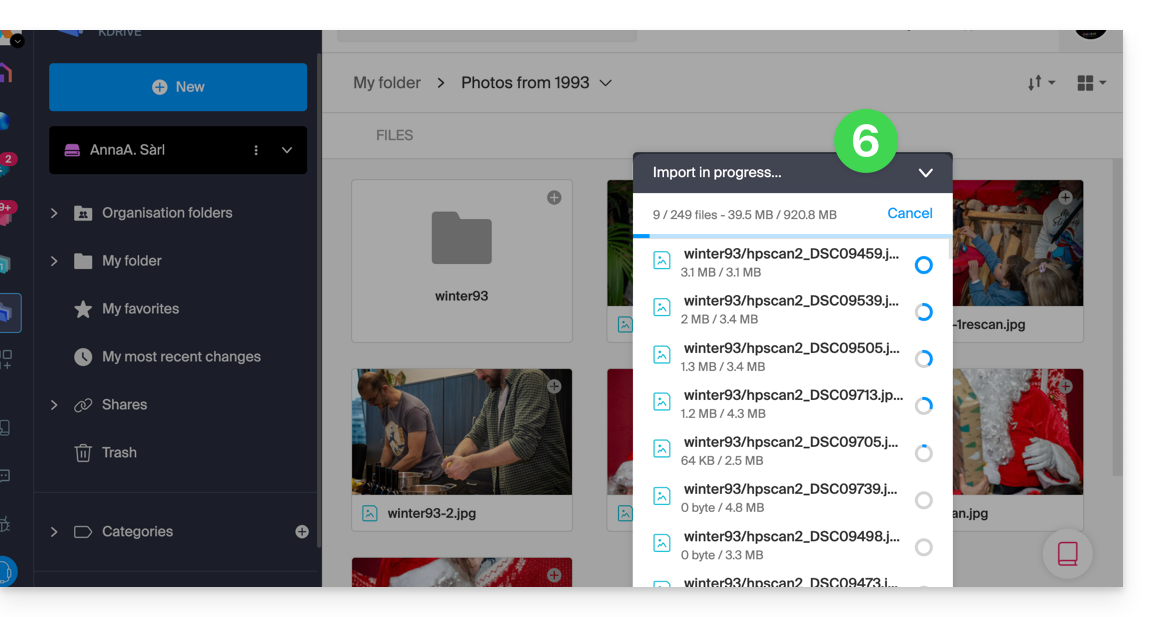
Se si utilizza l'app desktop kDrive, è anche possibile inserire la cartella contenente le foto nella struttura della cartella kDrive sul computer. La sincronizzazione si avvierà automaticamente e i file verranno caricati sui server Infomaniak.
4. Accedere alle foto dai propri dispositivi
Una volta completata l'importazione o la sincronizzazione, è possibile accedere alle foto dai dispositivi connessi a kDrive.
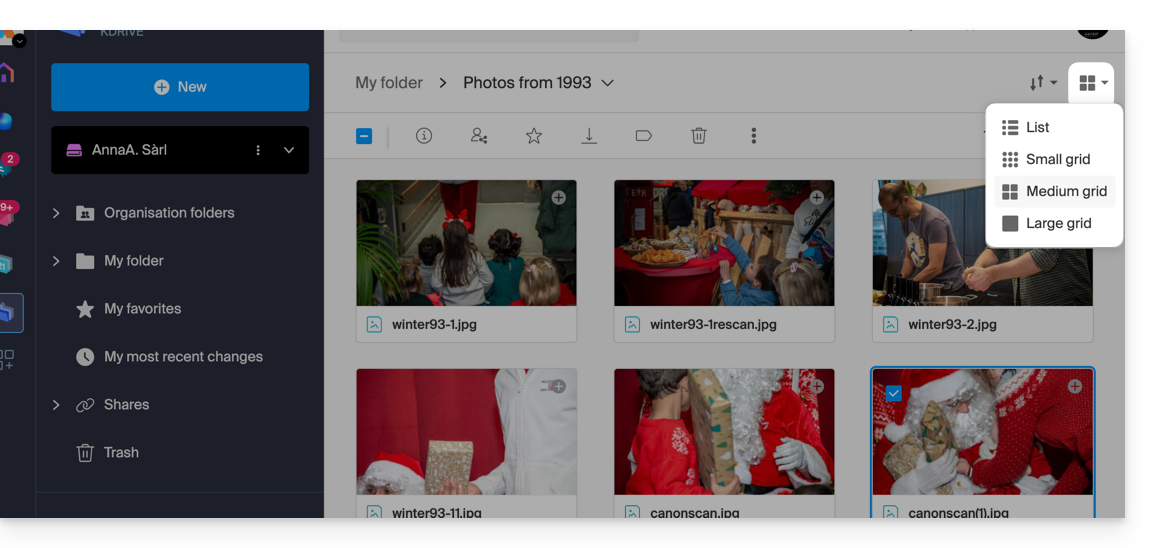
- Nell'app Web kDrive, è possibile modificare la visualizzazione per ingrandire le miniature e sfogliare più facilmente le foto:
Link a questa FAQ: https://faq.infomaniak.com/2540
Questa FAQ è stata utile?