Base de conhecimento
1000 perguntas frequentes, 500 tutoriais e vídeos explicativos. Aqui, você encontra apenas soluções!
Configure the Timeshift option for video streaming
This guide explains how to activate and use the Timeshift function (also called DVR) for your live video broadcasts. This feature allows your viewers to rewind if they missed the beginning of your live stream.
Activating the Timeshift (DVR) function
To access the video streaming service:
- Click here to access the management of your product in the Infomaniak Manager (need help?).
- Click directly on the name assigned to the product in question:
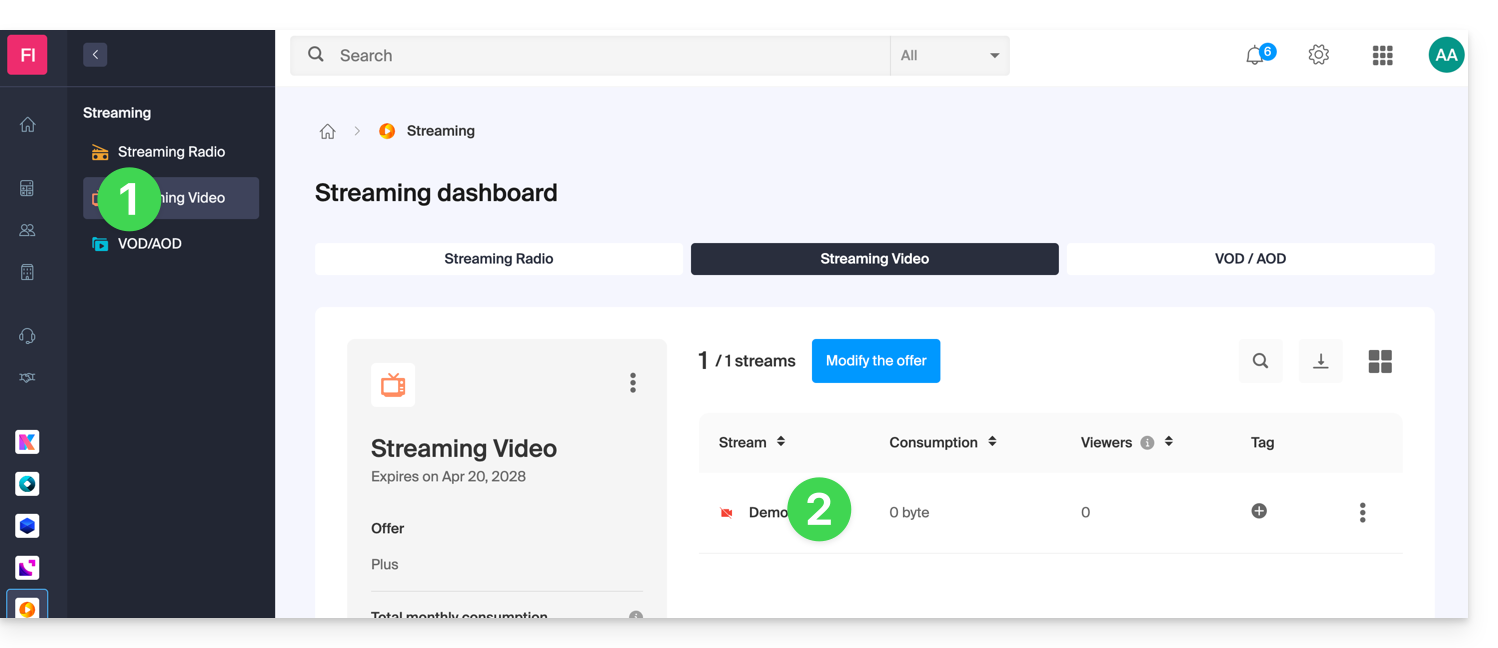
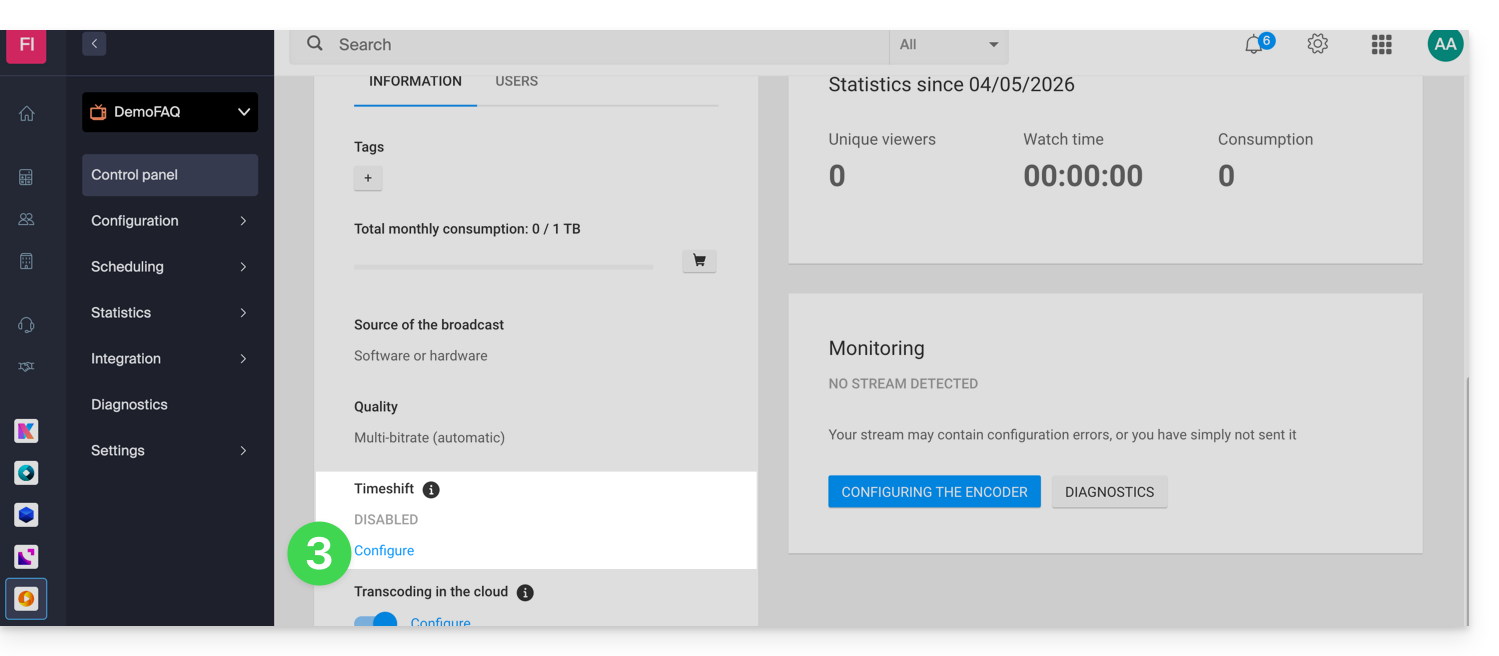
- Click on Configure under Timeshift from the dashboard:
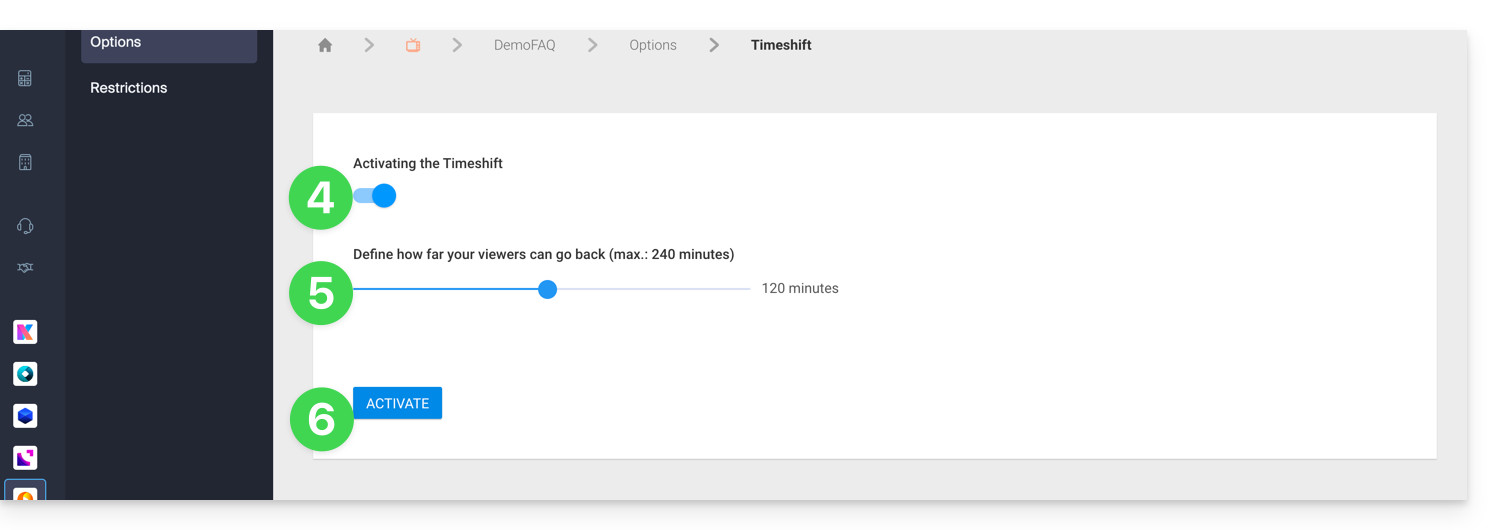
- Activate Timeshift.
- Define the duration for which your viewers can rewind (max. 240 min.).
- Click on the Activate button:
Customizing the Timeshift function
It is possible to activate this option via the scheduling tool for a specific time range, thus limiting this possibility to certain programs. The settings defined in the scheduling tool will override the default status defined from the dashboard.
To better understand this, imagine a TV that broadcasts a soccer match from 10 a.m. to 12 p.m.
1. The TV only wants to activate Timeshift during the match
With this configuration, viewers who join the live stream at 11:59 AM will be able to rewind to the beginning of the match at 10:00 AM, but they will not be able to rewind to any broadcasts that aired before 10:00 AM. As a reminder, the maximum Timeshift duration is 240 minutes (4 hours).
2. The TV channel only wants to activate a 20-minute Timeshift during the match
With this configuration, viewers who join the live stream at 11:30 AM will be able to rewind the previous 20 minutes, but they will not be able to rewind to the beginning of the match; only the last 20 minutes will be accessible throughout the duration of the match.
3. The TV channel wants to disable Timeshift during the match
With this configuration, viewers will not be able to rewind any part of the match. They will only be able to watch broadcasts that aired before the match if the Timeshift function has been enabled by default from the stream dashboard.
In summary, there are 2 use cases:
- Enable Timeshift permanently, except for specific events.
- Disable Timeshift permanently, except for specific events.
The default status is managed from the stream dashboard, and exceptions are managed from the scheduling tool.
Learn more about how it works
If you have set a Timeshift of one hour and you have just activated it, the rewind time will gradually increase to the chosen duration from the moment of activation.
If geographical restrictions are defined with a specific time range, these will always be respected. For example, if a TV channel with a 4-hour Timeshift reserves its sports program for Swiss viewers from 10 a.m. to 12 p.m., an Italian viewer who connects to the stream at 1 p.m. will only be able to watch the programs from 9 a.m. to 10 a.m.
Link para esta FAQ: https://faq.infomaniak.com/2407
Esta seção de perguntas frequentes foi útil?