Base de conhecimento
1000 perguntas frequentes, 500 tutoriais e vídeos explicativos. Aqui, você encontra apenas soluções!
Create a multi-datacenter high-availability Jelastic Cloud infrastructure
This guide provides instructions for creating a multi-datacenter high-availability infrastructure with Jelastic Cloud.
Preamble
- The principle of a multi-datacenter high-availability infrastructure is to replicate all necessary elements (web server, database server, and load balancer) in another datacenter to ensure the operation of your sites and apps in case of unexpected events (traffic spikes, hardware failure, network outage, etc.).
- The advantages of a multi-datacenter high-availability infrastructure are numerous:
- In case of an unexpected event on a server, another server immediately takes over; your sites and apps remain accessible.
- In case of a disruption with a component of a datacenter, the replicated infrastructure in the other datacenter immediately takes over; your sites and apps remain accessible.
- In case of significant traffic spikes, the traffic is distributed between the two infrastructures by load balancers; your sites and apps remain accessible and fast.
Setting up a high-availability infrastructure with Jelastic Cloud
For the purposes of this example, 2 web servers with 2 load balancers will be set up, each of these elements being hosted in Switzerland in a different Infomaniak datacenter.
Before proceeding, log in to the administration interface of your Jelastic Cloud server:
- Click here to access the management of your product on the Infomaniak Manager (need help?).
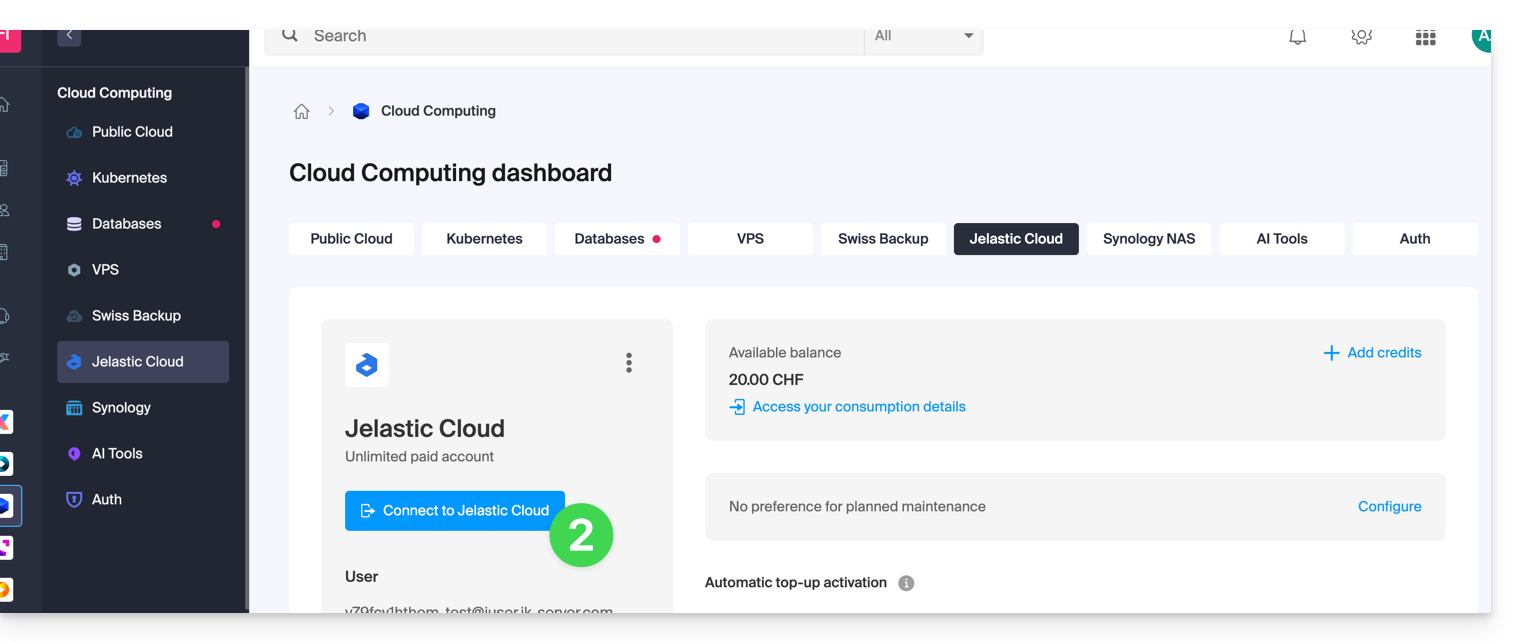
- Click on Log in to Jelastic Cloud:
1. Creating web servers
A web server hosts the content of your sites (php files, images, pdfs, etc.).
Here are the actions to perform to create the first server:
- Click on New environment.
- Click on the PHP tab.
- In App. Servers, choose for example an Apache server.
- Adjust the environment resources according to your needs.
- Choose Geneva DC2 for the server location.
- Rename the environment to easily identify it later (for example DC2-apache).
- Click on Create.
Create the second web server in another datacenter:
- Click on New environment.
- Click on the PHP tab.
- In App. Servers, choose for example a Apache server.
- Adjust the environment resources according to your needs.
- Choose Geneva DC3 for the server location.
- Rename the environment to easily identify it later (for example DC3-apache).
- Click on Create.
2. Creation of load balancers
A load balancer allows you to distribute the load and traffic of your sites between your web servers.
Here are the actions to perform to create the first server:
- Click on New environment.
- Click on the PHP tab.
- In Load Balancing, choose for example an NGINX server.
- Adjust the environment resources according to your needs.
- Choose Geneva DC2 for the server location.
- Rename the environment to easily identify it later (for example DC2-nginx).
- Click on Create.
Create the second load balancer in another datacenter:
- Click on New environment.
- Click on the PHP tab.
- In Load Balancing, choose for example an NGINX server.
- Adjust the environment resources according to your needs.
- Choose Geneva DC3 for the server location.
- Rename the environment to easily identify it later (for example DC3-nginx).
- Click on Create.
3. Configuration of load balancers and domain name
Now, you just need to tell the load balancers which web servers they should distribute the traffic to.
Start by creating the load-balancer.conf file on both load balancers:
- Connect via SSH to the
DC2-nginxserver by clicking on the Web SSH button of the environment. - Open the load-balancer.conf file:
nano /etc/nginx/conf.d/load-balancer.conf. - Adjust the file code with the URL of your web servers:
http {
upstream backend {
server apache-dc2.jcloud-ver-jpc.ik-server.com;
server apache-dc3.jcloud.ik-server.com;
}
server {
listen 80;
location / {
proxy_pass http://backend;
}
}
}
- Repeat these 3 steps for the
DC3-nginxserver.
Modify the load balancers configuration file:
- Connect via SSH to the
DC2-nginxserver by clicking on the Web SSH button of the environment. - Create the following configuration file:
nano /etc/nginx/nginx.conf. - Adjust the server configuration file URL:
user nginx;
worker_processes auto;
worker_rlimit_nofile 2048;
load_module modules/ngx_stream_module.so;
#load_module modules/ngx_http_modsecurity_module.so;
error_log /var/log/nginx/error_log info;
events {
worker_connections 2048;
use epoll;
}
include /etc/nginx/conf.d/load-balancer.conf;
- Restart the NGINX service:
sudo /etc/init.d/nginx restart. - Repeat these four steps for the server
DC3-nginx.
It is now necessary to indicate to your domain name on which servers the traffic should be redirected.
Prior to this, install a public IP address on your load balancers:
- Deploy the server node DC2-nginx.
- Hover over the Public IP line and click on the + that appears on the right.
- Add a public IPv4.
- Repeat these 3 steps for the server DC3-nginx.
At this stage, all you have to do is create two A records in the DNS zone of your domain name with the public IP of your two load balancers.
To ensure that changes are quickly taken into account, it is recommended to configure the A records with a TTL of 5 minutes.
In this example, the domain redirects your visitors to the load balancers, which in turn redirect the traffic to the web servers.
4. High availability infrastructure test
To test the proper functioning of your infrastructure, enter your domain name in a web browser and try in turn to disable an element of your infrastructure (one of the two load balancers, one of the two web servers). If everything works, you should still be able to access the content hosted on one of the two web servers.
Warning: data replication between web servers or database servers must be set up by you.
Link para esta FAQ: https://faq.infomaniak.com/2401
Esta seção de perguntas frequentes foi útil?