Base de conhecimento
1000 perguntas frequentes, 500 tutoriais e vídeos explicativos. Aqui, você encontra apenas soluções!
Reply to an email on the Infomaniak Web Mail app
This guide explains how to quickly react to an email on the Infomaniak Web app Mail (online service ksuite.infomaniak.com/mail).
Preamble
- Reactions are not possible if:
- you were a recipient of the message but in BCC
- you have already added 5 reactions
- if the message has more than 20 recipients and/or is of type newsletter or discussion list
- if the sender is
no-reply/catchall/postmaster - the message is encrypted or is among spam, drafts, scheduled messages or trash
- the message is the one announcing a previous reaction
- It is possible to cancel the sending of a reaction (even if you have not activated a send cancellation delay for emails).
Send a reaction in the form of an emoji
Prerequisites
- Have permission to manage sends: if you had been invited to the Infomaniak Web app Mail (online service ksuite.infomaniak.com/mail) in order to manage your address, it is possible that the Mail Service manager has removed this right from their admin account.
To quickly send a reaction emoji to a received email:
- Click here to access the Infomaniak Web app Mail (online service ksuite.infomaniak.com/mail).
- Open the email you want to react to.
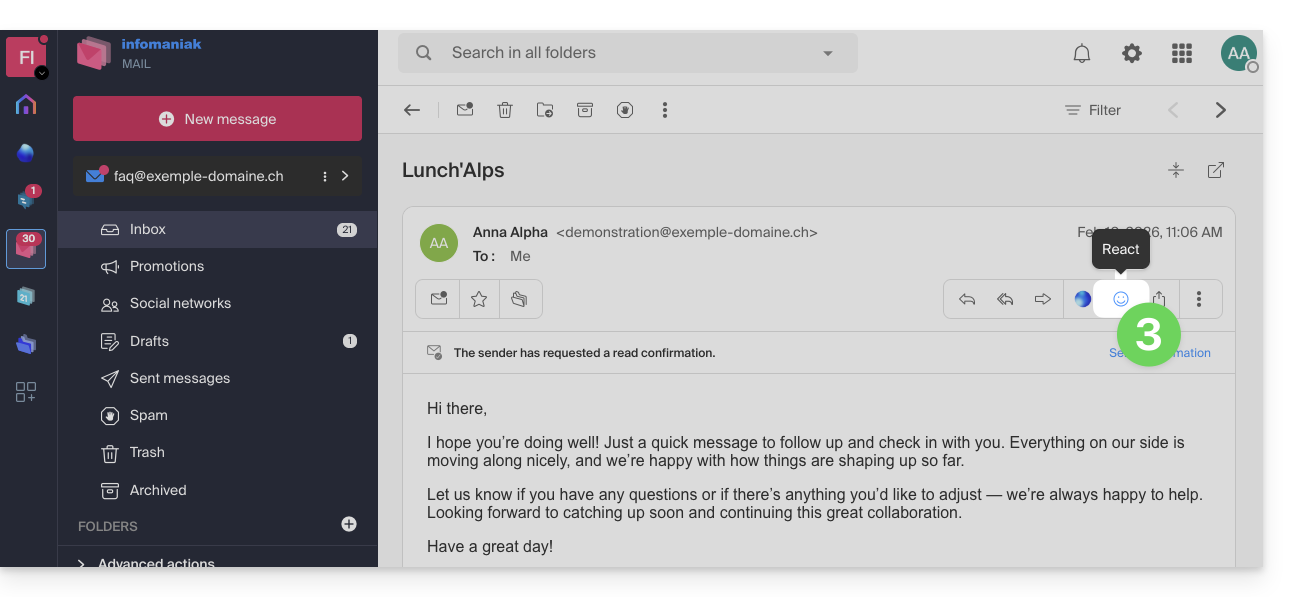
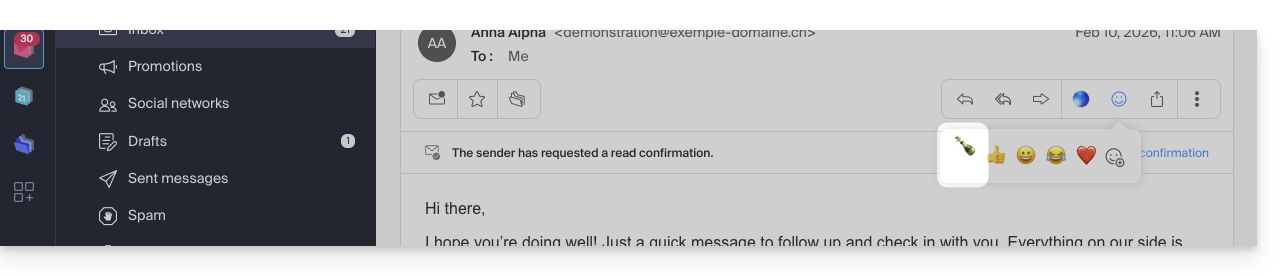
- Click on the “Smiley” emoji in the list of quick actions at the top right of the message:
- You can also access this feature via a button below the message:
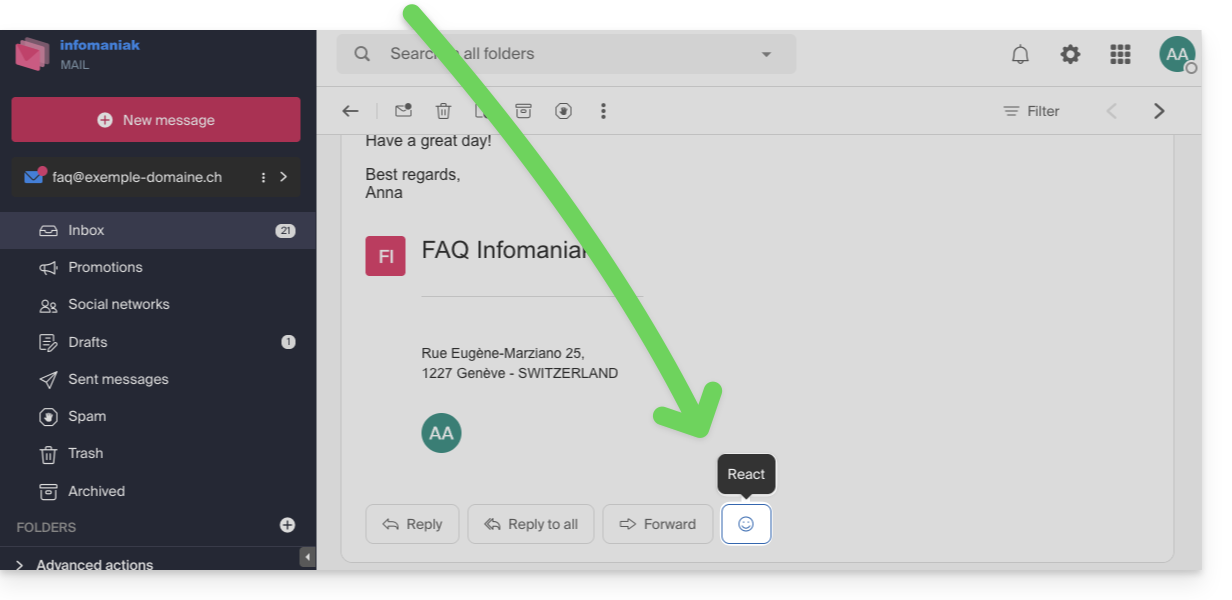
- You can also access this feature via a button below the message:
- Click on the emoji that best matches your reaction, it is added below the message and immediately sent to your correspondent.
- A cancellation is possible during sending from the notification displayed at the bottom of the screen:

- A cancellation is possible during sending from the notification displayed at the bottom of the screen:
- The emoji is displayed on the message in question.
- A trace of your reaction is also stored in the sent messages folder.
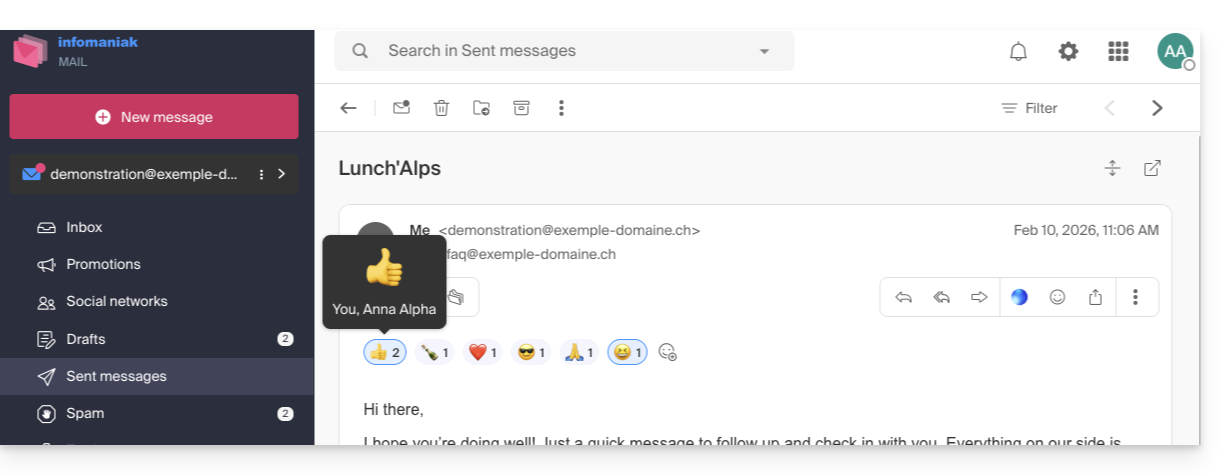
- If several people have intervened, it is possible to hover over the emoji to see who added which reaction:
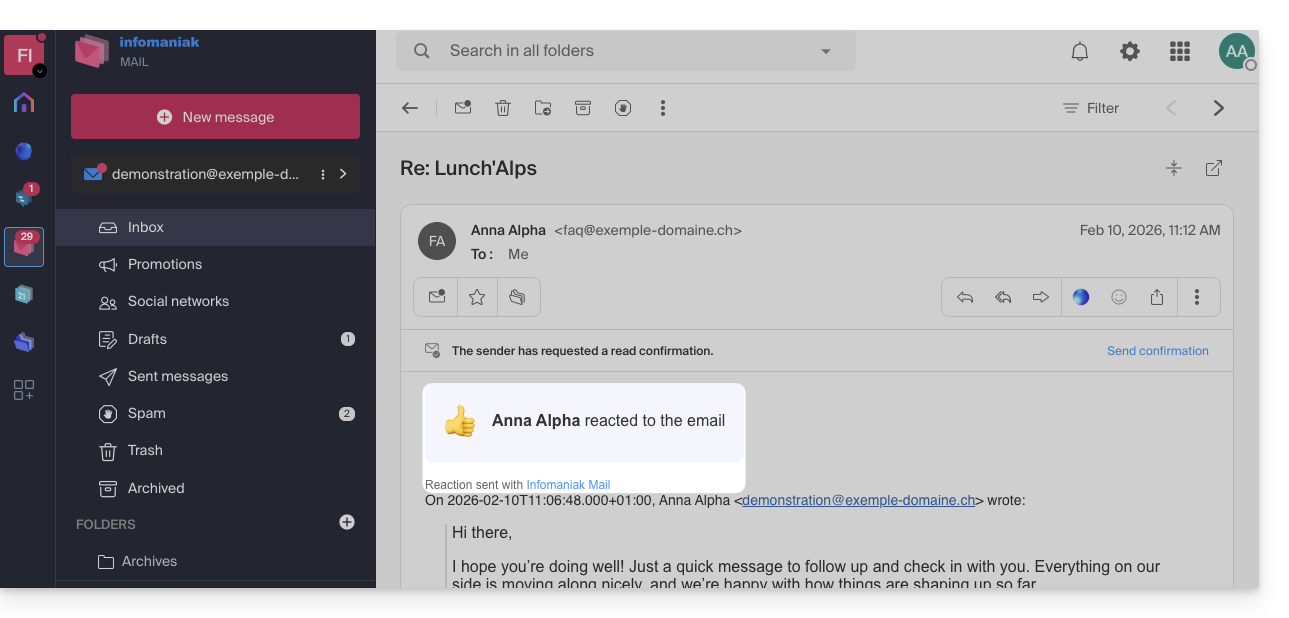
- The emoji is displayed to your correspondent who receives a notification as usual when they receive a response to their email:
- They can also respond to the reaction by email (but not by a new reaction) as usual when receiving a new message.
- The user who reacted to the email quickly finds the last emoji used in their list of reactions on the app, thus avoiding having to search for it each time:
Link para esta FAQ: https://faq.infomaniak.com/1573
Esta seção de perguntas frequentes foi útil?