Base de conhecimento
1000 perguntas frequentes, 500 tutoriais e vídeos explicativos. Aqui, você encontra apenas soluções!
Manually configure Apple Mail (macOS) in IMAP (mail)
This guide explains how to connect the desktop app Apple Mail (desktop application on macOS) to an email address hosted by Infomaniak.
Preamble
- Instead of the manual configuration below, it is recommended to use the .mobileconfig configuration profiles offered by Apple.
Manually add the email address to the application
Prerequisites
- Create the email address within my kSuite or a Mail Service / kSuite.
- Create a password for the email address for the device you are going to configure.
- Check that the Mail Service is configured optimally.
To configure the email application:
- Open the application.
- If you have already configured an address, click on the Mail menu then Add an account:
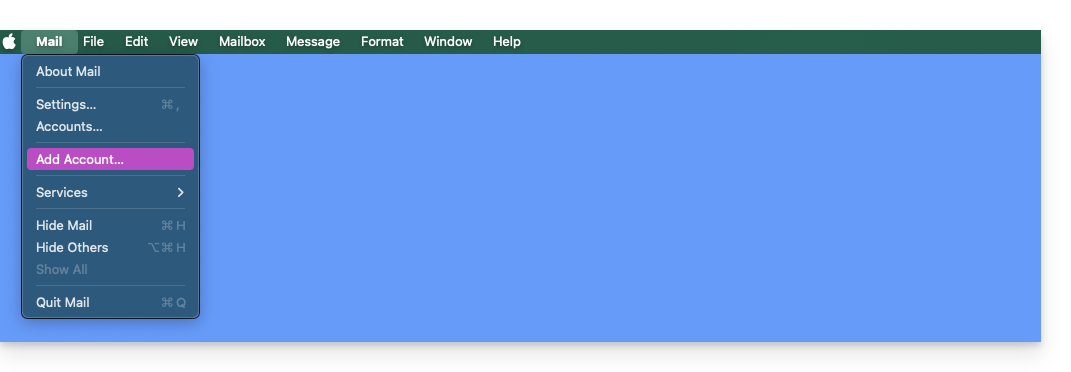
- If you have already configured an address, click on the Mail menu then Add an account:
- Click on Other account.
- Click on Continue:
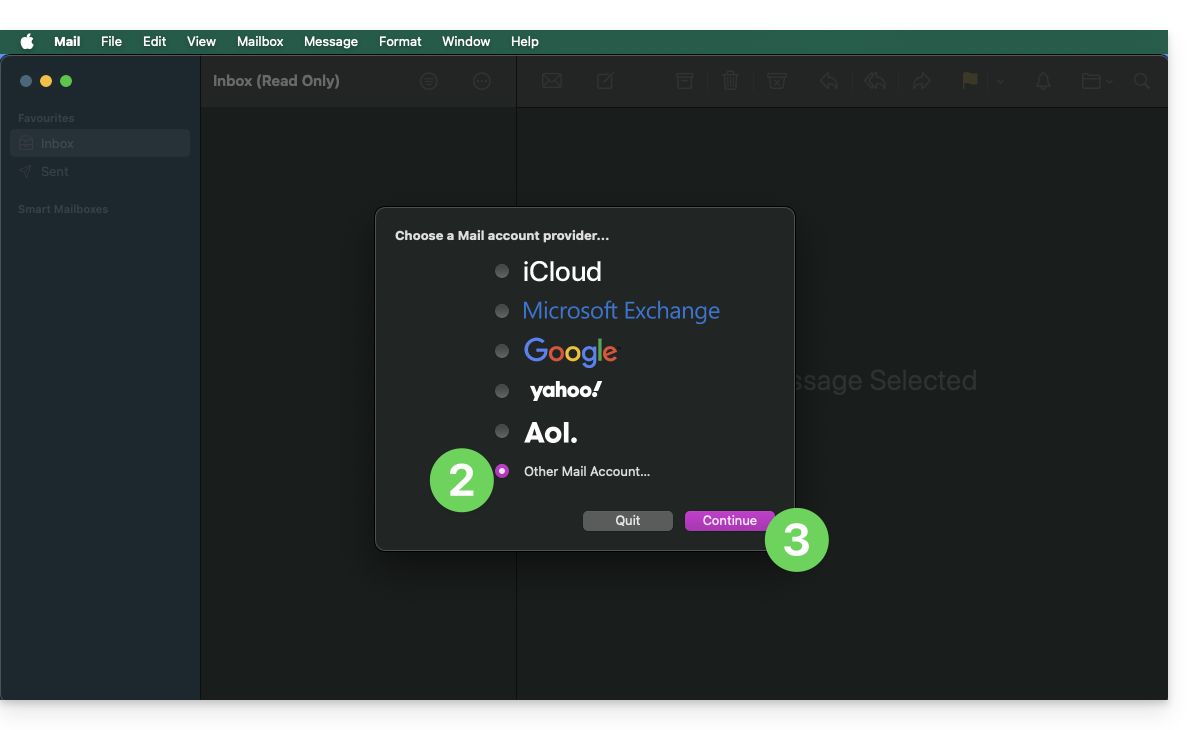
- Enter the account name.
- Enter the email address to be linked.
- Paste the password for the email address generated on the Infomaniak Manager.
- Click on the blue Sign in button:
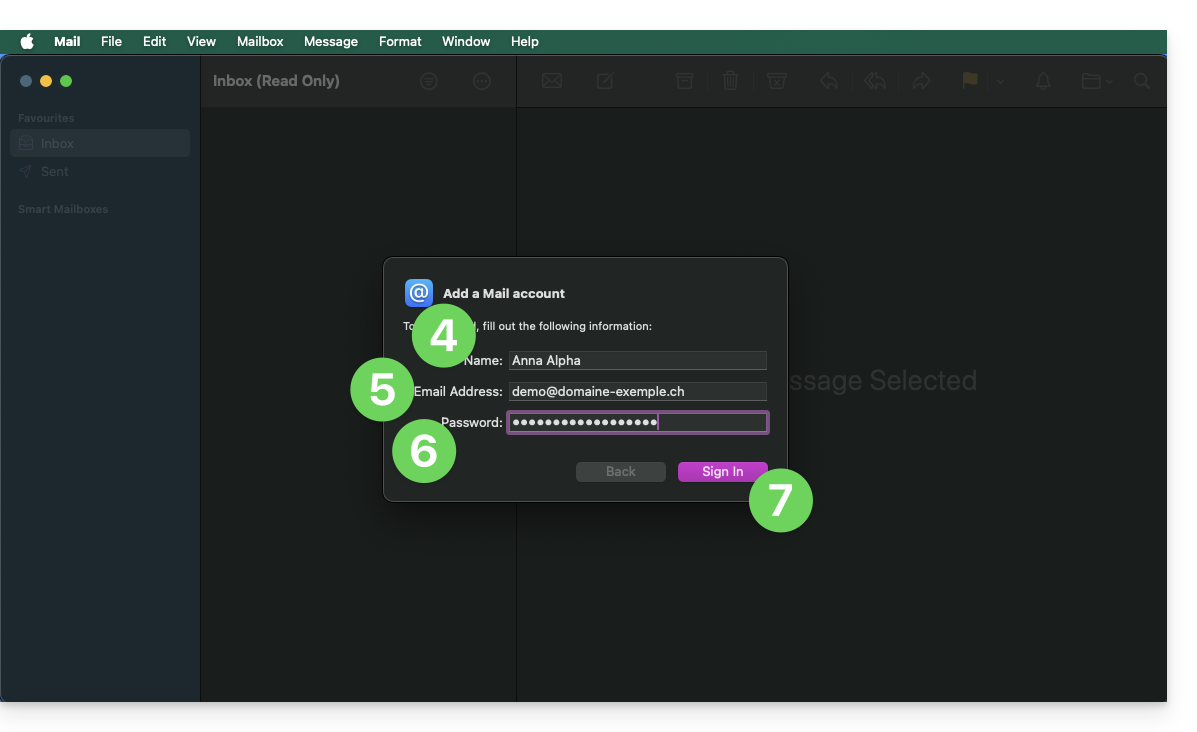
- Check and complete the missing information.
- Click on Sign in:
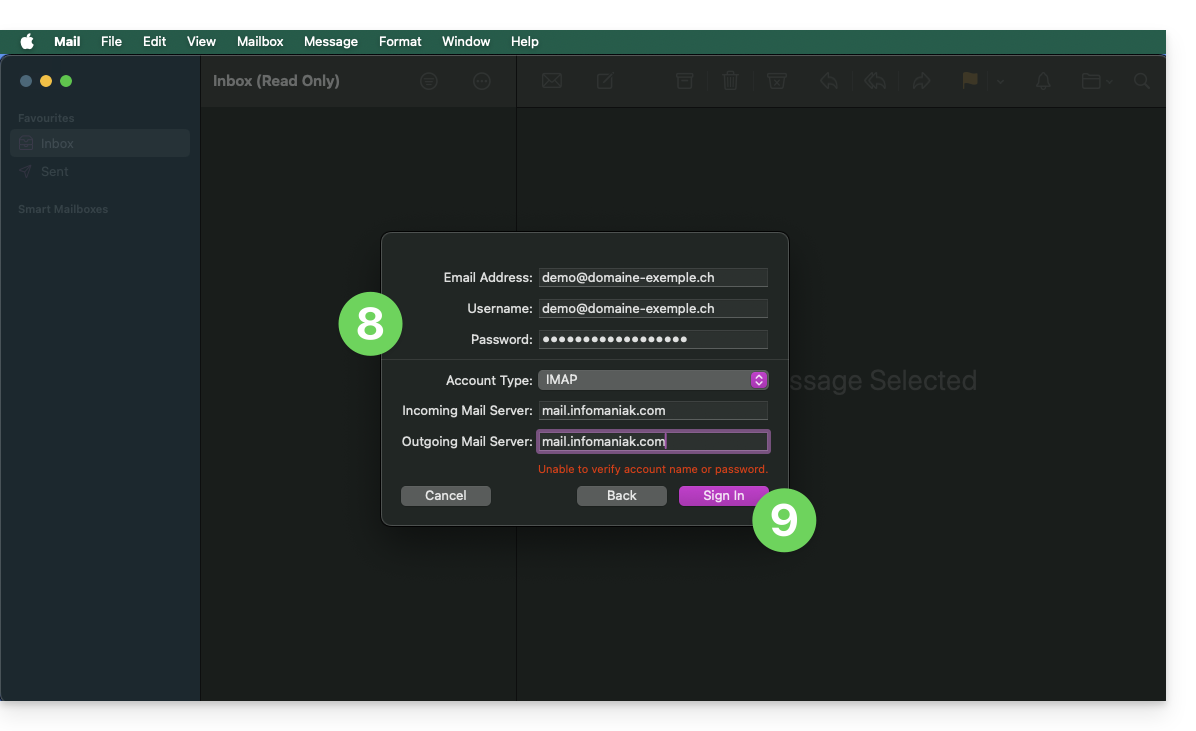
- Press the button to validate:
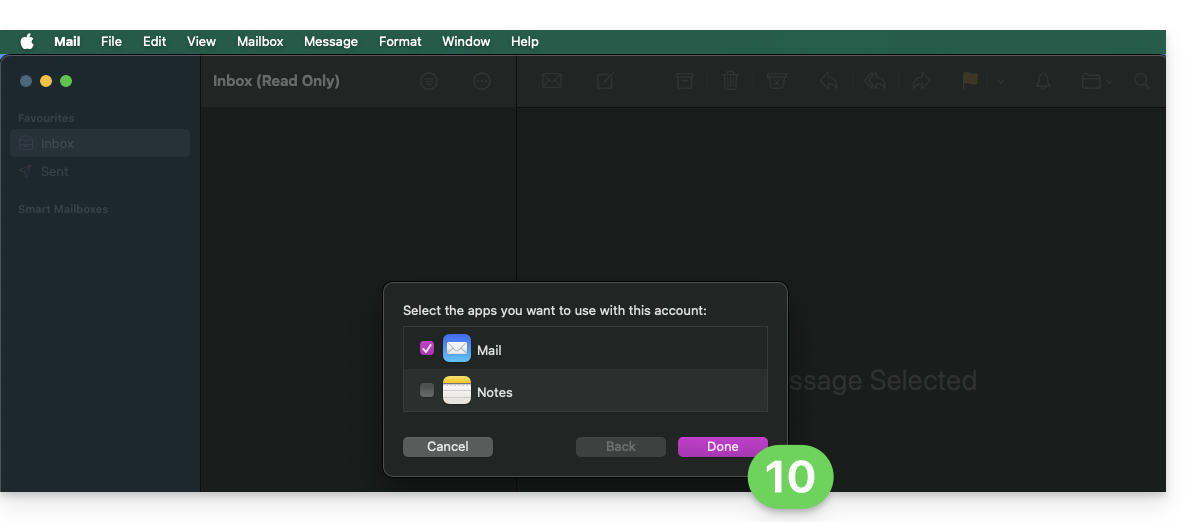
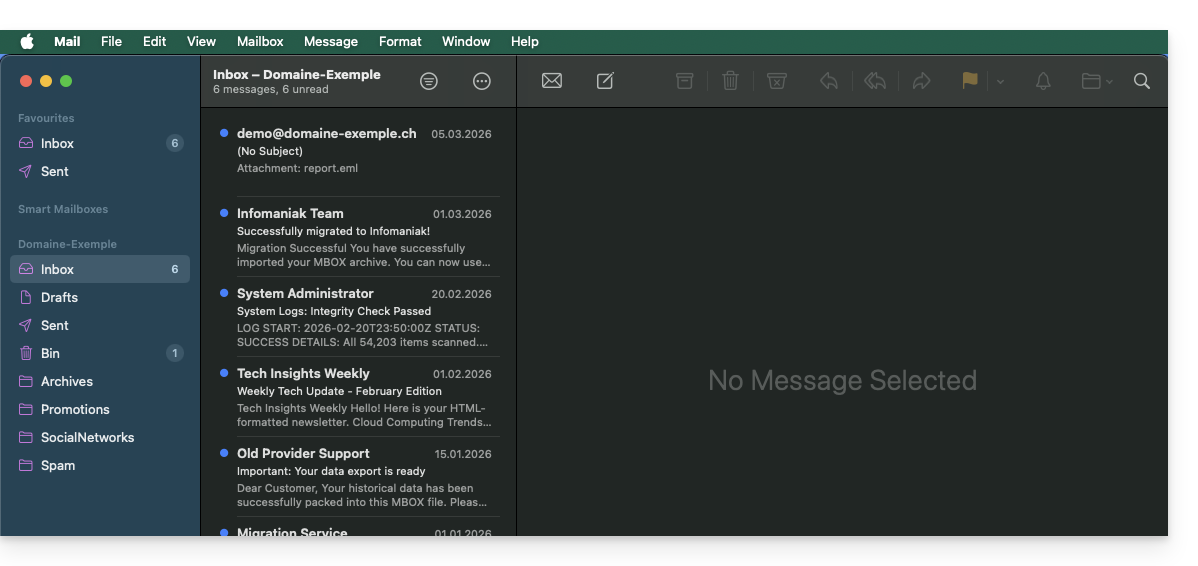
- Your email address is now configured in the application:
Recommended settings
- Incoming IMAP server =
mail.infomaniak.com - IMAP port =
993(with SSL) - Outgoing SMTP server =
mail.infomaniak.com - SMTP port & encryption protocol and command/method to activate this protocol:
587+ STARTTLS - Username = full & complete email address ( ? )
- Password = the one generated for the email address you want to check
- Authentication required for sending emails:
- It is activated in the SMTP settings of your application.
- Check "use the same parameters as the incoming server" or, depending on the software/email clients, enter a username (= full & complete email address) and the generated password.
Refer to this other guide if you are looking for information about other compatible messaging ports and protocols (SSL / TLS for example).
In case of problem
There is no need to contact Infomaniak Support if your email address works well outside the application. The most common error concerns the use of an incorrect password. The tool offered within Apple Mail can indicate this to you: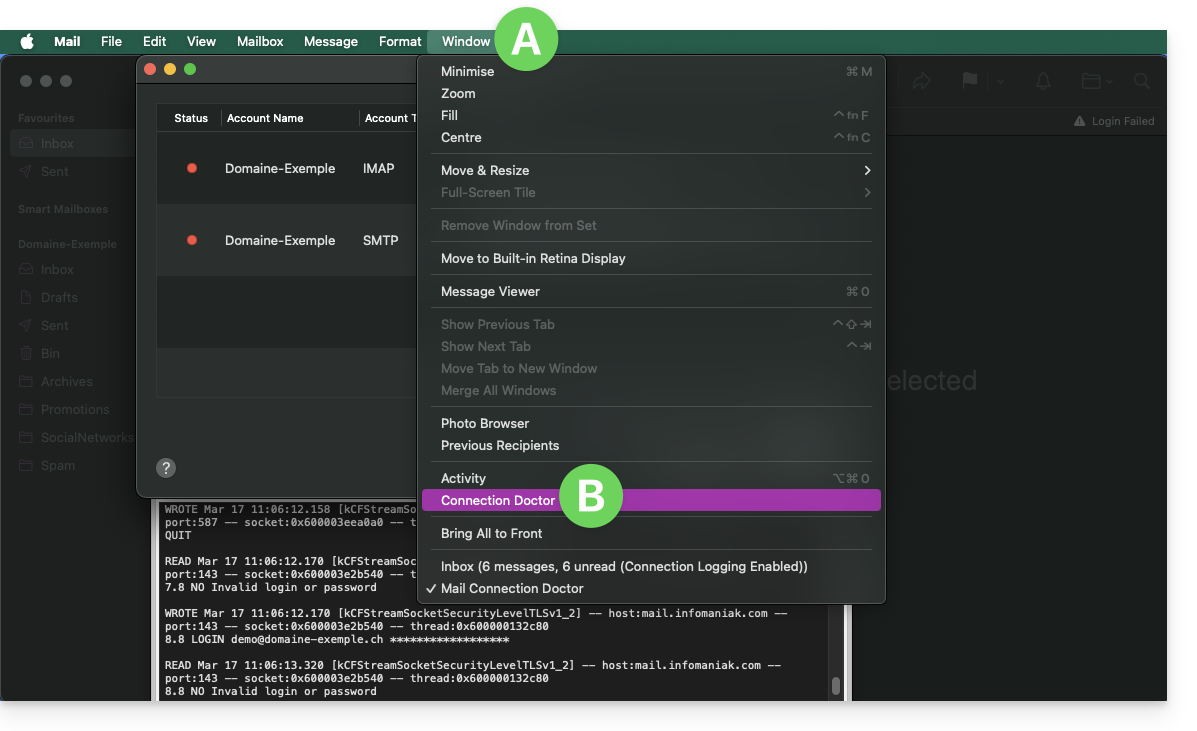
Create a new password from the Mail Service and reconfigure your account on the messaging application.
The troubleshooting guides help you resolve any potential issues:
- Refer to the solutions given in this other guide regarding email in general.
- Delete any Apple configuration profiles linked to your Infomaniak email before reconfiguring.
And if your Apple Mail no longer works since a change of email password, refer to this other guide.
Link para esta FAQ: https://faq.infomaniak.com/2442
Esta seção de perguntas frequentes foi útil?