Knowledge base
1000 FAQs, 500 tutorials and instructional videos. Here, there are only solutions!
Manage kChat conversations
This guide details the principle of kChat conversations, organized within private and public discussion channels, and direct discussions between users.
Start a conversation
To write to a user in your Organization, click on their name in the member list on the left side of your kChat interface: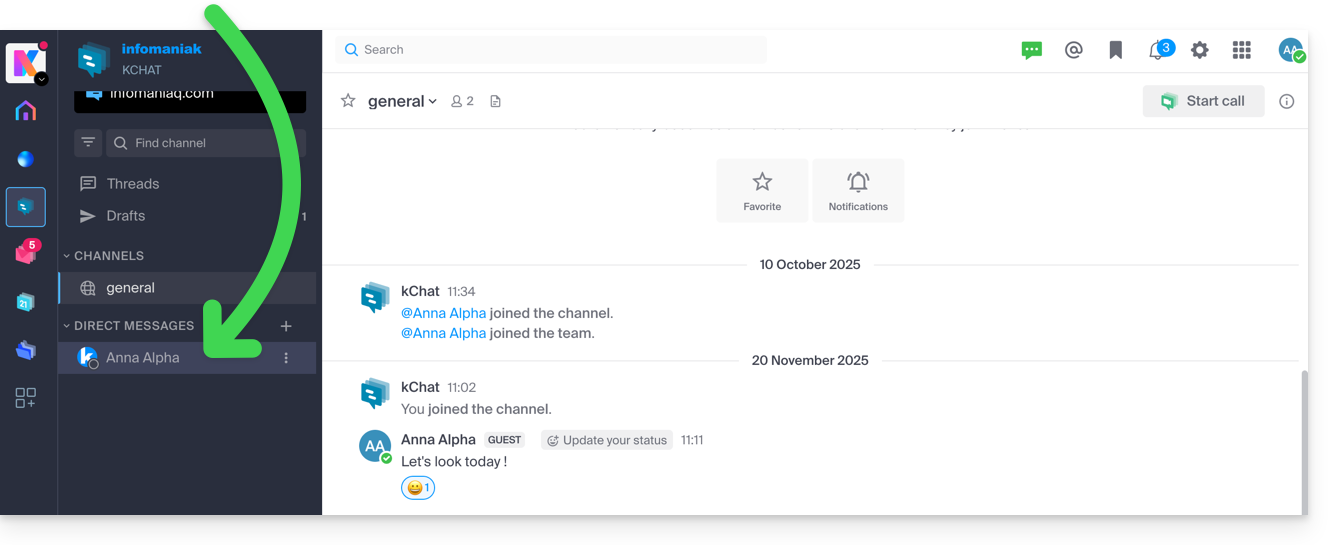
You can also click on the + to the right of Personal Messages to select up to 7 members and create a group conversation: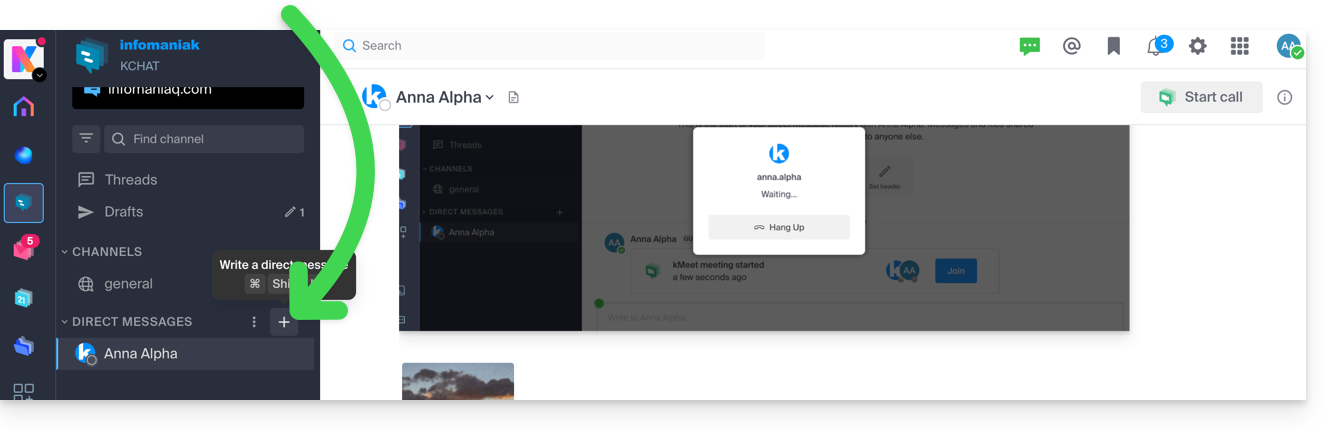
Compose and send your message by pressing the send button: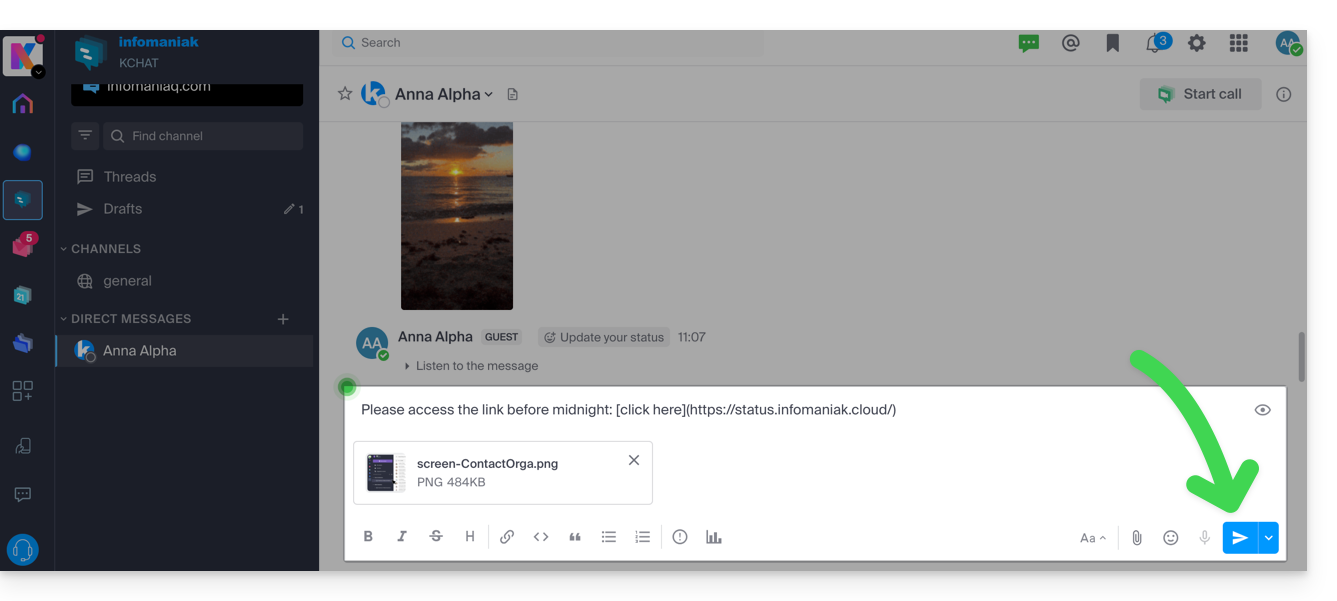
If necessary, you can attach files up to 100 MB. You can also use “reactions”.
Scheduled sending: schedule a message
✘ UNAVAILABLE with
my kSuite / my kSuite+ (ik.me, etik.com, ikmail.com)
Free kSuite does not allow customization of the time when scheduling.
To schedule a message to be sent at a later date/time, simply click on the chevron to the right of the send button and then choose the time the message should be sent: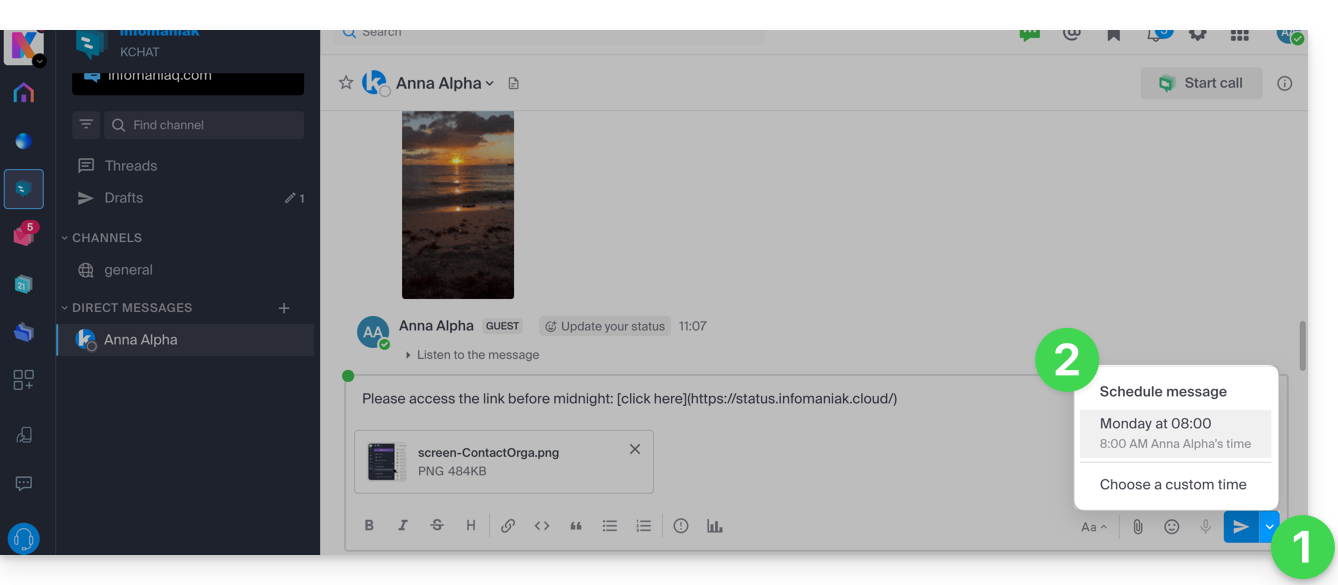
On the kChat mobile app (iOS/Android smartphone or tablet app), press for a few seconds on the send button, and a menu to schedule the message will appear.
Mention another user
To contact one of the Organization members (or an entire work team) via a message, type the at sign @ to display the people or channels to mention:

Note that depending on the type of channel concerned, mentioning a user displays a message allowing you to add them to the discussion (or notify them) otherwise they will not see the mention.
Request a read receipt
For users to acknowledge receipt of your message and thus indicate that they have read the message, activate a read receipt before sending the message on the channel, by clicking on the icon (!) and then activating the toggle switch: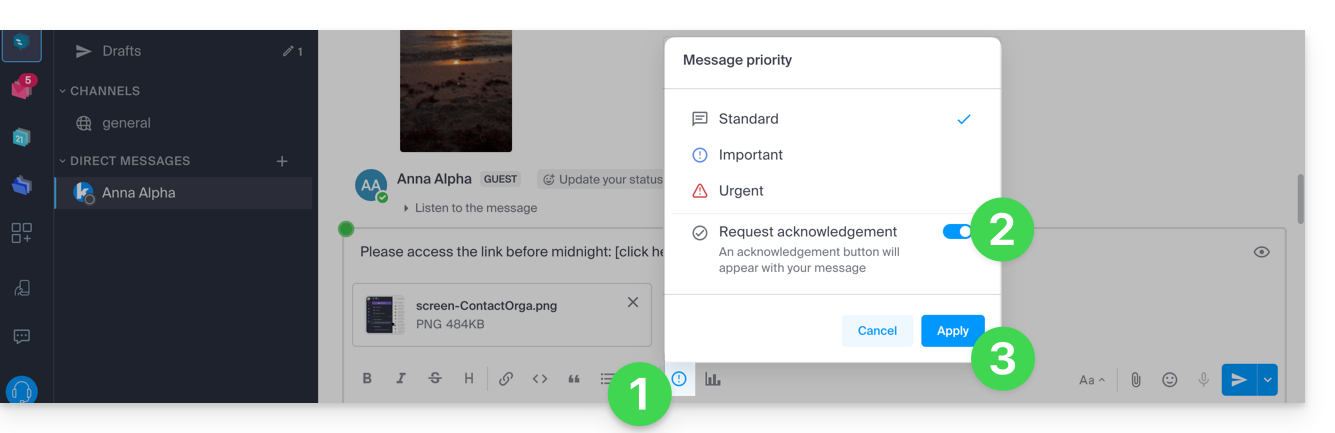
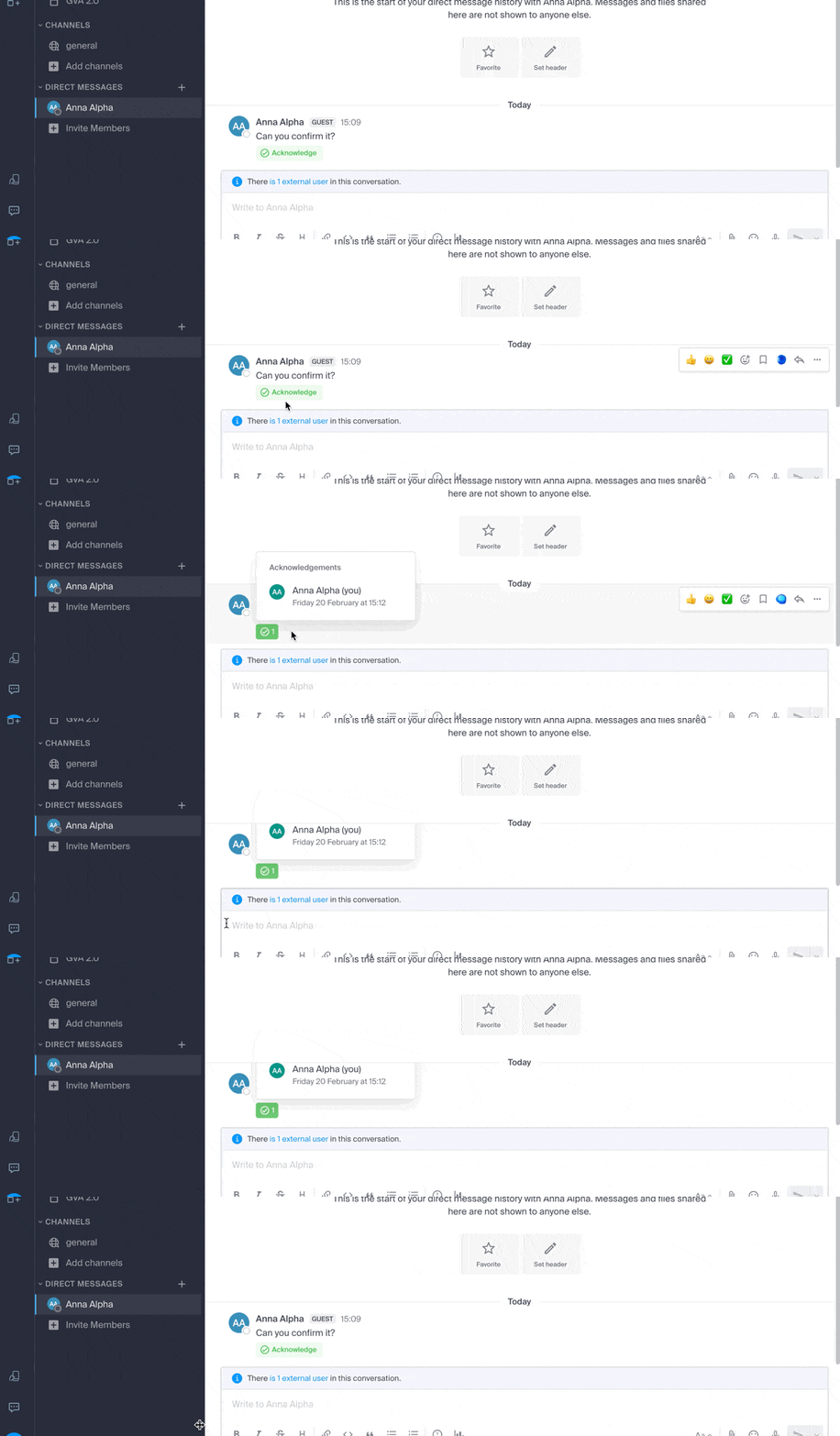
Once the message is sent, the result will be as follows:
Edit/delete a message, or pin it
To edit a message (which will then have an edited message note), click on the action menu to the right of the message to edit. In the same place, you can also delete your message, which will then disappear from the discussion for all users:
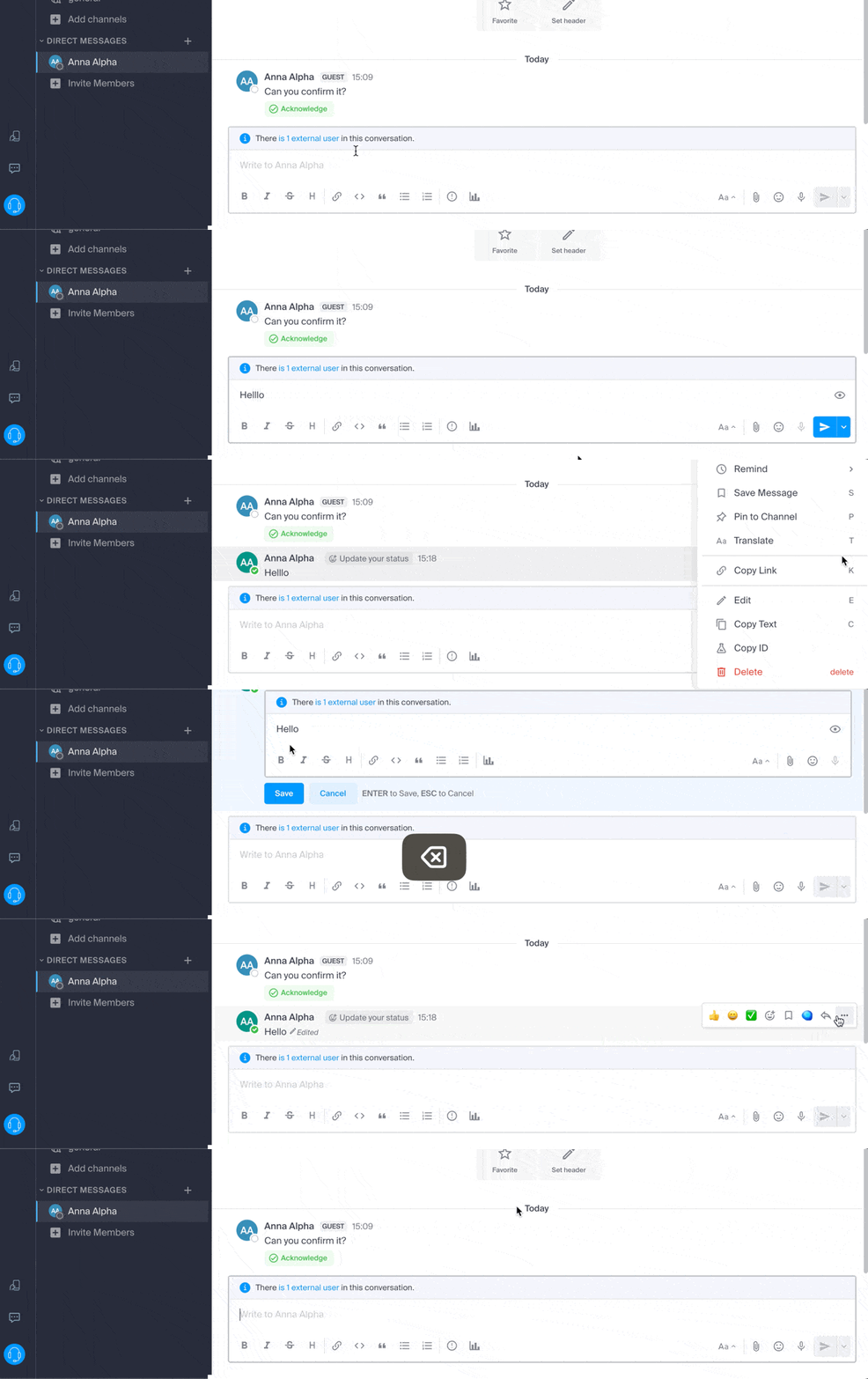
An indication regarding the deletion will appear to all other users of the channel at the original location of the message.
In the same place, you can pin a message:
- Pinned messages are visible to all members of the channel, whether it is public or private.
- Pinned messages in a private channel are only accessible to members of that channel.
- You can view the list of all pinned messages via the « Pinned Messages » option of the channel.
- To remove a pinned message, hover over it again and select « Unpin ».
Organize conversations in kChat
The sorting type for the items you manage on the left side of the screen is very important.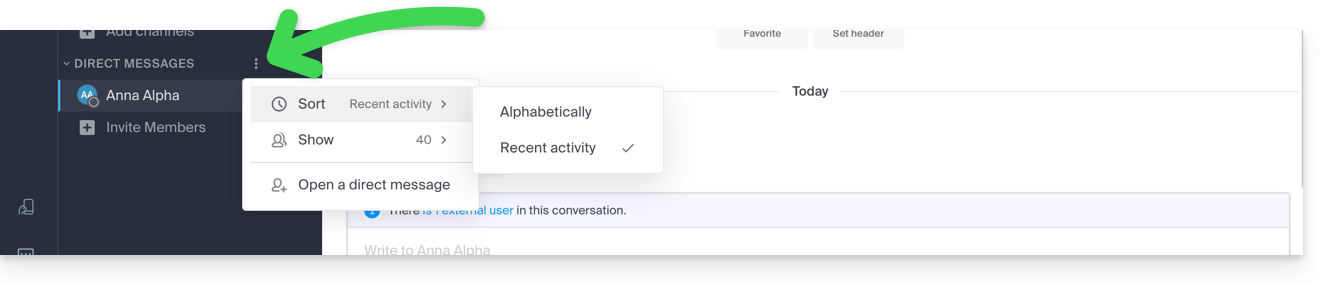
Imagine opening kChat after several days of absence, unread conversations will be displayed one after the other. After reading them, you may want to find a piece of information read among them, so sorting by recent activity, for example (see below for other possibilities), allows you to find the latest conversations that concerned you.
This sorting type choice is available for all items: discussion channels, categories, direct messages, etc.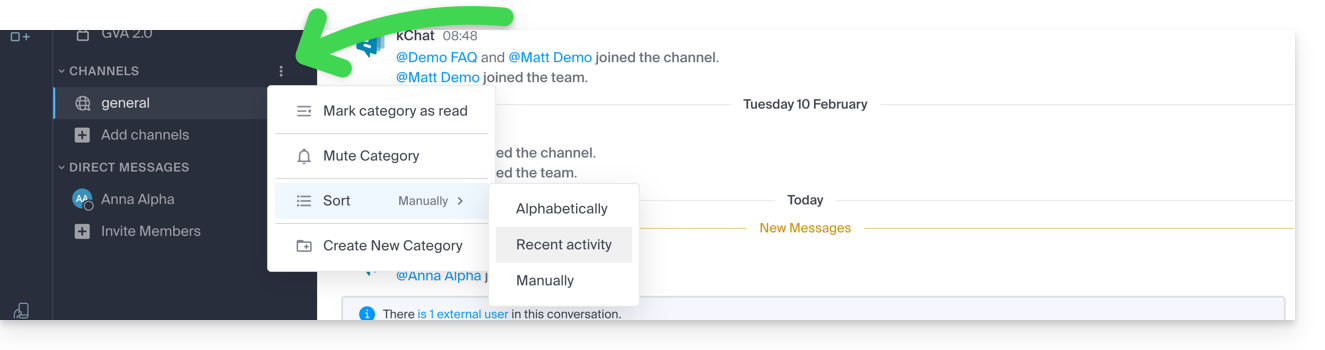
Search for a conversation
The search for items (word, participant, file) is at the top of the window. Once results are found, they appear on the right side of the window: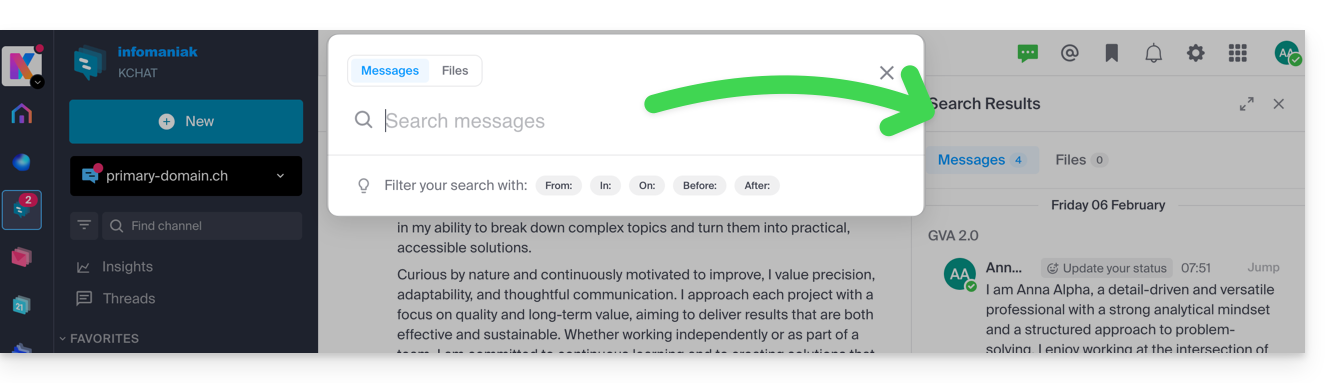
Discussion thread
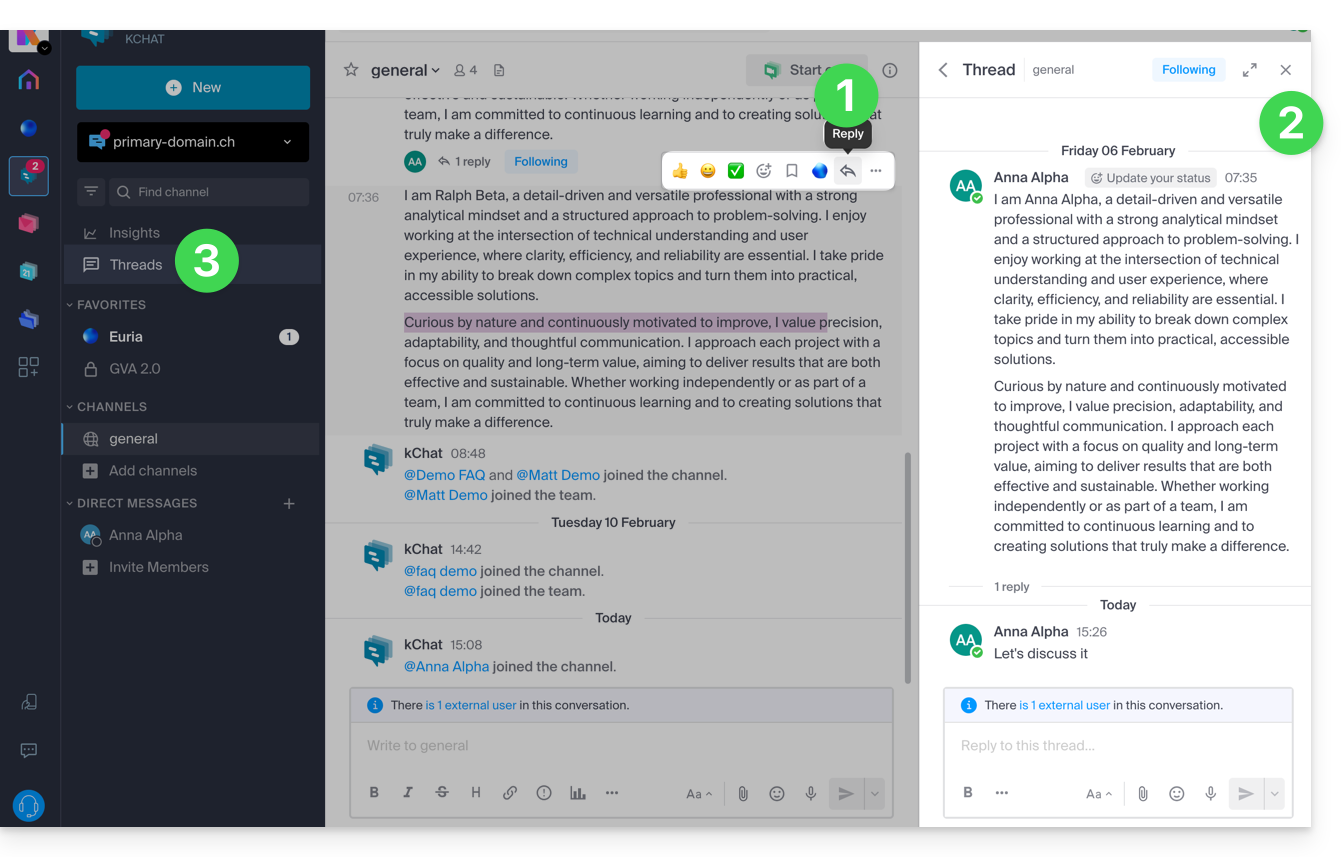
- Regardless of the channel or private chat with another user, you can start a discussion thread from another simply by choosing Reply on the desired message.
- A discussion thread will open in a right sidebar panel allowing each user of the channel to contribute their comments in this specific thread without disrupting any potential new topics of the ongoing channel (this thread can then be followed or ignored to no longer receive notifications when a new message is received — following is managed at the top of the sidebar).
- These discussion threads are then centralized to be read and reread in the Discussion Threads section of the left sidebar.
Link to this FAQ:
Has this FAQ been helpful?